
Files, with Habibi
Type @ in the main Habibi search bar or in Ask Habibi to choose a file or folder,
then describe the outcome. File tools, timers, and reminders stay in the
conversation rather than adding more sidebar apps.
Try it here#
Choose a task below, prepare a proposal, and uncheck a file. Try Cancel before confirming a change, then try Undo. For compression and PDF operations, notice that a private preview and saving an output need separate confirmations.
Try the steps with sample files. This demo does not access or change your files.
Try a reviewed file action
Try with sample files. Your own files stay untouched.
Choose a task, then prepare a proposal. Nothing has run.
- scan-01.pdf
- scan-02.pdf
- scan-03.pdf
The screenshots and recording below show Habibi using sample files.
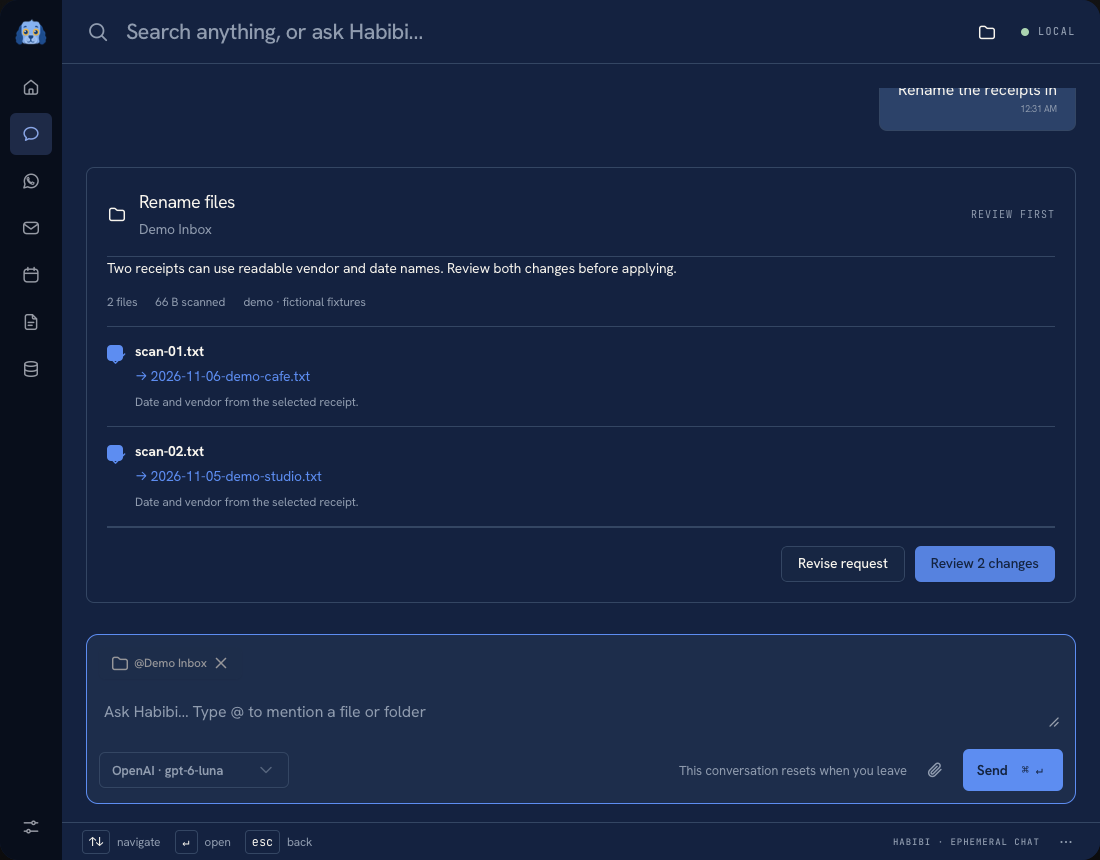 AI rename preview using fictional receipts
Watch the workflow#
Watch how to select a folder, review proposed names, confirm selected changes, and undo them.
Mention the exact context#
The main search bar supports the same picker as chat. Type Hello @ or
Rename the receipts in @Downloads, choose a suggestion with the arrow keys
and Enter, then press Enter again to continue in Ask with that path selected.
Escape closes the picker without dismissing Habibi. Selected paths become compact
@Folder or @File tags; hover a tag to see its full path. Remove it with its
close control or Backspace at the start of the input. Editing the request text
keeps its selected tags.
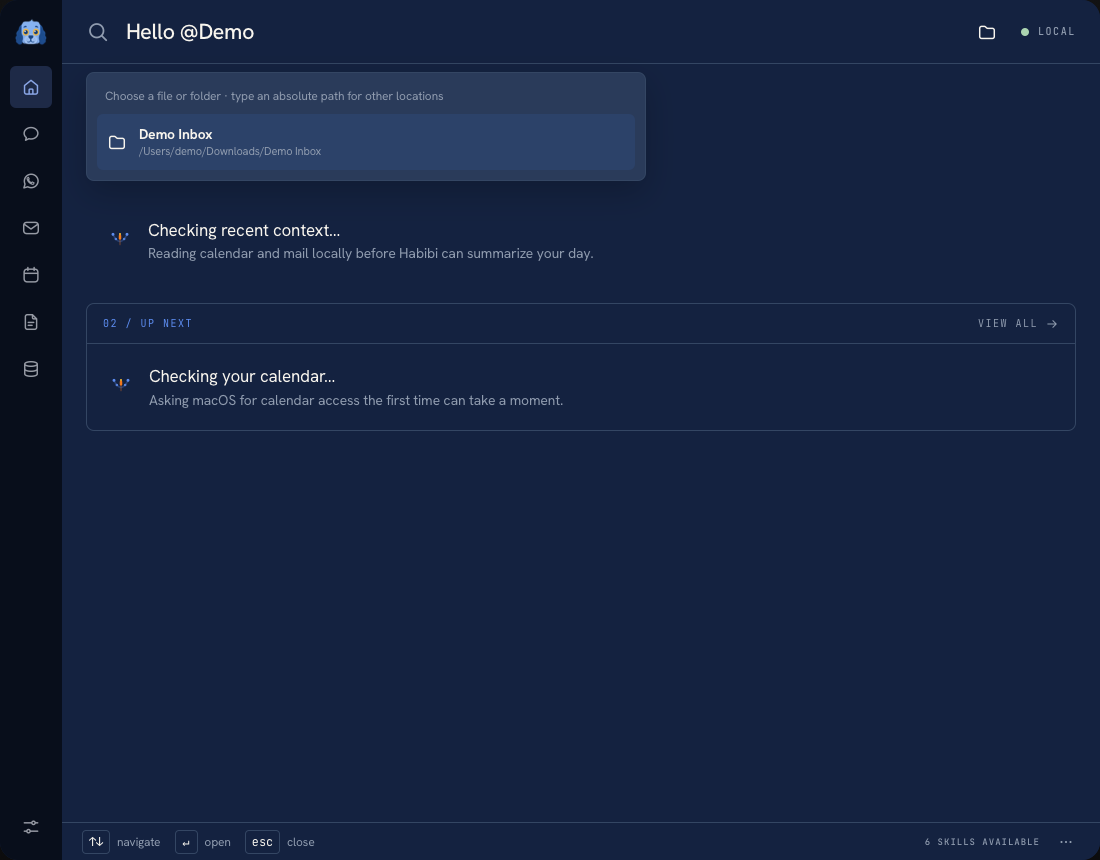 Path mentions in the main Habibi search bar
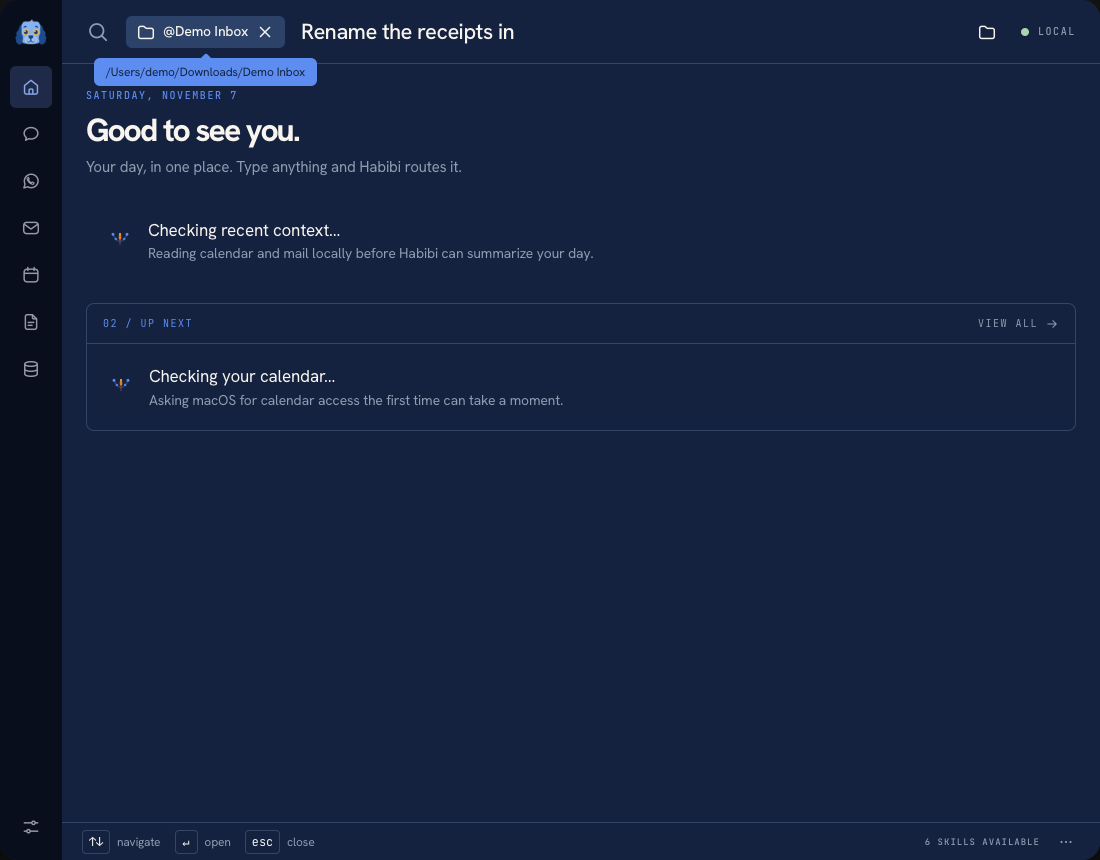 Compact path tag with its full-path tooltip
Type @Downloads and choose the folder, or type an absolute path such as
@"/Users/demo/Downloads/Receipts". Paths with spaces use quotes. Arrow keys
select a suggestion; Enter inserts it. Selected paths appear as removable chips
above the composer and remain available for follow-up requests in that conversation.
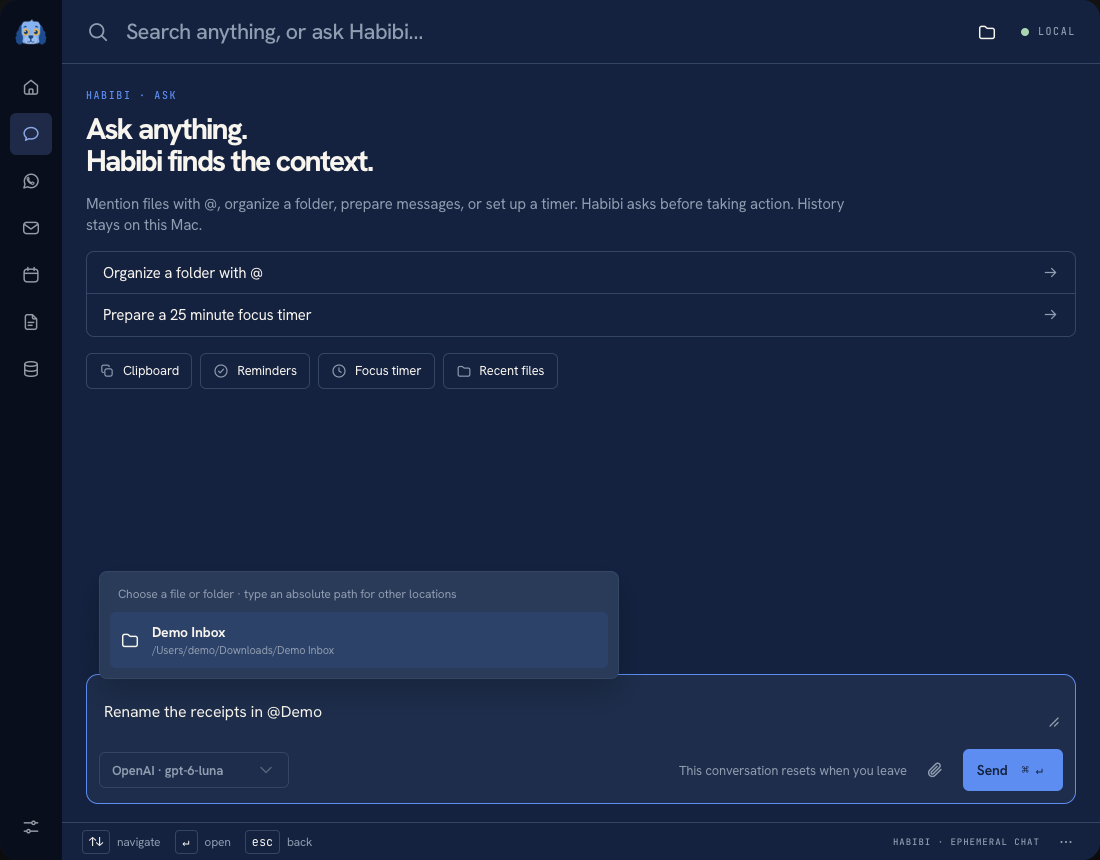 Mention picker for a fictional folder
Habibi uses only the files and folders you select. External drives work when macOS grants access to the selected folder. Nothing scans the entire disk automatically.
Things to ask#
| Outcome | Example |
|---|---|
| Rename a batch | “Rename the invoices in @Receipts by vendor and date.” |
| Organize a folder | “Sort @Downloads into sensible folders. Preserve file extensions.” |
| Understand storage | “What takes the most space in @Projects? Explain using actual sizes.” |
| Find duplicates | “Find identical copies in @Receipts and suggest which to keep.” |
| Merge PDFs | “Merge @Report and @Appendix into report-with-appendix.pdf.” |
| Extract or reorder pages | “Make a new copy of @Report containing pages 3, 1, and 2, in that order.” |
| Rotate pages | “Rotate page 2 of @Report clockwise and save a new PDF.” |
| Compress images | “Make a JPEG copy of @Photo, 1,200 pixels wide and under 500 KB.” |
| Compress a PDF | “Make a smaller copy of @Report at quality 60.” |
| Extract data | “Extract vendor, date, currency, and total from @Receipts into expenses.csv.” |
| Choose a version | “Which file in @Proposals is the final proposal? Show your evidence.” |
The task selector lets you correct the requested operation before planning. You can work with PDFs and images without installing extra conversion tools. Scanned PDFs may need readable text or a description to produce a useful plan.
Review what is shared#
Prepare with AI sends your request, relative filenames, sizes, and modification dates to your configured provider. Include readable contents is off initially. Enable it when vendor names, invoice values, or document wording are needed.
Storage and exact-duplicate scans also offer Scan locally, which does not call a model. Duplicate checks compare file contents; similar names alone do not make two files duplicates.
For large folders, Habibi may review only part of the contents. Check any incomplete-scan notice before making changes. Reported file sizes may differ from the disk space you recover.
Preview, apply, Undo#
- Check every old and proposed filename, destination, or output.
- Uncheck any change you do not want.
- For converted files, choose Review output preview, then Generate previews. Open Preview output and check the result before saving it.
- Choose Review changes, then explicitly approve the selected operations.
- Use Undo these changes in the same conversation if needed.
Planning only proposes changes. It does not compress, convert, rename, move, or remove files. Generating output previews requires its own explicit confirmation; saving the selected outputs requires another. You can skip preview generation and approve conversion and saving together in the final dialog. Existing files are never overwritten. If a source changes after preview, the operation stops and asks you to prepare a fresh plan. Keep the conversation open until you have checked the result: Undo controls are scoped to it and do not survive restarting Habibi.
Undo restores names and locations only if the affected files have not changed. Undo keeps generated copies rather than deleting them. Compression targets are best-effort and the measured result is shown; a copy can be larger than the original. A compressed PDF may lose selectable text and some image detail. Originals are preserved.
AI-selected actions such as opening websites, folders, apps, and searches also wait for Confirm action. Cancelling runs nothing. You confirm each action separately; the AI cannot approve it for you.
Allow cleanup#
Removal is off by default. Allow cleanup permits a new AI plan to propose moving files to Trash. You must still select the proposed removals and approve them in the final dialog. This does not enable permanent deletion or empty Trash. Exact-duplicate cleanup plans must retain at least one verified identical copy. Do not assume a storage suggestion is disposable just because an AI proposed it.
Timers and reminders are part of Ask#
Ask “Prepare a 17 minute focus timer called Write proposal” or “Remind me tomorrow at noon to pack lunch.” Habibi prepares the control or editable reminder in chat. Start the timer or review the title, due date, and list before choosing Create reminder. A reminder is saved only after you confirm it.
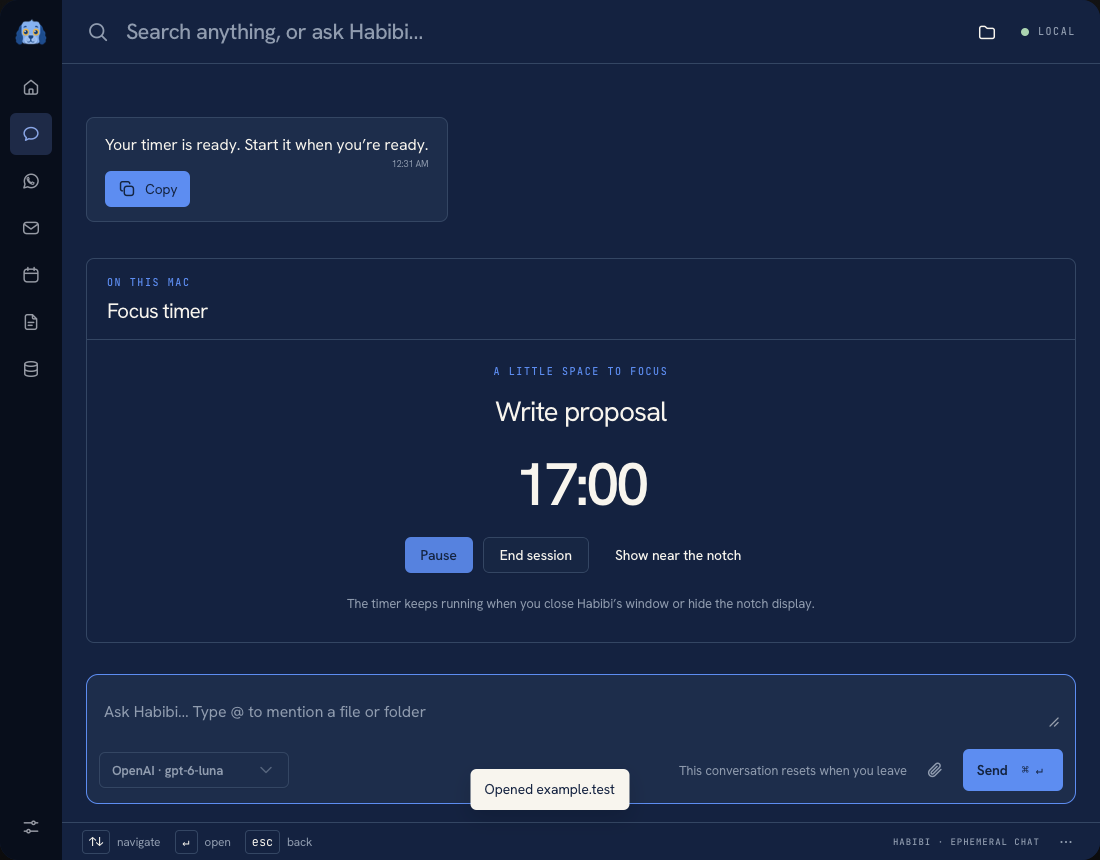 Focus timer inside the AI conversation
“Show my clipboard” and “Show my recent files” open inline controls too. Clipboard history remains opt-in; personal clipboard data is not automatically submitted to the model.
Was this page helpful?