
Settings
Open Settings from the bottom of the left sidebar or choose Preferences from the Habibi menu. Preferences are stored on your Mac.
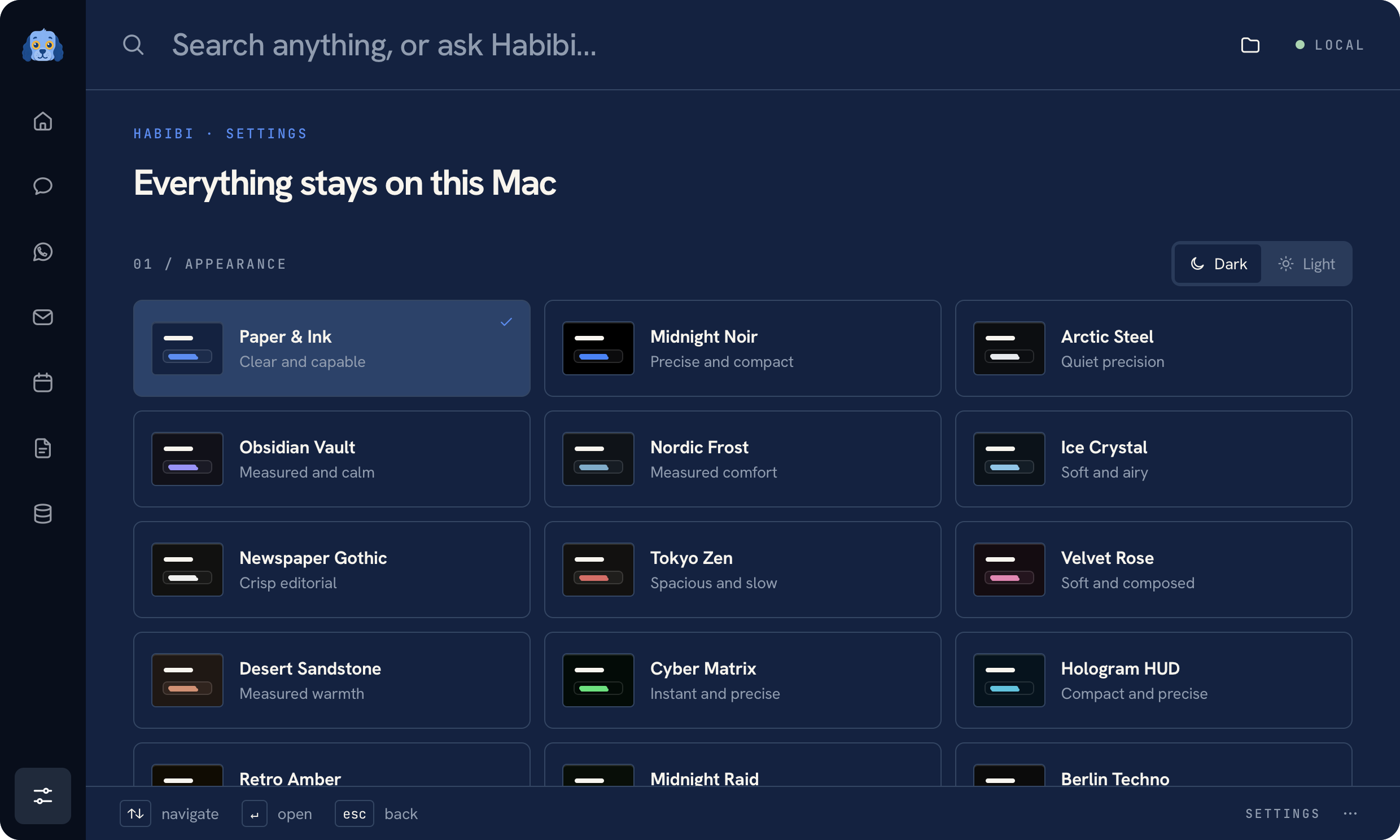 Settings with fictional local configuration
Appearance#
Choose light or dark mode and a theme. Paper & Ink is the default. Older Clidey Ink selections migrate to it automatically. A theme changes the shared palette while keeping the same product controls and navigation.
Launcher shortcut and menu bar#
Choose Launcher shortcut, start recording, and press the key combination you want to use. Habibi checks availability before saving it. Avoid a combination that another launcher or a macOS feature is already using.
Menu bar → Show menu bar icon applies immediately and persists across launches. When the icon is hidden, use your configured shortcut or open Habibi.app from Applications to bring the launcher back.
Search#
Web search → Default search engine selects the engine used by Habibi, including Google, DuckDuckGo, and Bing. This is separate from your browser's own search preference.
Local search shows index health and lets you refresh it. See Search and files for the indexed locations and limits.
Home, startup, and accounts#
Use Home layout to select the briefing, calendar, recent mail, suggestions, and keyboard footer. The minimal Home setting keeps the page quiet until useful context is available.
Start Habibi at login controls the macOS login registration. Connected services provide access to model and account setup. Product analytics has its own toggle; the data contract is explained in Privacy.
Was this page helpful?