
Notes
Type Notes in the launcher or use its sidebar icon to open the editor. Create a page with + or ⌘N. Changes autosave on this Mac.
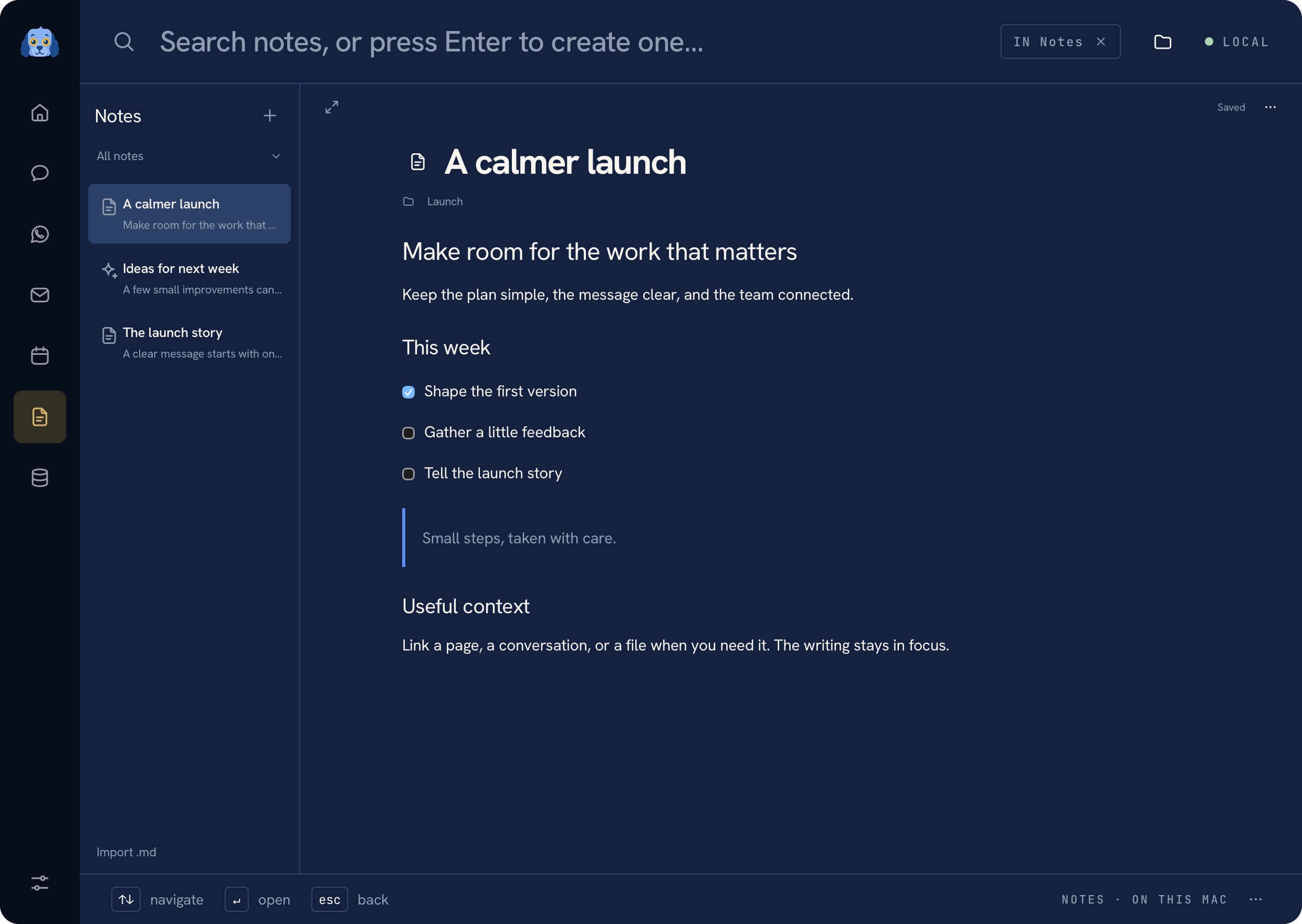 Rich notes with fictional launch pages
Write in the page#
Markdown becomes formatted content as you type. Select text for the contextual
formatting toolbar, or type / at the beginning of a block for headings, lists,
tasks, quotes, code, dividers, and tables. Use arrow keys and Enter in the command
menu; Escape dismisses it. Text colors and highlighting live in the selection
controls. Standard undo and redo shortcuts also work.
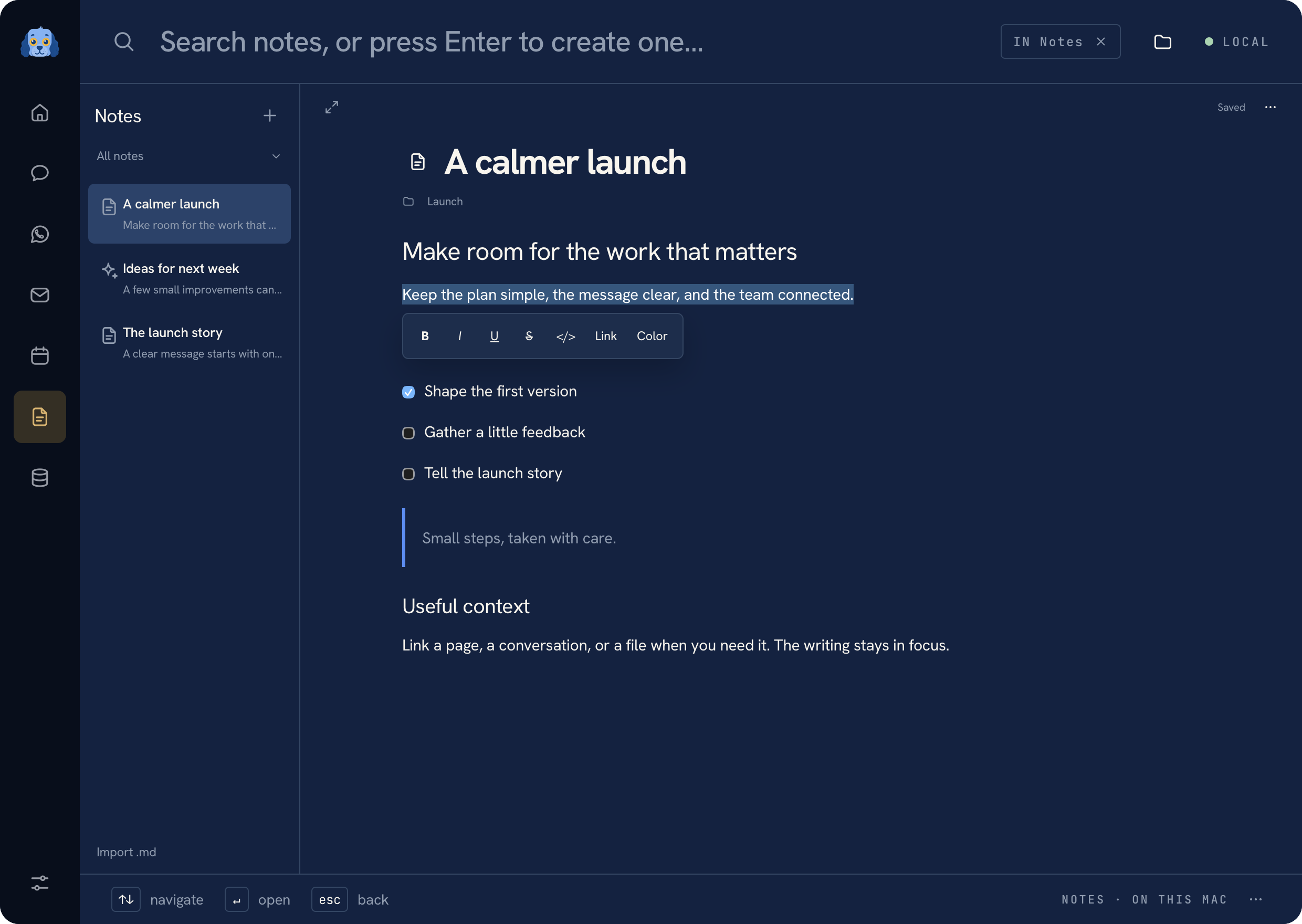 Contextual formatting appears when text is selected in a fictional note
The page menu (…) holds secondary actions such as copying, exporting, moving a page, and sending it to Trash. Use the expand control to hide the page list when you want more writing space.
Organize by dragging#
- Drop a page onto another page to name a new folder containing both.
- Drop near a page's top or bottom edge to reorder it. The insertion line previews the saved position.
- Hover the collection picker while dragging to reveal folders, then drop into one. Dropping on All notes moves the page out of its folder.
- ⌘-click or Shift-click to select multiple pages. Drag the selection or use the contextual Group pages action.
A cancelled grouping leaves the library unchanged. Moves save pending drafts first, and manual page order persists across launches.
Link pages and connected items#
Type [[ to find another page, or press ⌘K to open the link picker. You can
also link mail, WhatsApp conversations, files, websites, and app workspaces.
Expand Connections to see outgoing links and backlinks.
Page links use stable IDs, so renaming or moving the linked page keeps them working. Linking a mail thread or conversation stores a reference and label; it does not copy or send the conversation.
Folders, Trash, and Markdown files#
The collection picker contains folders and Trash. Removing a folder keeps its pages and subfolders in the parent collection. Restore a page from Trash to edit it again.
Use Import .md to bring in Markdown files. Export Markdown… in the page menu opens the macOS save dialog. Quick-copy items can expose useful code, addresses, and links without copying the whole page.
Notes are stored in .habibi/notes/library.json under the app's data root.
Pending drafts are retained locally, and revision checks prevent a stale save
from overwriting a newer page. Remote images remain placeholders without
loading automatically.
Was this page helpful?