
Search and files
Type a name into the launcher to find applications, folders, and files. Search matches filenames rather than reading the contents of every document.
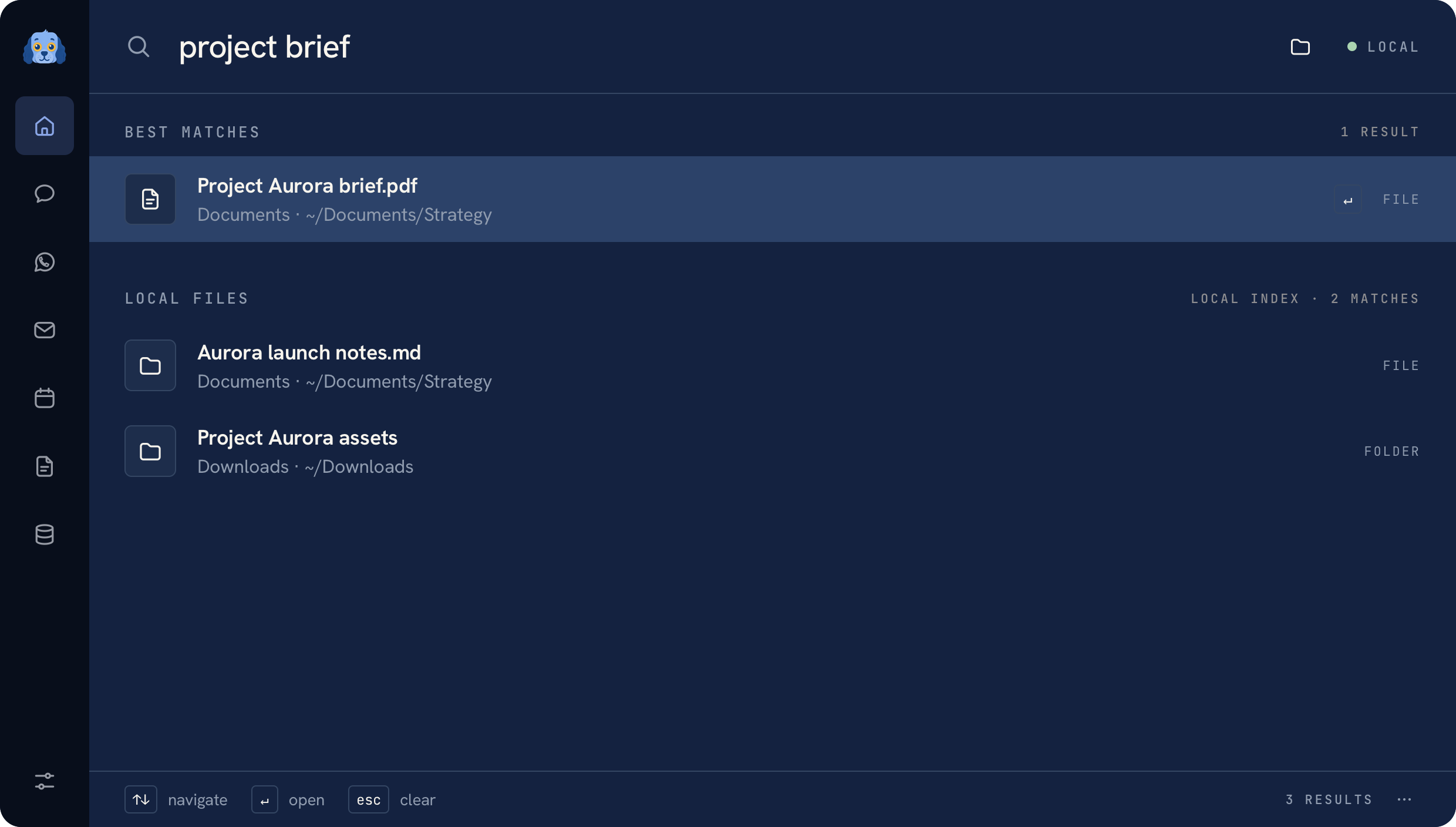 Local search results using fictional files
File search scope#
The local index starts when you first search for files. It covers Desktop, Documents, Downloads, Projects, Developer, and Code, with bounds on entries, directories, and depth. Hidden folders, symlinks, application bundles, dependencies, caches, and build outputs are excluded.
Check Settings → Local search for index status, unavailable folders, truncation, and the refresh control. Missing permission or an excluded location can explain a result that does not appear.
Open, preview, and attach#
Select a result to open it. Use the available preview or reveal action to inspect it or find it in Finder. Files opened or previewed through Habibi appear in Recent files, also accessible with the folder button beside search.
In Recent files you can pin an item, forget an entry, or clear the history. History records metadata and a path, rather than copying the original file. Moved or deleted files may be shown as unavailable.
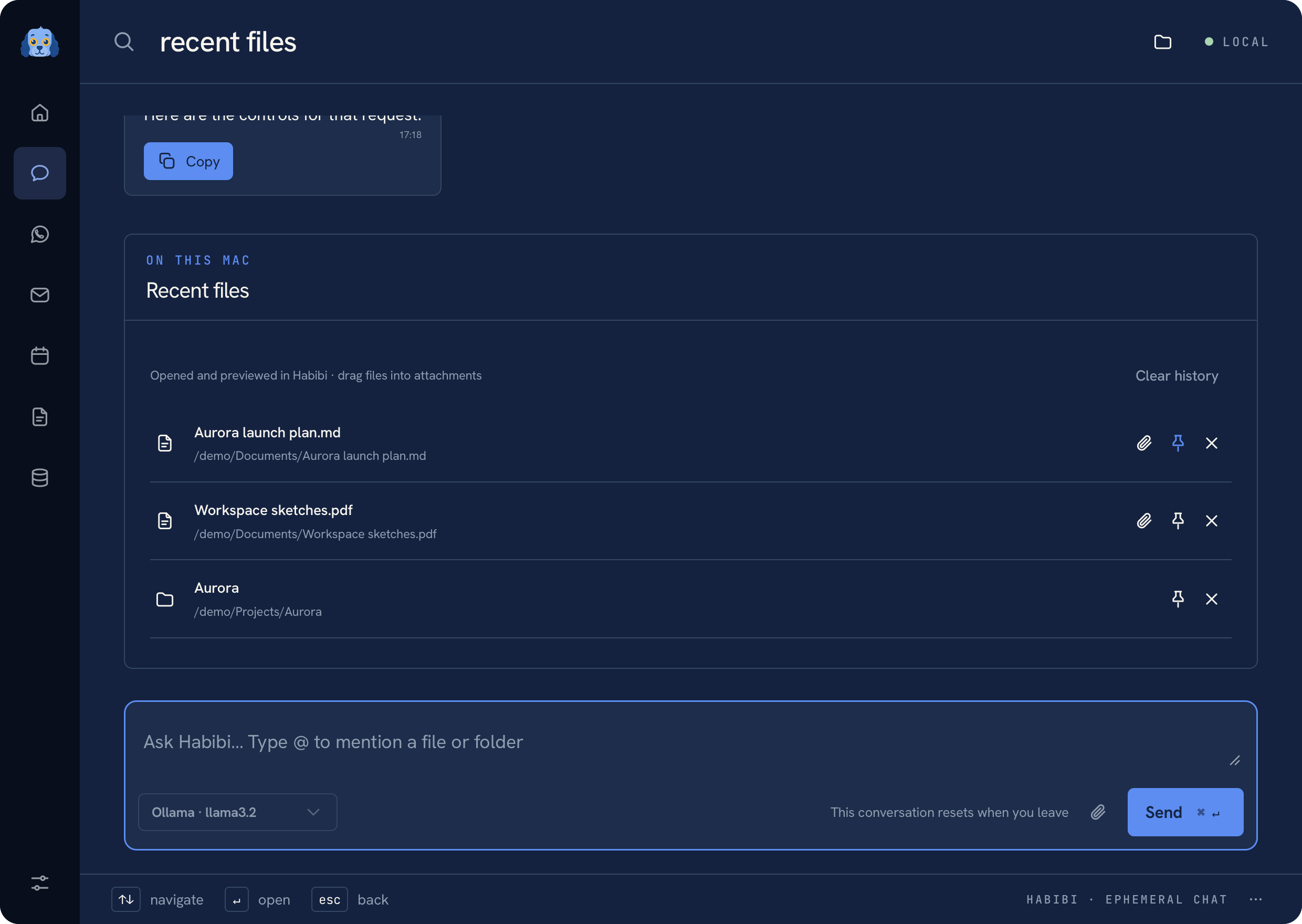 Recent files with fictional pinned documents and a project folder
Drag a file into an attachment field or another Mac app. The attachment action adds it to the current draft; sending that draft remains a separate action.
Note
The folder grouping and page reordering described in Notes organize Habibi pages. They do not move the original Finder files on disk.
Web destinations#
For a request to open a website, Habibi prepares a destination from the intent when it can identify one. If it cannot identify a confident destination, the configured web search engine provides a fallback. Choose that engine in Settings.
Was this page helpful?