
Select rows and apply actions
Use row selection when you need to work with a few records together, such as exporting the orders involved in a support case. Selection tells WhoDB which loaded records an action should use. It does not create a database query for every matching record.
Select the records you need#
Open the object's Data view and use the checkbox at the start of each row. You can also right-click a row and choose Select Row. The selection bar shows how many records you have selected.
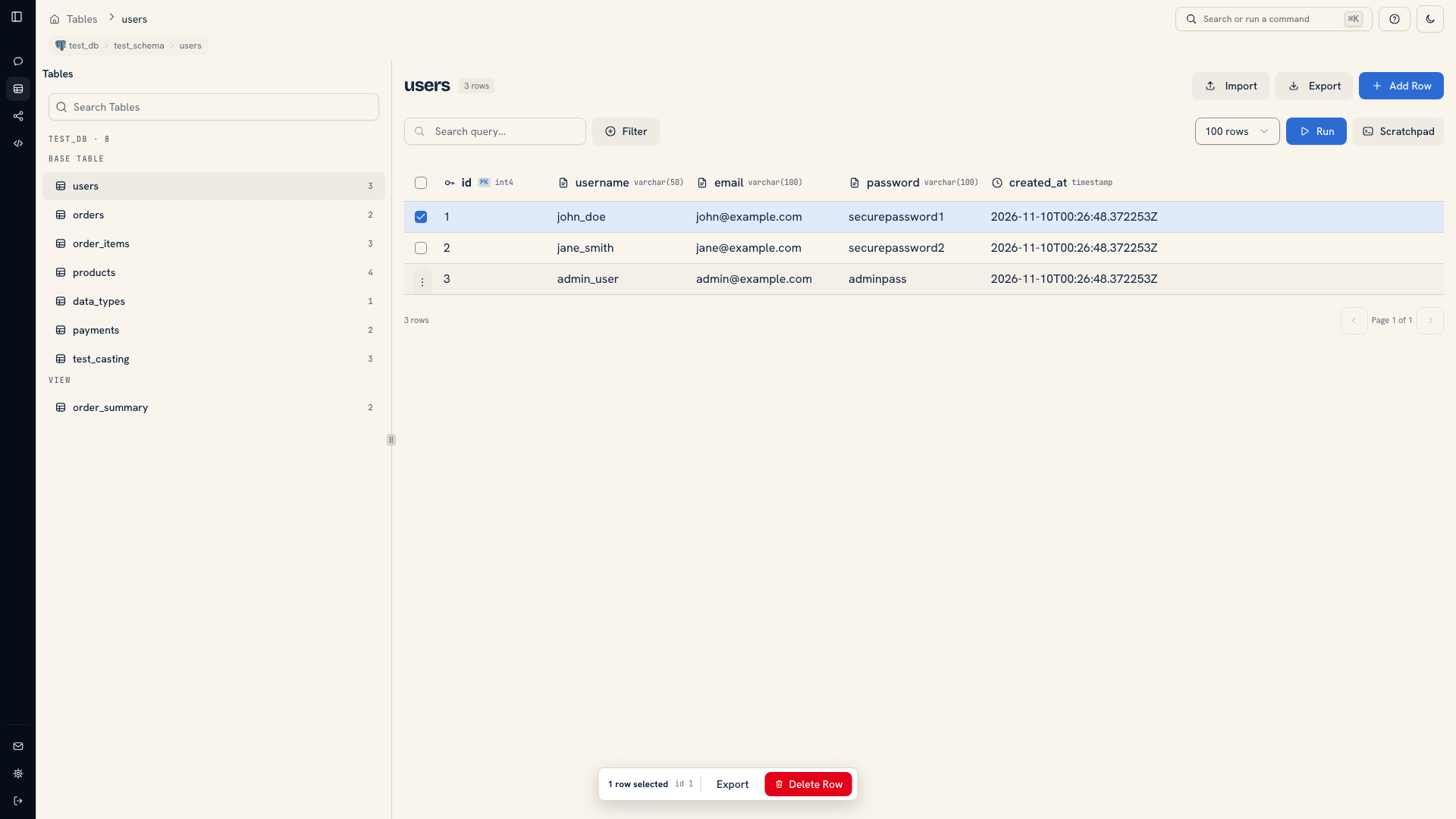 A selected row in the grid
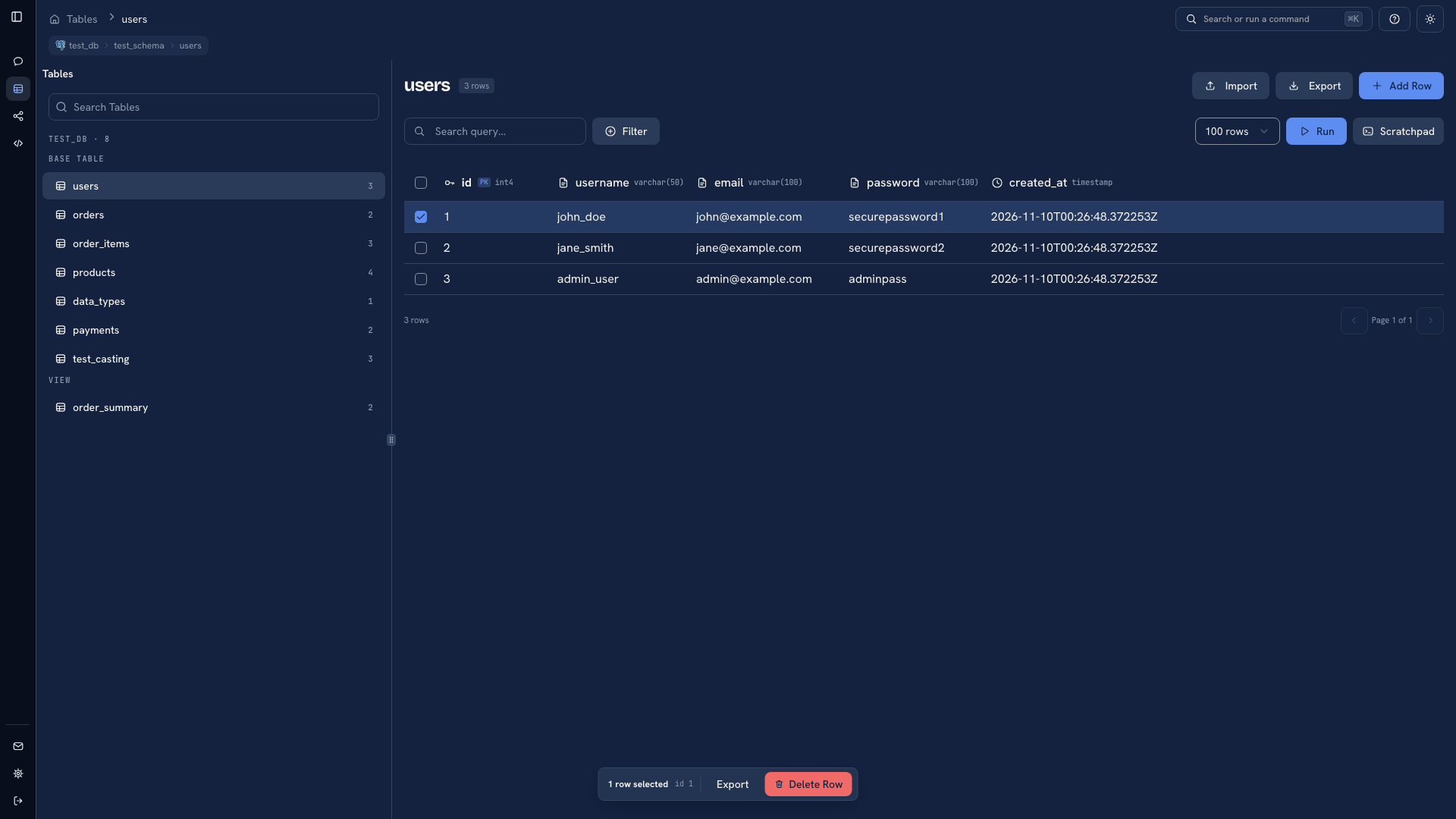 A selected row in the grid
The header checkbox selects the loaded page. If your table contains 5,000 records and the page shows 50, the header checkbox selects those 50 records. To work with a larger set defined by a condition, use a query rather than selecting a sample and assuming it covers the table.
Use the keyboard#
Focus a row and press Space to toggle its selection. Use Shift + Arrow Up or Shift + Arrow Down to extend a selection. Mod + A selects rows in the current view.
Review the selected count before taking an action. In particular, check whether records left over from an earlier selection are still included.
Export a selection#
Choose Export in the selection bar. This exports the selected records, which is useful when a colleague needs the exact examples you are investigating. Choose a format and inspect the downloaded file before sharing it.
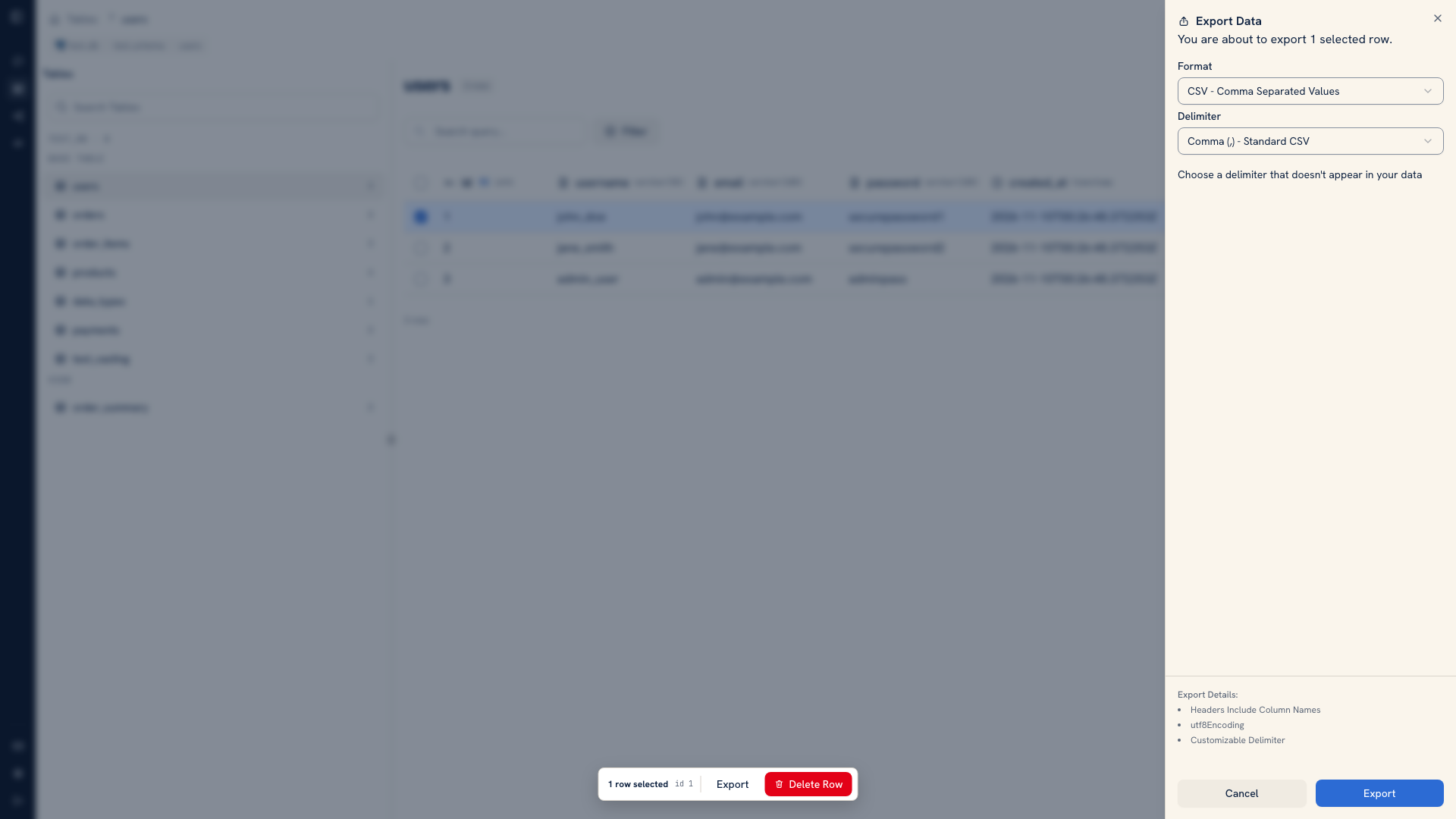 Exporting selected records
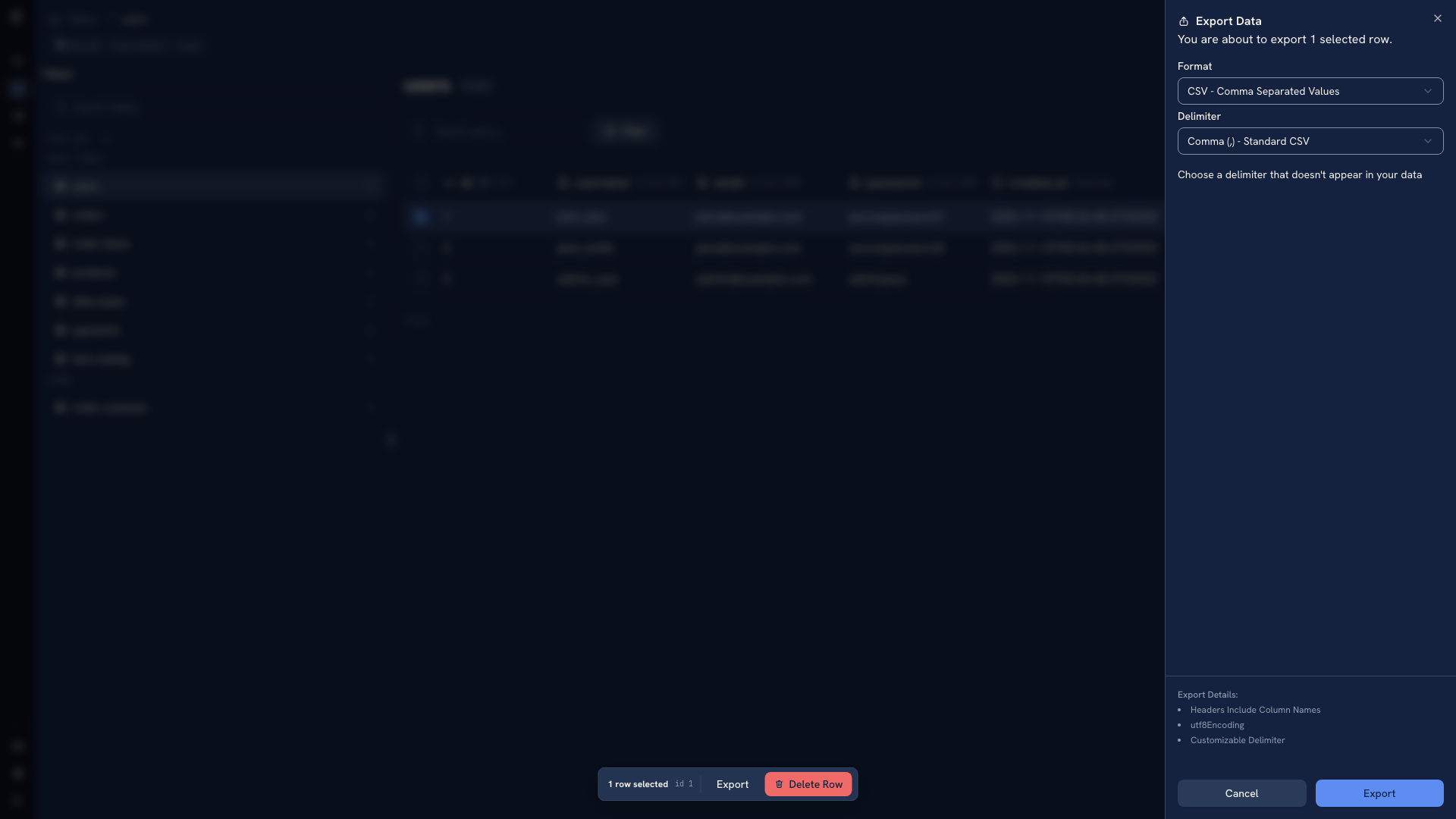 Exporting selected records
Use the selection bar's export action for this task. The context menu's Export All as CSV and Export All as Excel actions have a different scope: they export the object's contents rather than your selected subset. See Export data for the difference between object, selection, and query-result exports.
Delete selected records#
Where deletion is available, the selection bar offers a delete action. Read the confirmation's source, table, and record identifiers before accepting it. The action can affect every selected row, even if you opened the menu on just one of them.
After deletion, repeat the lookup to check the stored result. See Delete a record for the short-lived Undo action and its limits.
Update a set with a query#
Row selection is not a general bulk-edit form. Use Scratchpad for a change such as updating all orders with a particular status. Run a read query with the same condition first, check the target set, then review the update before running it.
Was this page helpful?