
Connect your first database
Connect WhoDB to a database you already have. You will need the source type, endpoint, credentials, and any TLS settings required by that database. Use a development or read-only connection for your first session.
CE's connection page uses database credentials or server-configured profiles. It does not create a separate WhoDB user account.
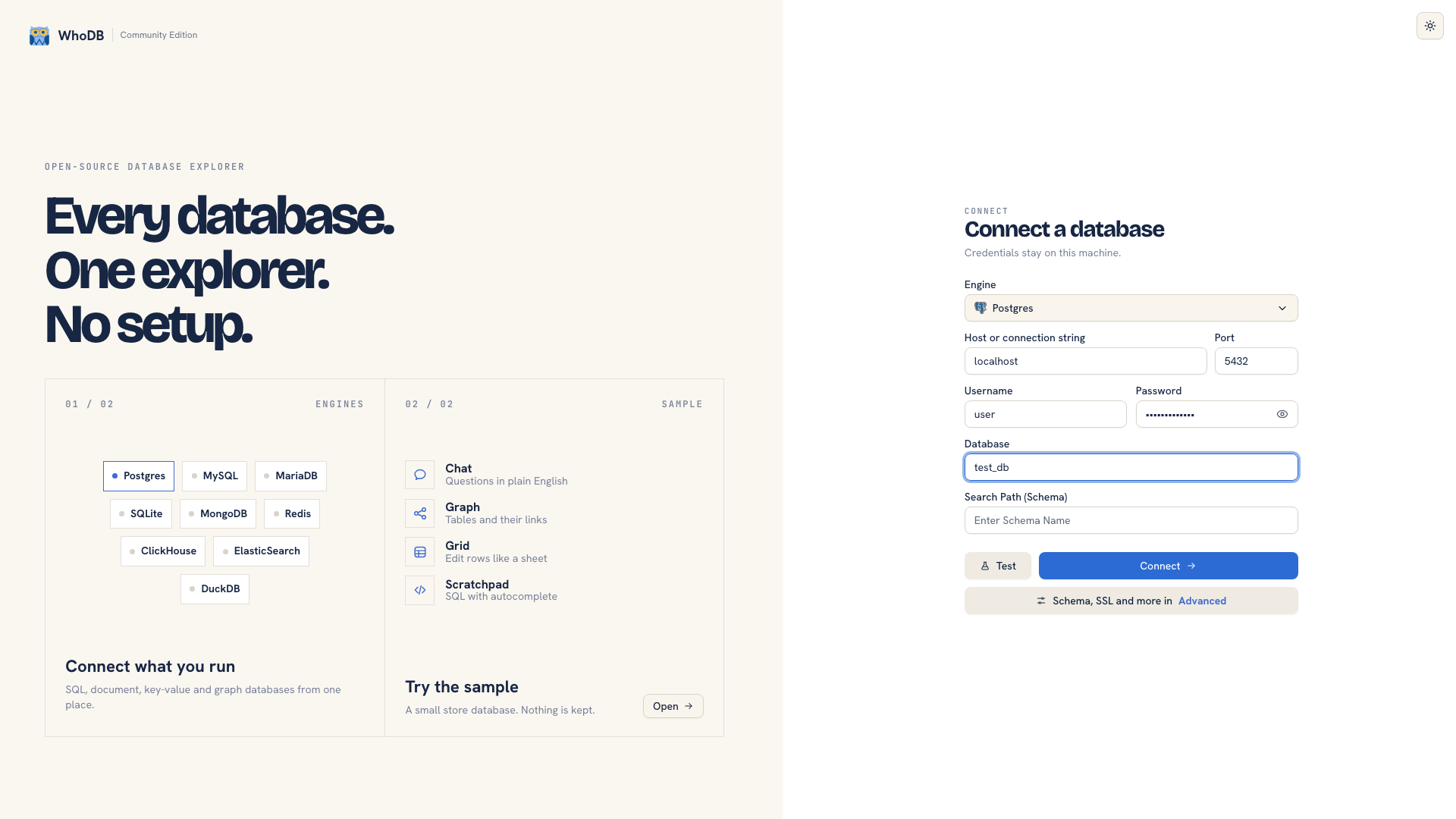 The CE connection form
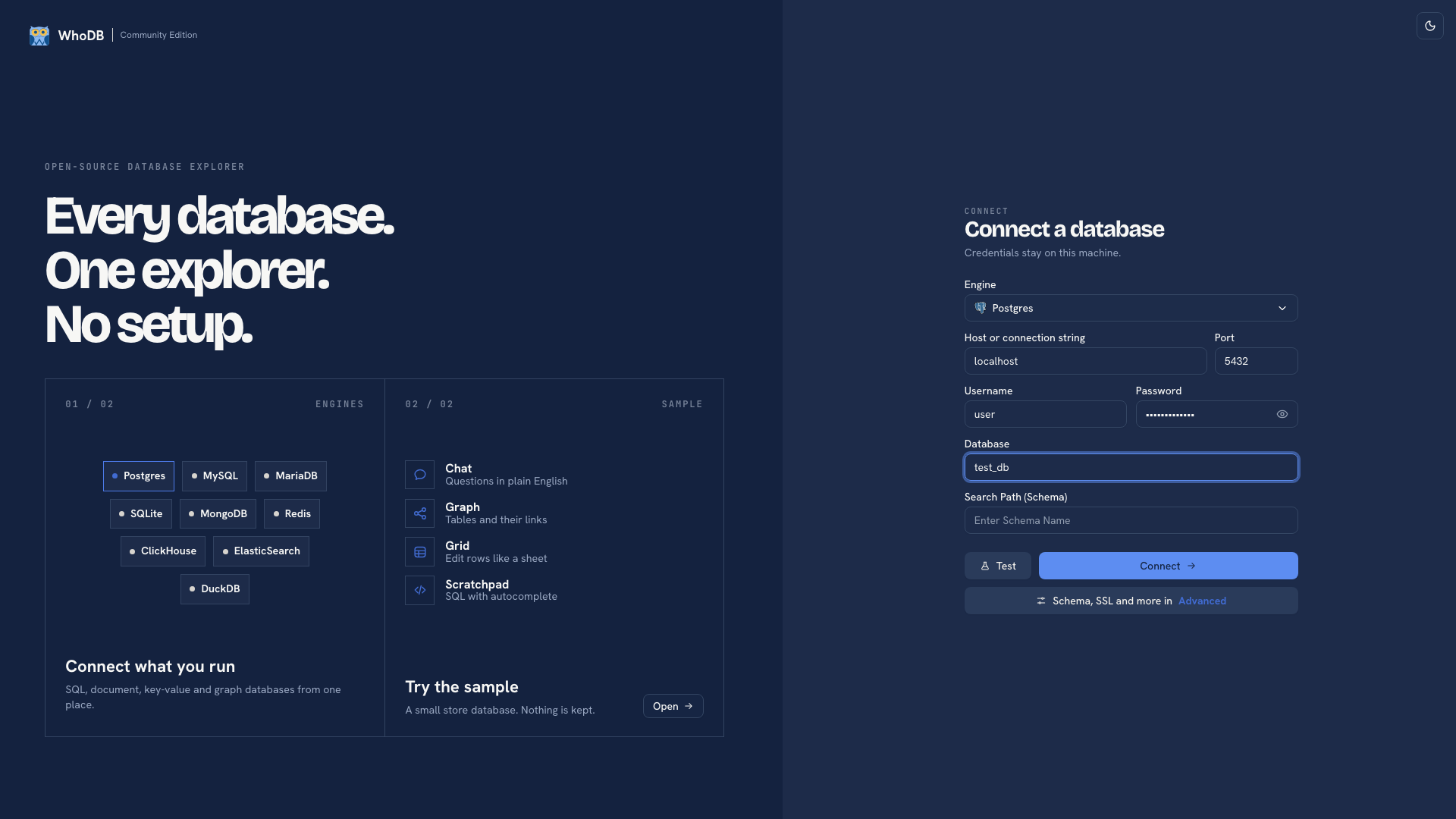 The CE connection form
Enter your connection details#
Select the database type first. The form changes to show that source's fields. For a network database, enter the hostname, port, database name, username, and password requested by the form. See Supported databases if you are unsure which type to choose.
The hostname must be reachable from the WhoDB server. A database running on your laptop is not necessarily at localhost from a Docker container or a remote server. Use the address that works from the machine running WhoDB.
Open Advanced for source-specific settings and TLS configuration. Use your administrator's required settings, then submit the connection form.
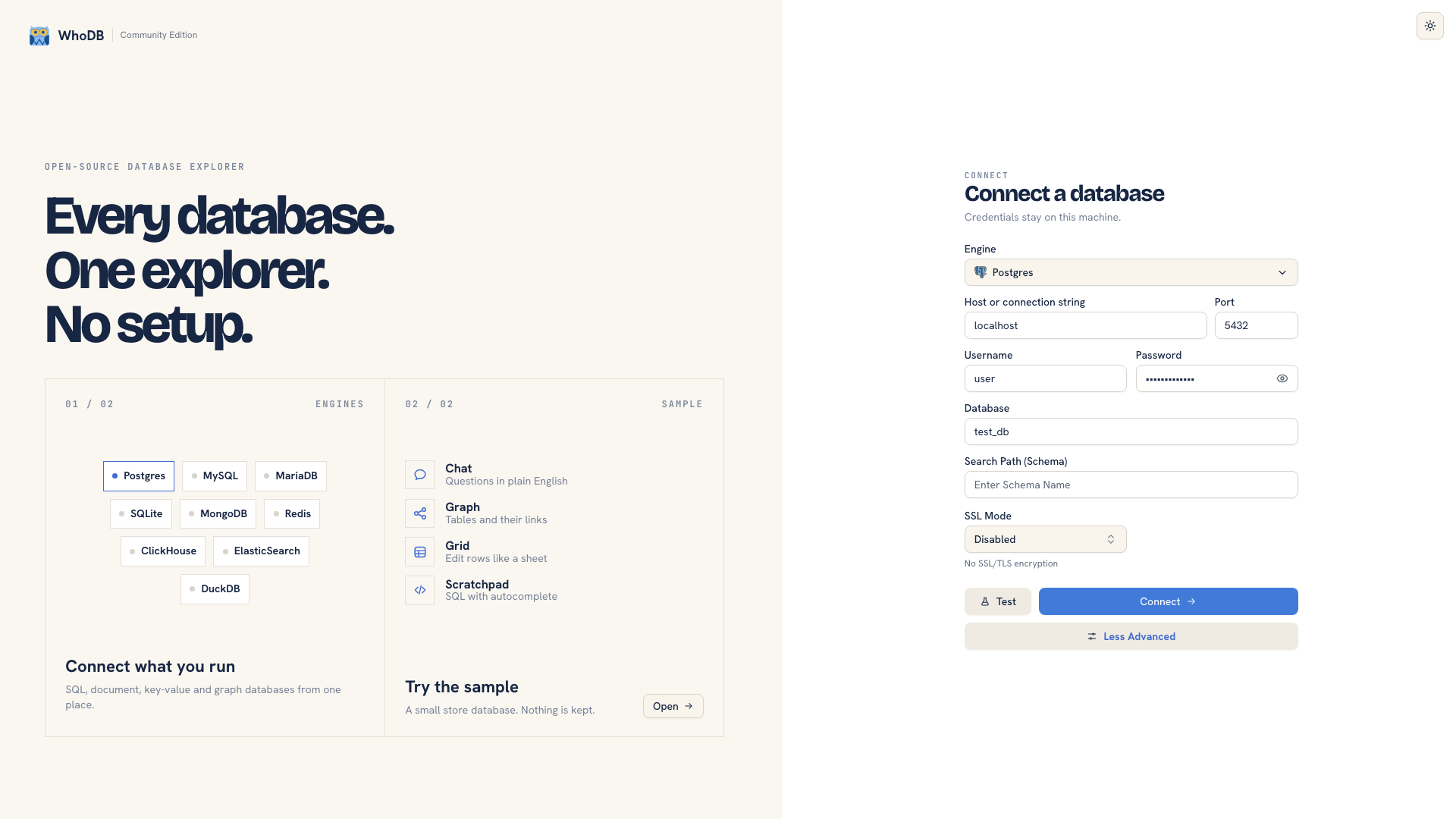 Advanced connection options
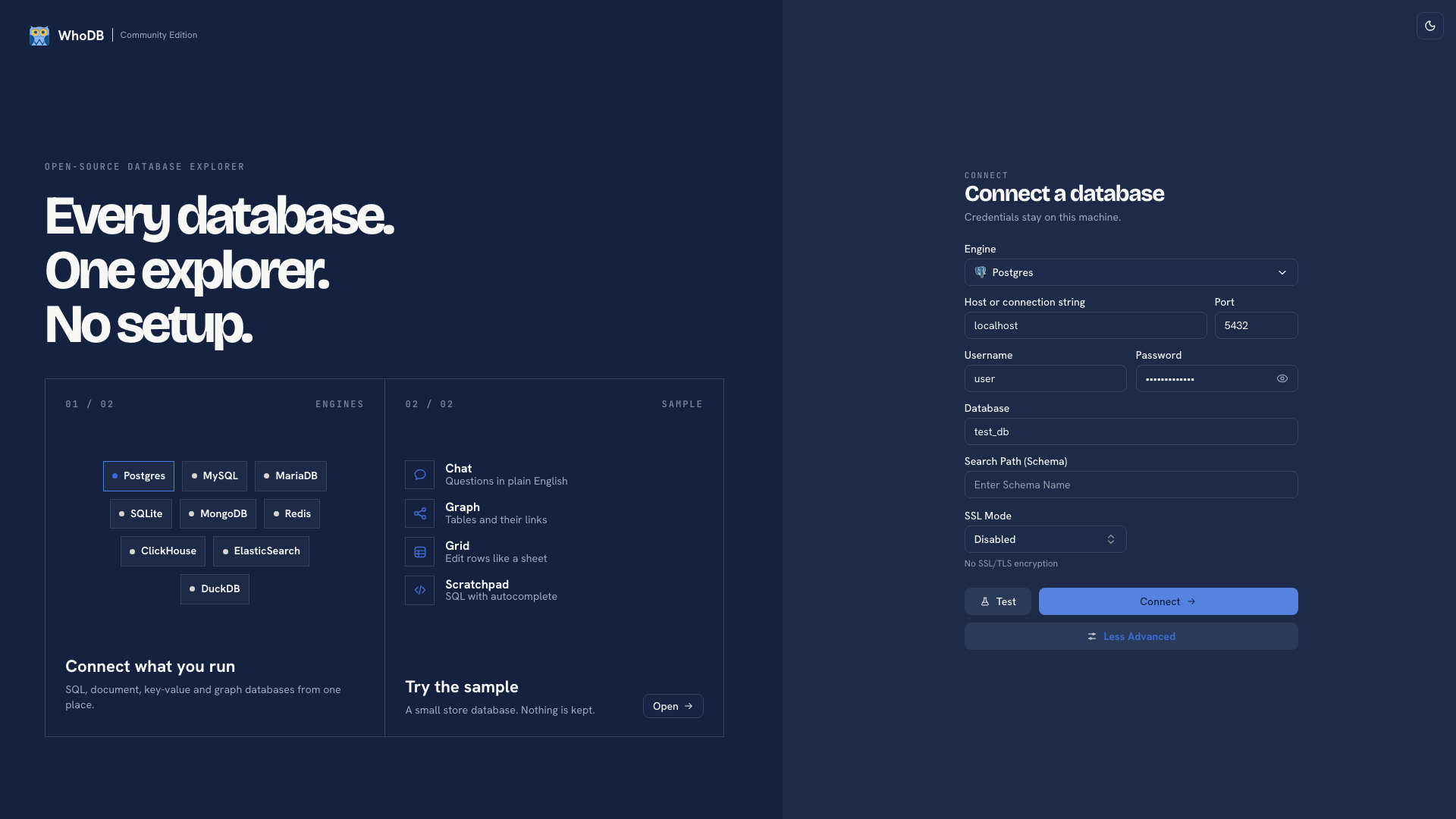 Advanced connection options
Choose the data you intend to inspect#
After connecting, check the database and schema selectors where available. Open Tables and find an object you recognize. Use Info to check its fields and Data to inspect a few records. This verifies the context before you run queries or make changes.
If you use connection-string input, review the parsed fields before connecting. A configured profile preloads server-managed details; select its alias to use that connection.
Warning
Anyone who can reach a CE instance can use its configured profiles. Restrict access to trusted users and give profile credentials only the database permissions that audience should have.
Connect a local database file#
For SQLite or DuckDB, the file path belongs to the machine running WhoDB. In Docker, mount the containing directory and use the container path. The desktop app offers a native file picker.
If connection fails#
A timeout suggests a reachability problem. Authentication errors point to credentials or the database's authentication requirements. Missing tables after a successful connection usually need a check of the database, schema, and account permissions. See Troubleshooting for the next diagnostic steps.
Continue with Quick start once a known object is visible.
Was this page helpful?