
Make a first connection
Use this tutorial to check that WhoDB can reach your database and that you have opened the right data. You will connect to a PostgreSQL development database, inspect a table's definition, and read a few records.
Have the database hostname, port, database name, username, and password ready. Your database administrator or application's connection configuration can supply these values. WhoDB must already be running; see Installation if needed.
Enter the connection details#
Open WhoDB and select Postgres on the connection form. Enter your database's details. The screenshots use the documentation's sample database; use your own values.
The hostname is resolved by the WhoDB server. If WhoDB runs in Docker and PostgreSQL runs on your laptop, localhost inside the container refers to the container itself. Use an address reachable from that container. For two services in the same Compose network, this is usually the database service name.
Open Advanced if your database requires TLS or other connection options. Use the settings for that database rather than changing them to get past a connection error.
Click the connection button. A successful connection opens the object browser.
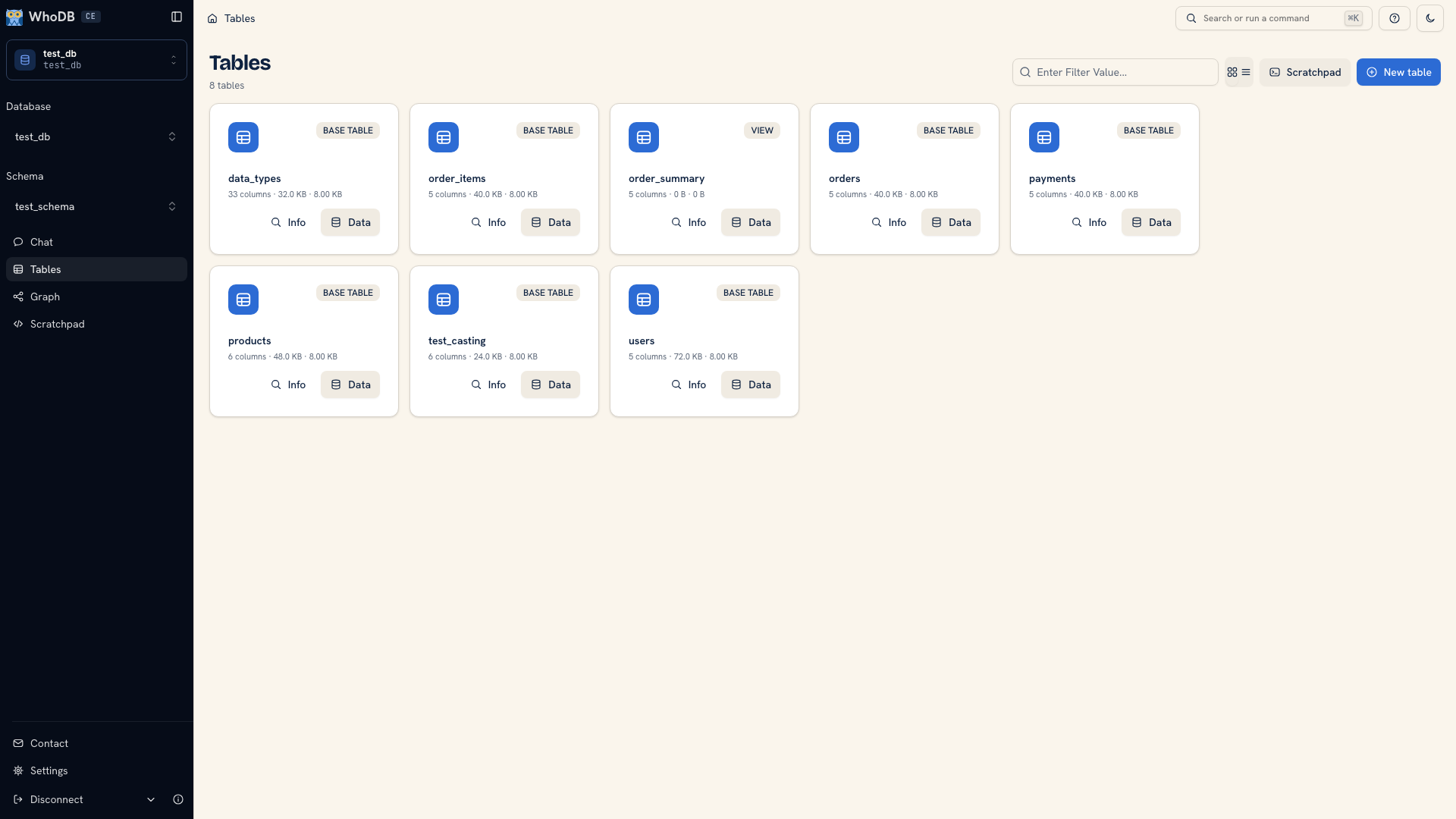 The selected schema and available objects
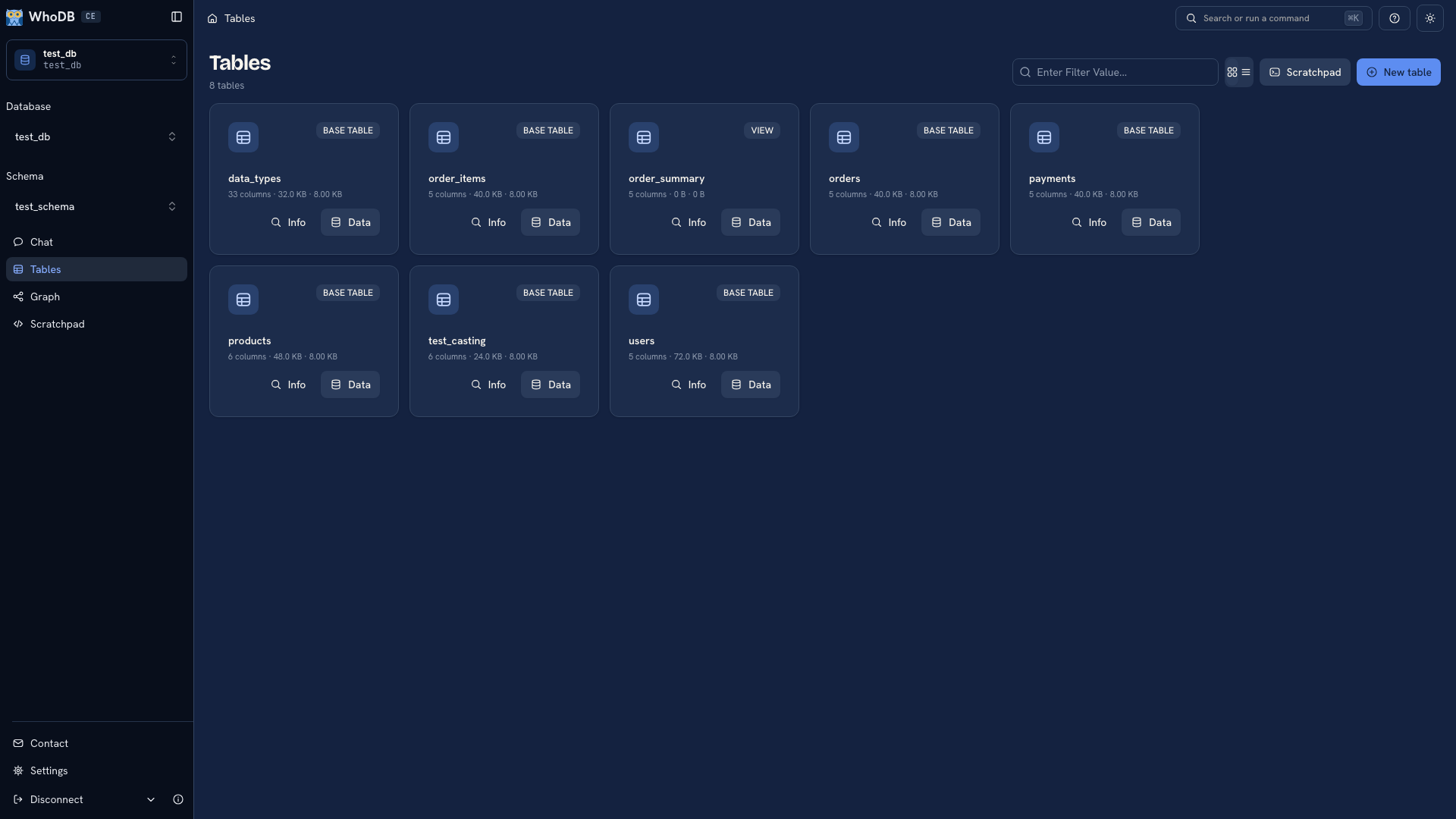 The selected schema and available objects
Verify the database and schema#
Check the database selector in the sidebar, then choose the schema containing your application tables. In PostgreSQL, a database can contain several schemas, so a successful connection can still show a different set of objects than you expected.
Find a table you recognize in Tables. Open Info and check its columns. Then open Data and inspect a few records. Recognizable field names and sample values establish that you have reached the intended database.
Resolve a failed connection#
A timeout usually points to an unreachable host, blocked port, or firewall rule. An authentication error means the database was reached but rejected the credentials. If connection succeeds but no expected tables appear, check the database, schema, and account's permissions.
Continue with Explore an unfamiliar database once the expected table is visible.
Was this page helpful?