
Import data
Use Import to load records from a file into an existing object, or to run a SQL script you have already reviewed. The target matters: structured data is written to the object open in the current Data view.
Before starting, check the connection, schema, and object name. Open Import, or press Mod + I.
Prepare a CSV or Excel file#
Use .csv, .xlsx, or .xlsm for a structured import. The first row should contain headers matching the target column names. Inspect those columns in Info before preparing the file.
Leave database-generated values out of the file unless you deliberately need to preserve them. For example, a fixture with usernames and emails can let the database generate user IDs. Importing an ID copied from another environment can cause a key conflict.
Preview and choose a mode#
- Select the import format and upload the file.
- Check the detected fields and sample records.
- Set the CSV delimiter or Excel sheet if the format needs one.
- Choose a mode offered for the source.
- Explicitly allow auto-generated column values only when the import requires them.
- Submit after the preview validates.
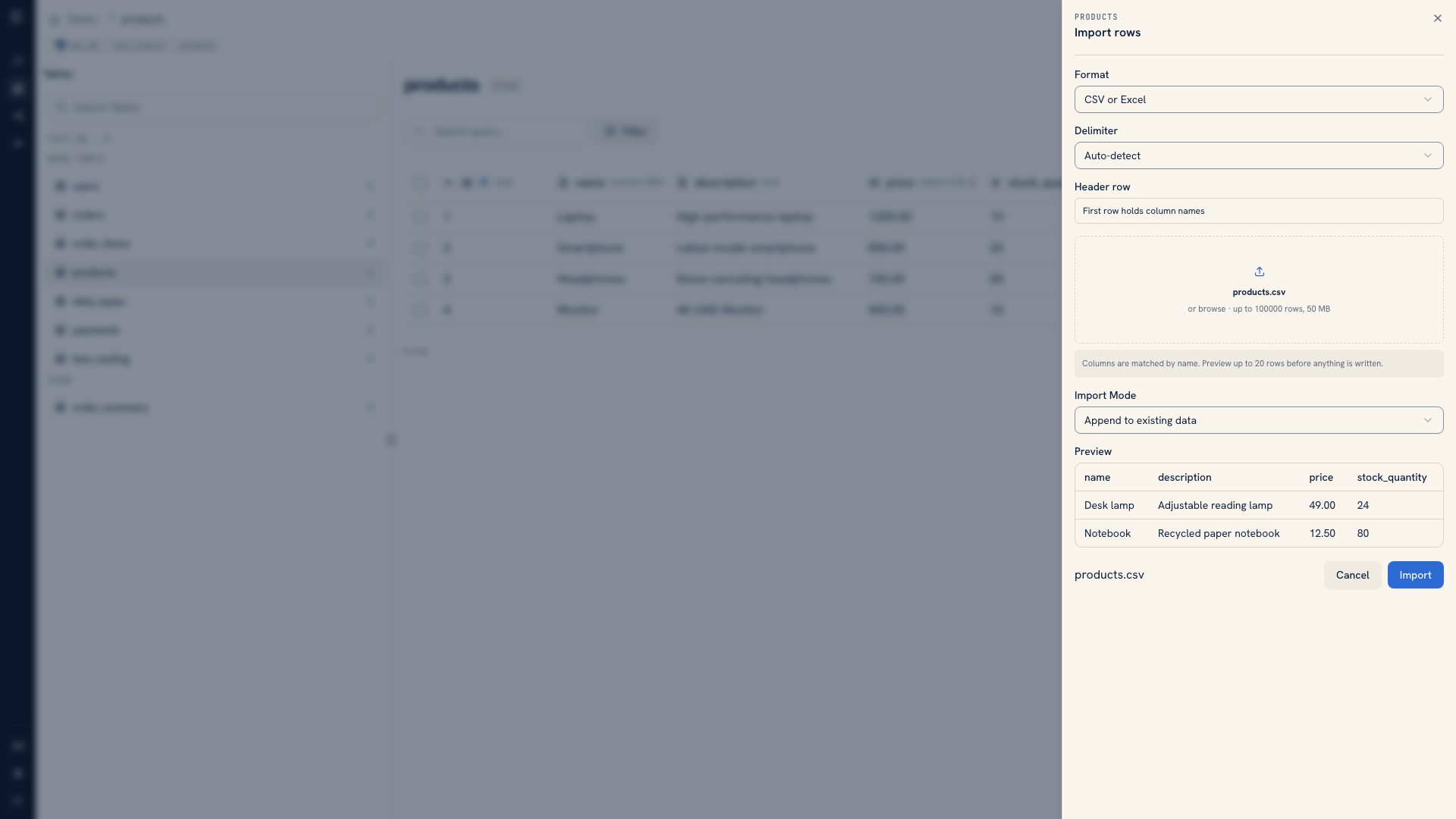 CSV import preview with detected columns and sample records
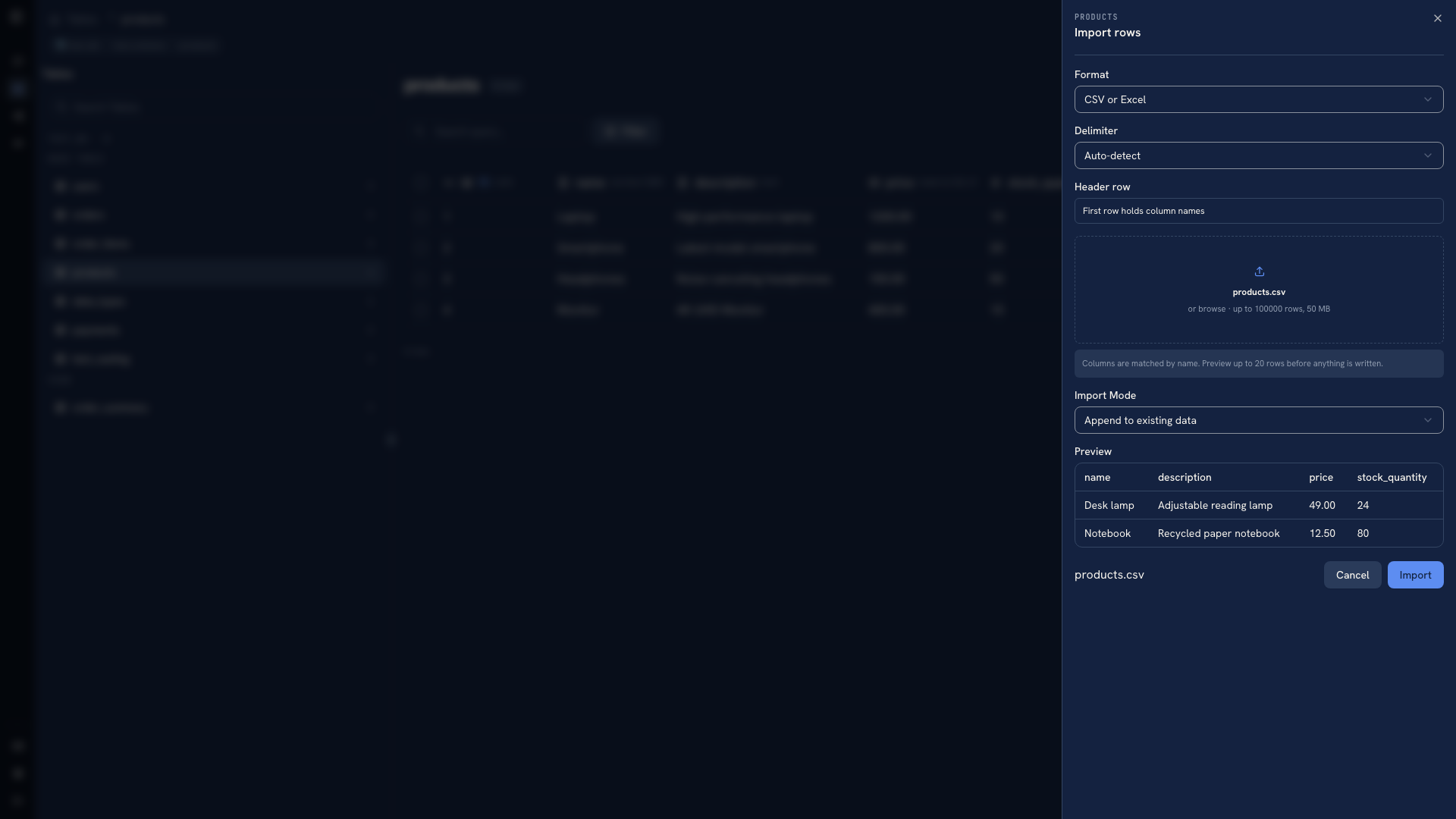 CSV import preview with detected columns and sample records
The preview shows up to 20 rows. Use it to catch a wrong delimiter, a wrong worksheet, or headers that do not match the target. A valid sample is not proof that every row in the file will satisfy the database's constraints.
Append adds records to the existing data. For SQL imports with a primary key, rows that conflict with existing primary keys can be skipped. Upsert requires primary keys and updates matching records while inserting new ones.
Warning
For relational imports, Overwrite can clear tables that reference the target as well as the target itself. Check the relationships and prepare a recovery plan before choosing it. It is not limited to replacing rows present in the uploaded file.
Choose the mode for the intended outcome. Do not retry a failed append with overwrite just to remove a key conflict.
Uploads are limited to 50 MB, and structured imports to 100,000 rows. Database permissions and constraints still apply. After importing, check a few known keys and compare counts to your expected result before importing the same file again.
Import SQL#
Select SQL import, paste a script or upload a .sql file, and review the full statement text. Select the execution confirmation checkbox before submitting. SQL uses the active source's syntax and permissions.
A SQL script can change more than the currently visible rows. Review its object names and write statements as you would a migration or repair script.
Import from the terminal#
For a repeatable file load, the CLI supports an explicit connection, schema, table, and mode:
Bash
whodb import --connection local-postgres --schema public \
  --table users --file users.csv --mode append
Check whodb import --help for delimiter, sheet, mapping, table-creation, and generated-column options. Keep the input file and command with the test or migration that uses them.
Next: Export data · Data migration workflow
Was this page helpful?