
Export data
Export data when you need a file for a spreadsheet, a script, or another person. Start by deciding which records belong in that file. WhoDB can export a whole object, selected rows, or a query result, and those choices have different scopes.
Choose the scope#
| You need | Use |
|---|---|
| All records in an object | Clear row selection, then choose Export in its Data view |
| A few specific loaded records | Select the rows, then Export in the selection bar |
| Records matching a condition, a join, or an aggregate | Run a query in Scratchpad and export its result |
The Data toolbar's Export action uses the current selection when records are selected. With no selection, it requests the object's contents from the backend. The context menu also offers explicit Export All as CSV and Export All as Excel actions that export the whole object. It does not carry the grid's current filters into the export. A filtered grid is therefore not proof that an all-data export will contain only those rows. Use a query result when the file needs a specific predicate or set of columns.
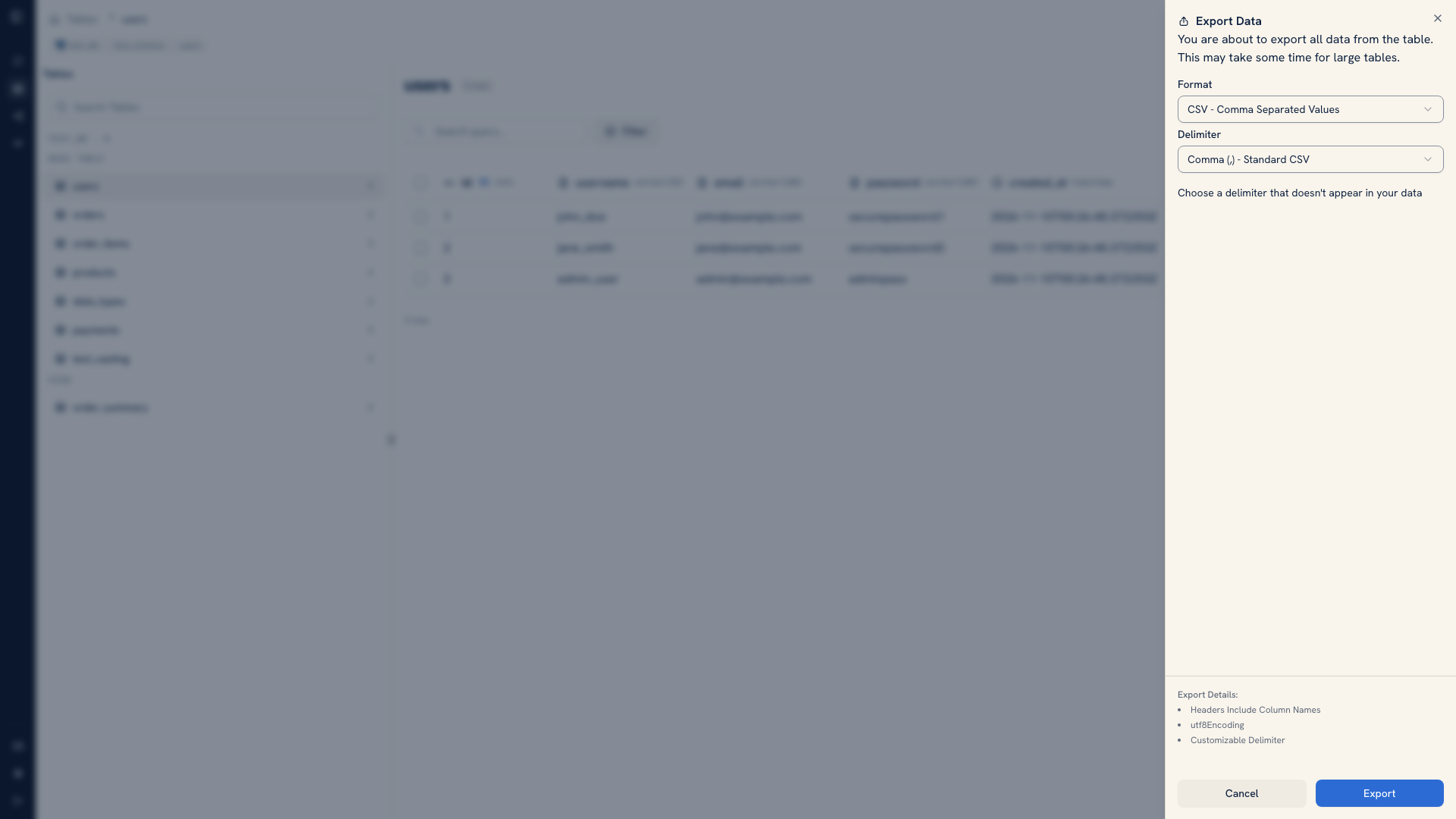 The export dialog
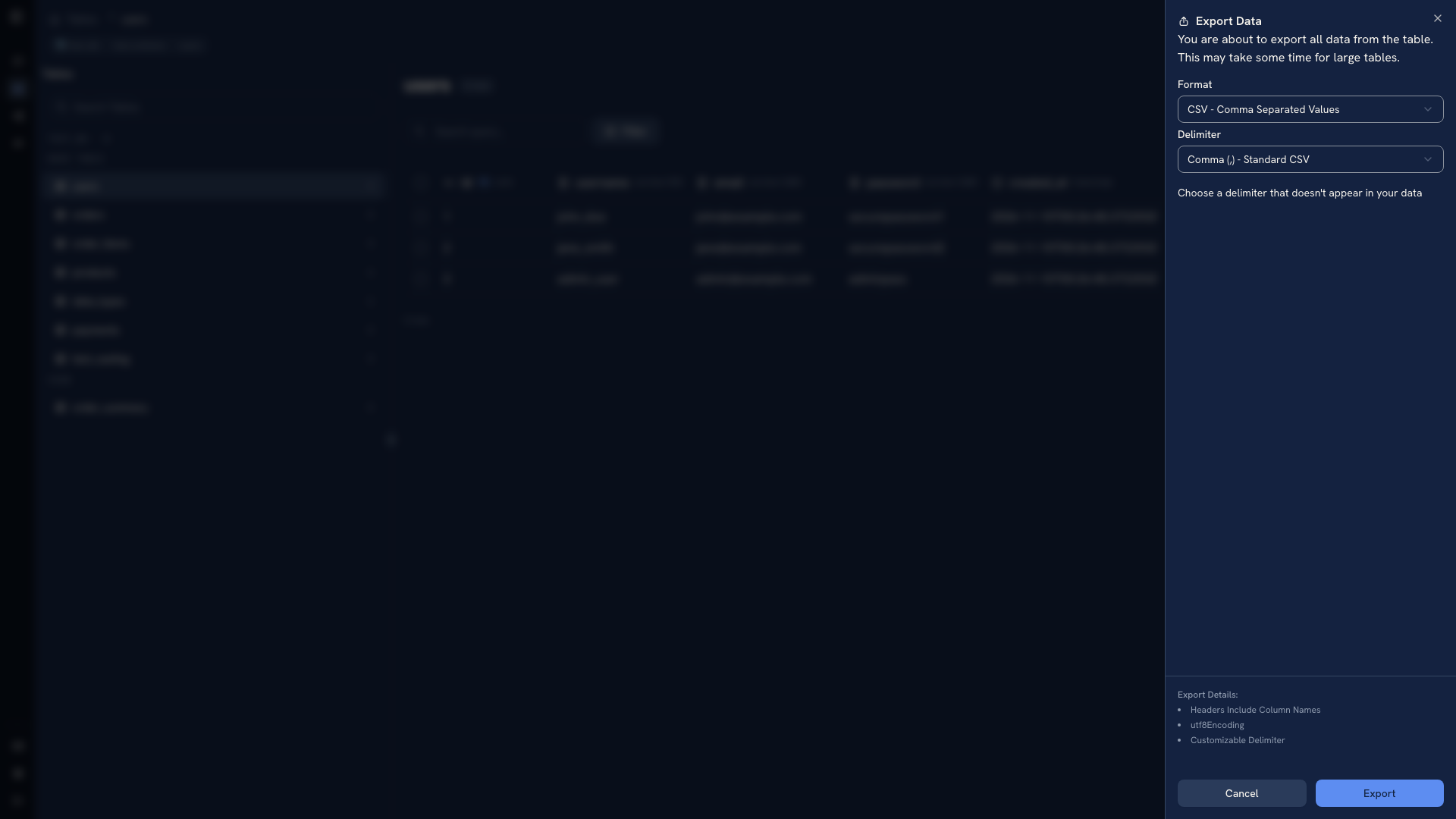 The export dialog
For example, to send a colleague only a customer's orders, run a query for that customer and export the returned result. Avoid exporting the entire orders table and relying on the recipient to remove unrelated records.
Choose a format#
| Format | Use it for |
|---|---|
| CSV | Tabular data that another tool will read |
Excel (.xlsx) | A workbook that a person will review in a spreadsheet application |
| JSON Lines / NDJSON | Supported document-source records where each line represents one record |
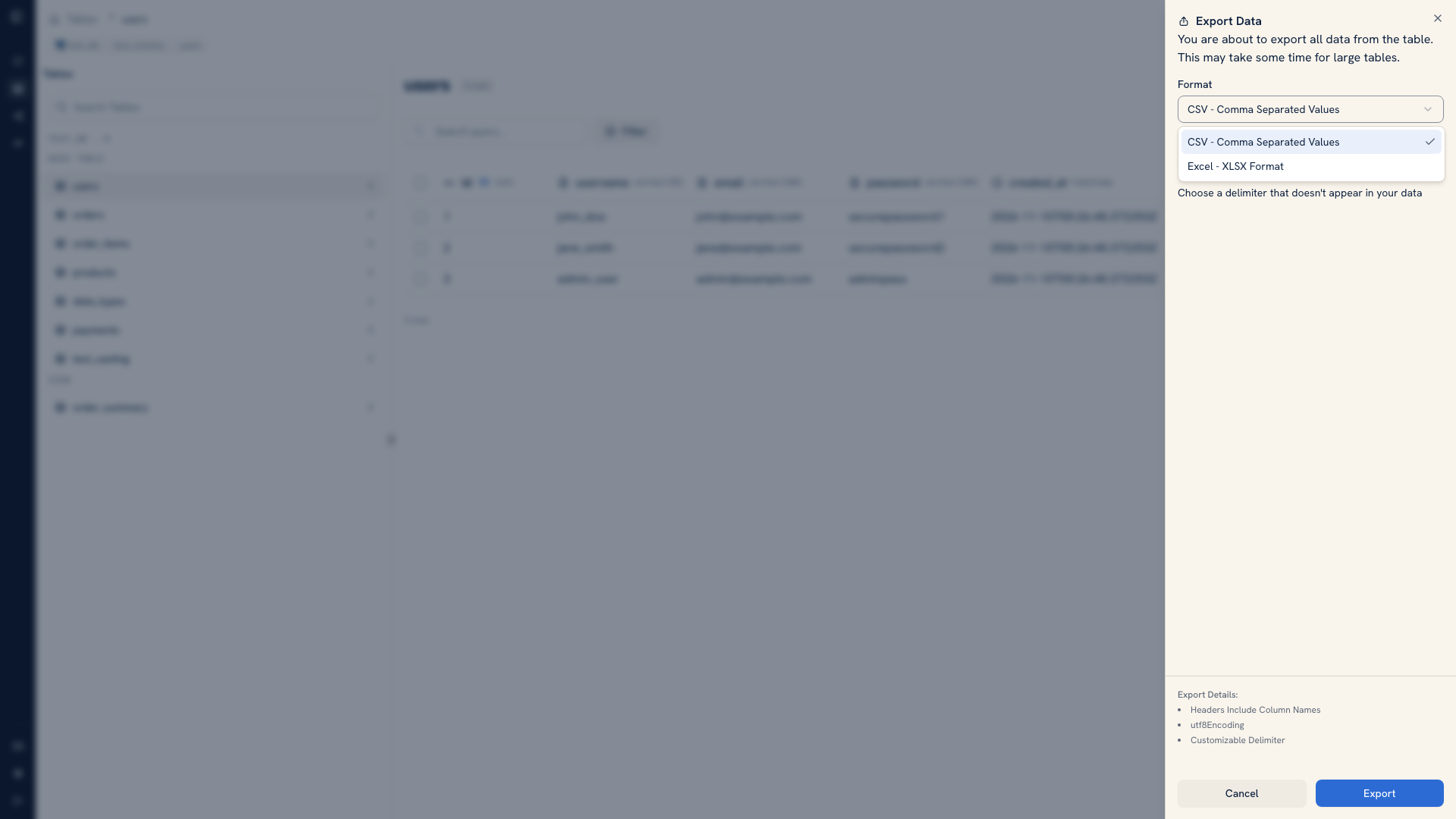 Export format choices
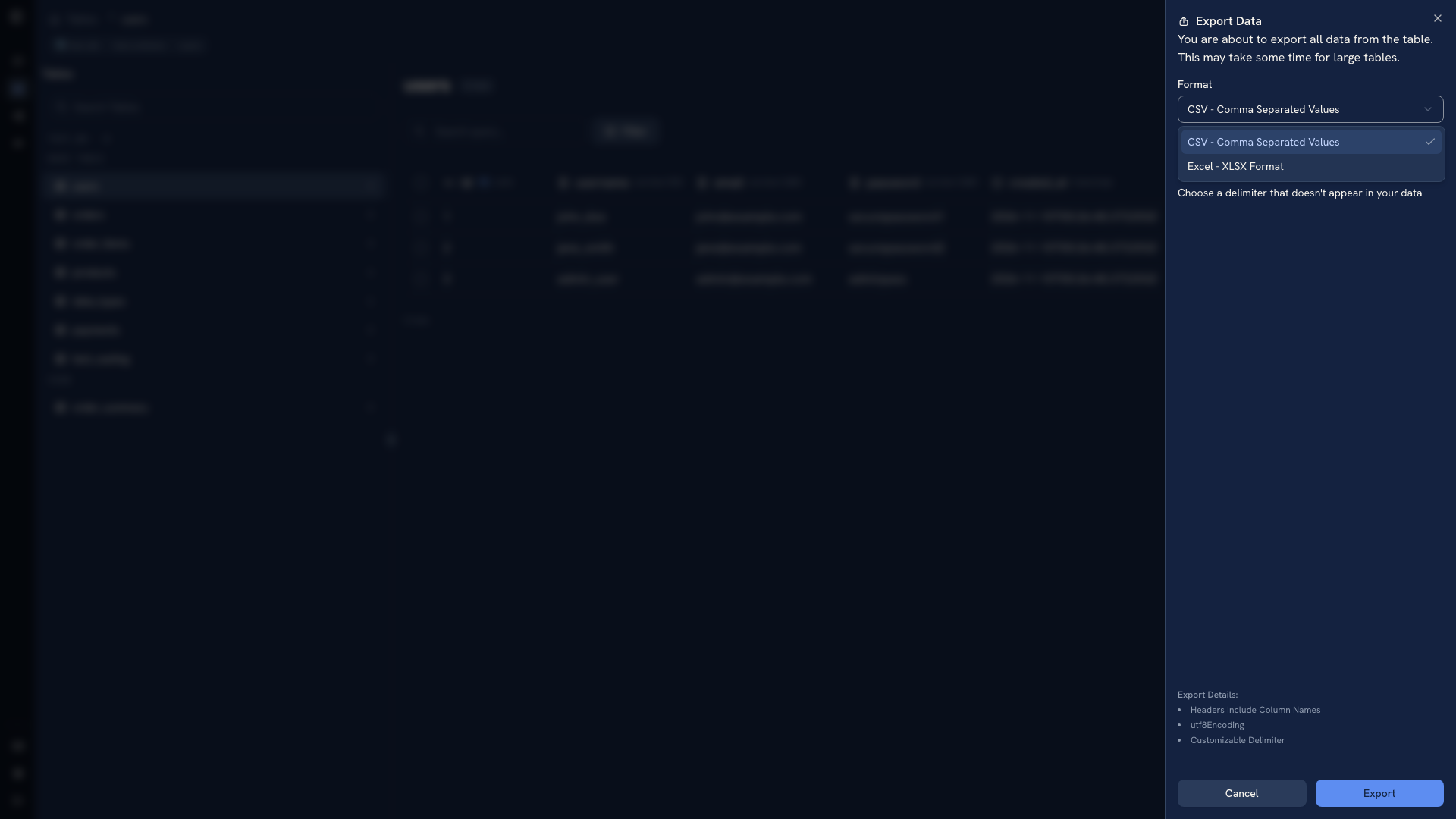 Export format choices
For CSV, choose the delimiter expected by the receiving tool. Comma, semicolon, and pipe are available. If a file opens as one long column, check the delimiter selected by the spreadsheet importer before changing the source data.
CSV and Excel contain exported values. They are not complete database backups: they do not preserve the full schema, permissions, indexes, or a database-native restore process.
Download and check the file#
Confirm the format, then export. In a browser, the file is downloaded through the browser's normal download flow. Desktop builds use a native save dialog.
Open the file and check its headers, a few known records, and its scope. For a report, keep the query and extraction date with the file so someone can reproduce it later. Query results in Chat also offer export, but you should inspect the generated query before using its output.
For repeatable terminal exports, see CLI & MCP. For a restorable database copy, use native backup tools.
Was this page helpful?