
Quick start
Connect a development database, find a record, and export a query result. This walkthrough uses PostgreSQL; other sources show the operations they support. Follow Installation first if WhoDB is not running.
Connect and find a table#
Choose Postgres on the connection page and enter your database's host, port, username, password, and database name. Configure required TLS options under Advanced, connect, and select the intended schema in the sidebar.
Open Tables and search for a table you recognize. Expand Info to inspect its columns, then choose Data to browse rows. Check a few familiar values to confirm you are in the right database.
Retrieve a matching record#
Open Filter, choose a column and comparison, and enter a known value. Click Run to retrieve matching records from the database. Start with an identifier so the expected result is easy to check.
The separate Search field highlights text in the loaded rows. Use Filter when the record may be on another page.
Run a query#
Open Scratchpad and enter a query for your own schema. For the documentation's sample PostgreSQL database, a small query is:
SQL
SELECT id, username, email
FROM test_schema.users
ORDER BY id
LIMIT 10;
Use the play button or Mod + Enter to execute the cell. Mod means Cmd on macOS and Ctrl on Windows/Linux. Results appear below the editor.
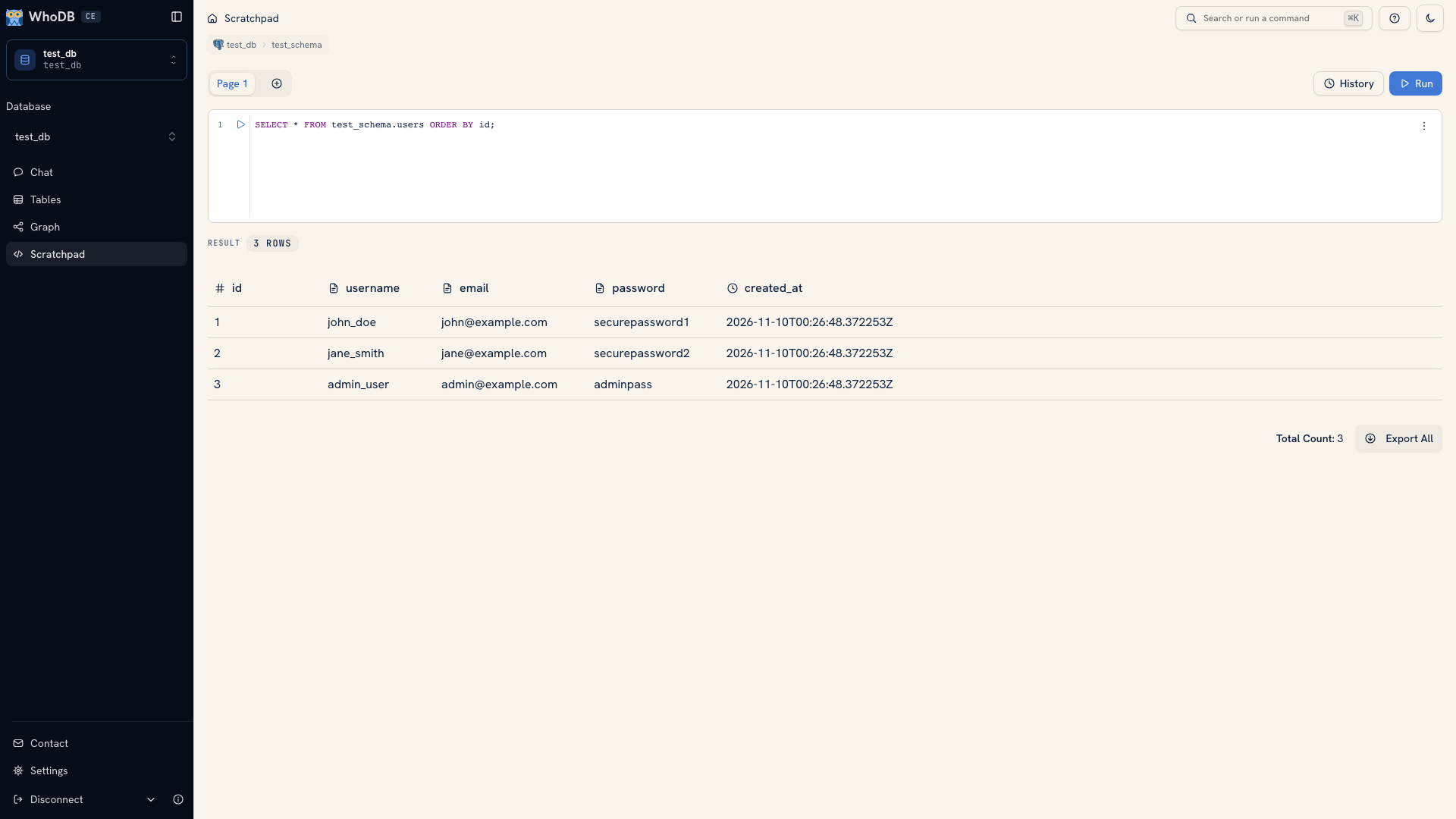 A query and its result in Scratchpad
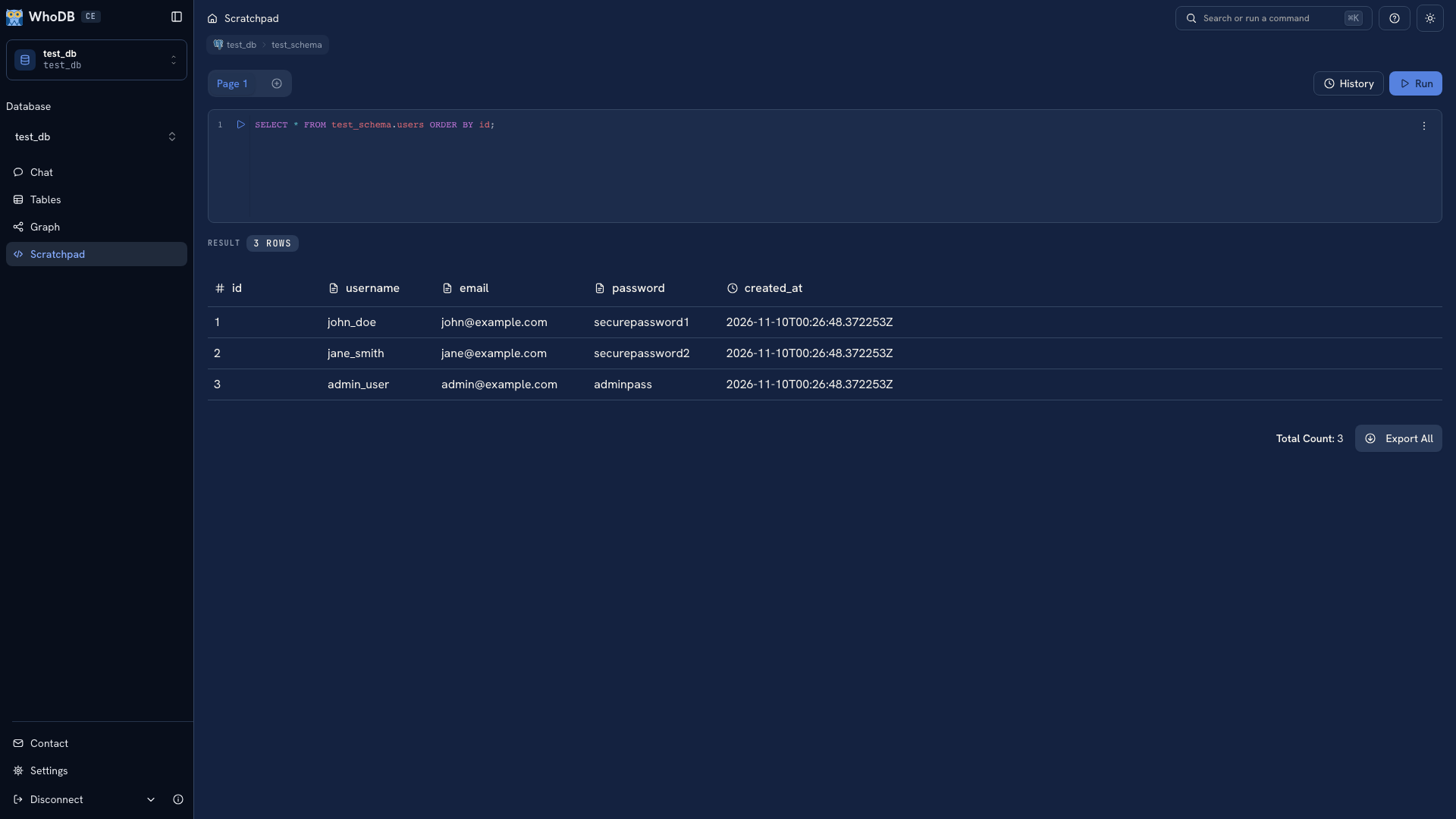 A query and its result in Scratchpad
Check the returned columns and a known record. Use Export All on that query result to download it as CSV or Excel. For a filtered report, export the query result rather than relying on a whole-table export to inherit the Data view's filters.
Inspect a relationship#
Open Graph and choose a small set of related objects in its sidebar. Follow an edge and inspect the keys at each end. A node's Data action opens the table's records.
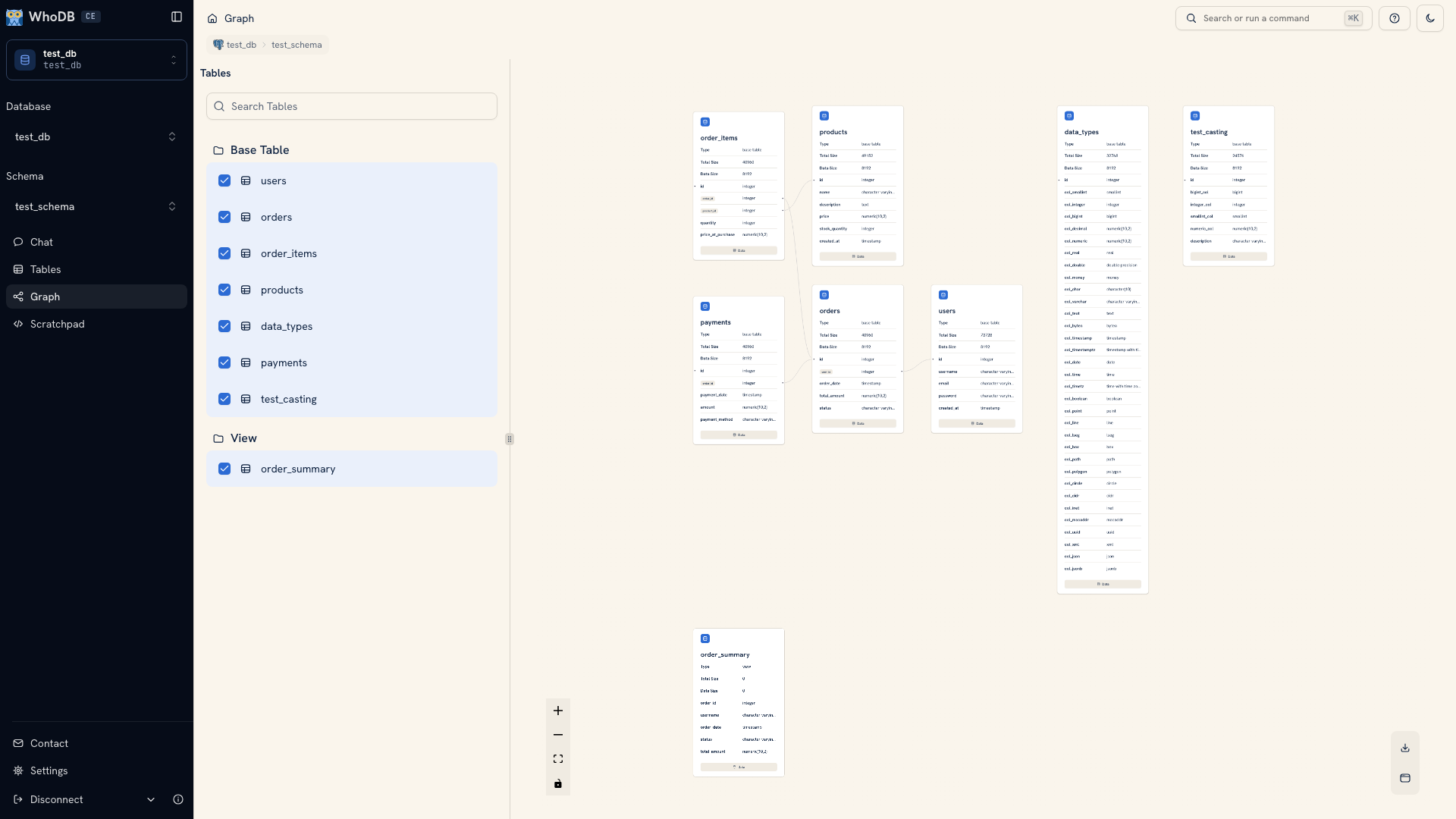 Graph showing table relationships
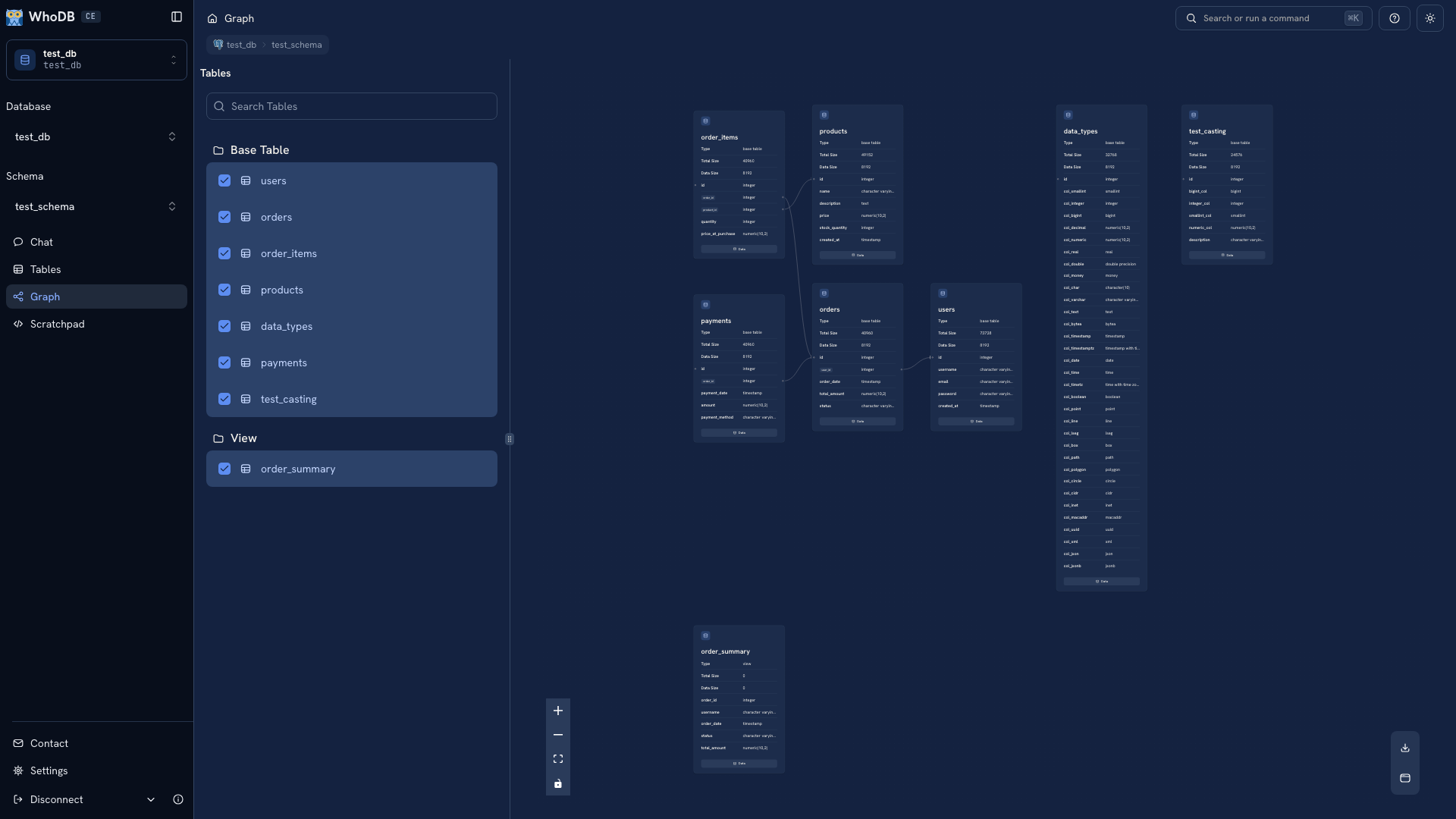 Graph showing table relationships
The graph uses relationships reported by the source. An absent edge can mean that an application relationship has no declared database foreign key.
Keep the useful work#
Rename a Scratchpad page for the investigation and put related queries in separate cells. Copy important SQL to your own files or repository because pages and history are browser-local.
Next, write a more specific query, configure Chat, or use the CLI and MCP server.
Was this page helpful?