
Your databases, in one workspace
Note
This is the WhoDB Community manual for connecting, exploring, and querying databases. Looking for projects, data pipelines, business entities, apps, or team administration? Open the WhoDB Platform documentation, or start with Move to WhoDB Platform.
WhoDB Community helps you answer questions about data you already own. Connect to a database, find a record, inspect the tables around it, and build a query you can run again. You can work in a browser, desktop app, or terminal.
For example, investigating an order might start with its ID in the data grid. You can check the order's fields, follow its foreign keys in Graph, and write a join in Scratchpad to see the related user and items together.
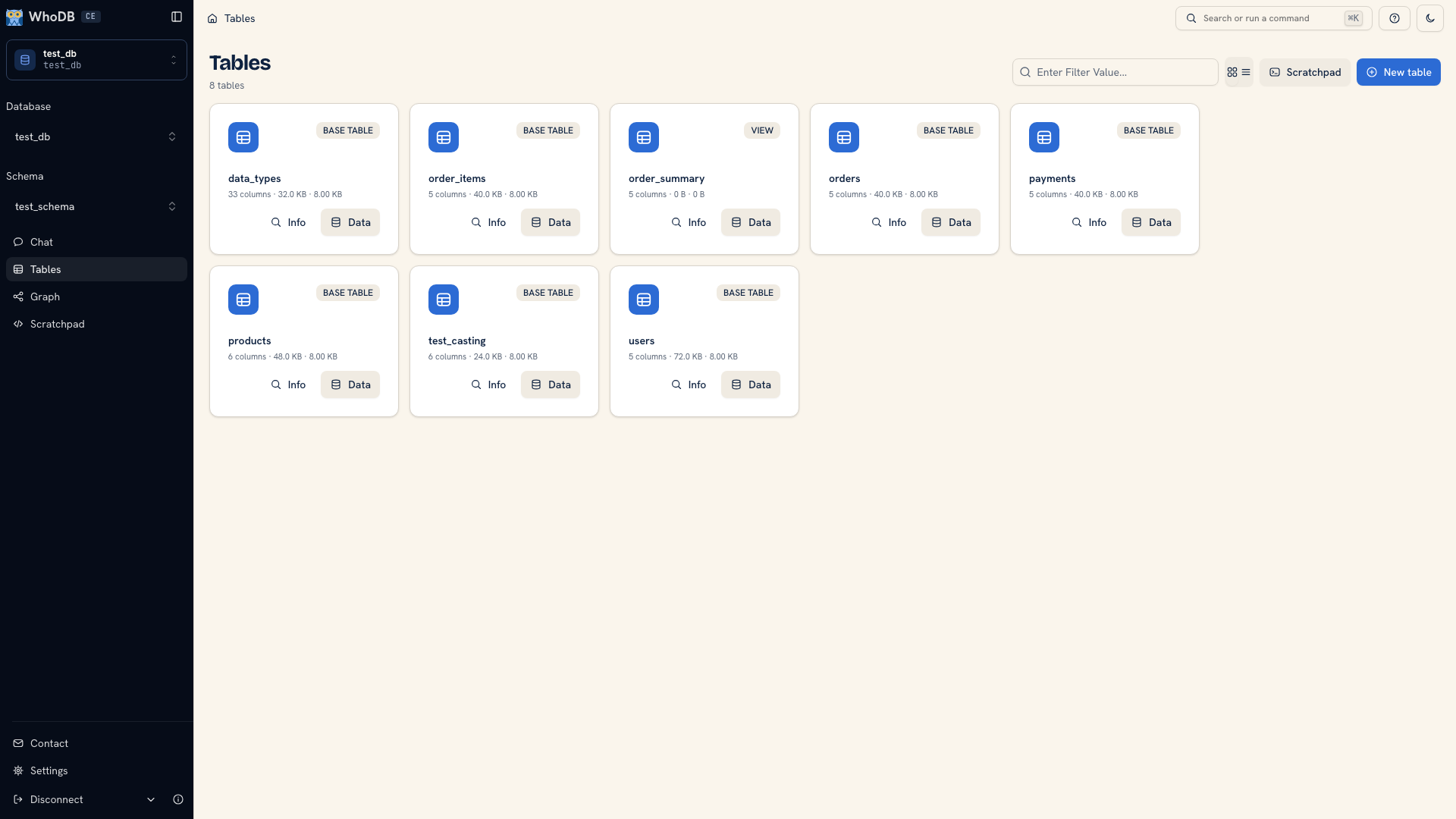 WhoDB Community showing database tables and its navigation sidebar
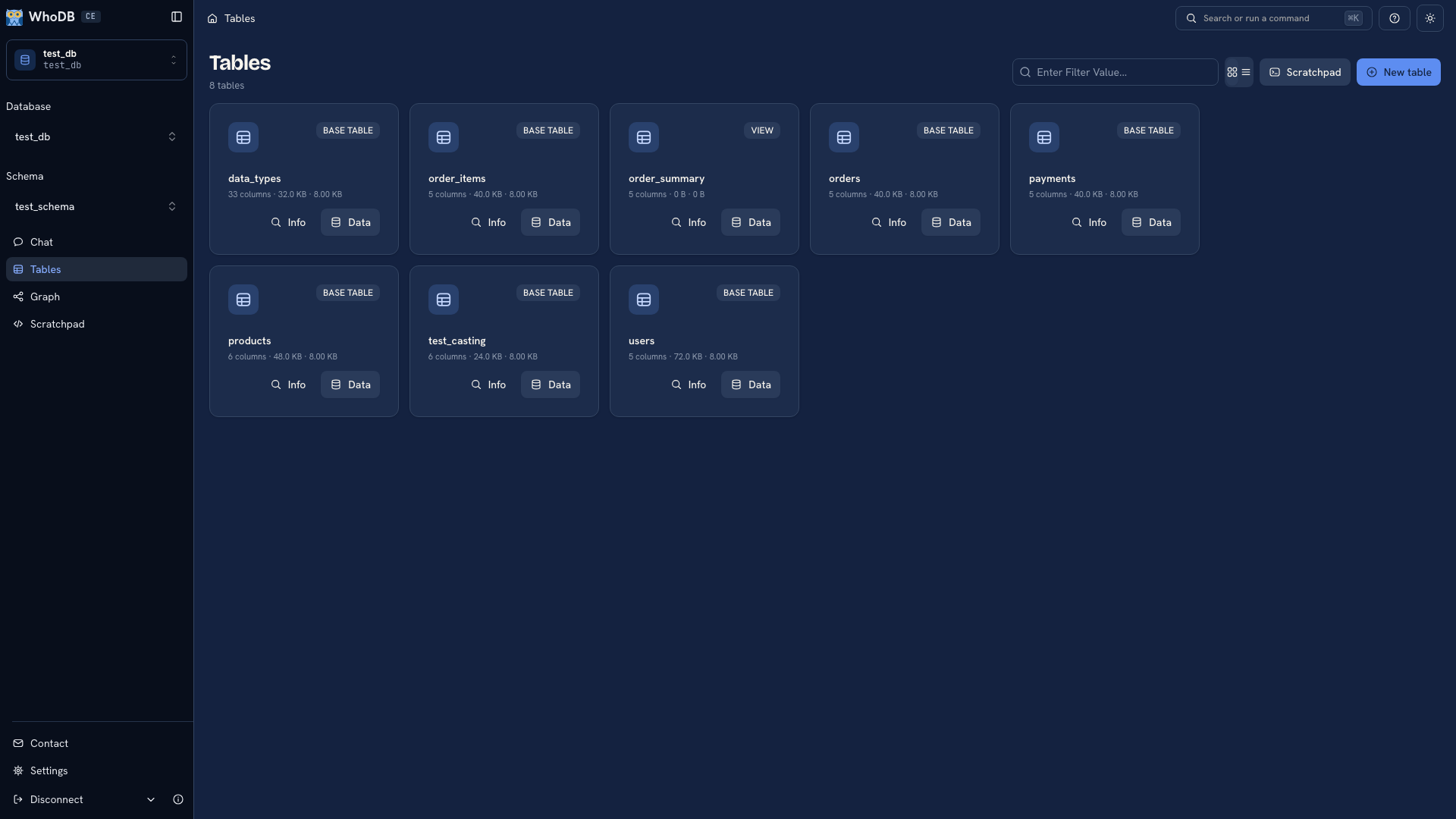 WhoDB Community showing database tables and its navigation sidebar
Start with the task you need to complete#
| Your task | Where to begin |
|---|---|
| Connect a database | Install WhoDB, then make your first connection |
| Understand an unfamiliar schema | Inspect objects and follow relationships |
| Find or change a record | Open the data grid and filter rows |
| Answer a question with SQL | Use Scratchpad |
| Draft a query in everyday language | Configure an AI provider and use Chat |
| Run terminal checks or connect an assistant | Use the CLI and MCP server |
Inspect the structure before writing the query#
Use Tables to find an object, Info to inspect its fields, and Data to read its records. Open Graph when the question depends on related tables. Its edges show relationships reported by the source, and a node's Data action takes you back to the records.
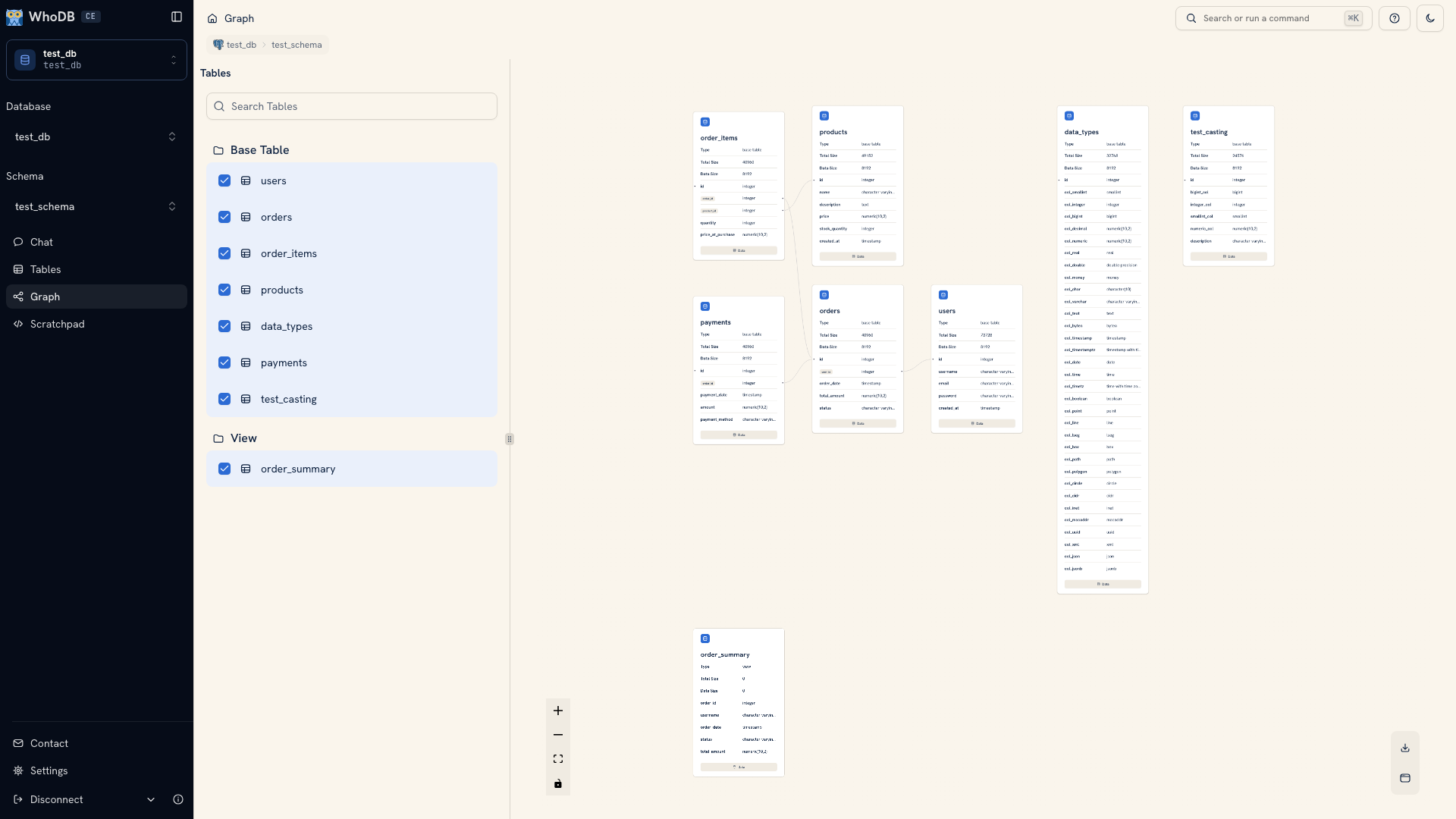 A database schema rendered as connected table nodes in Graph
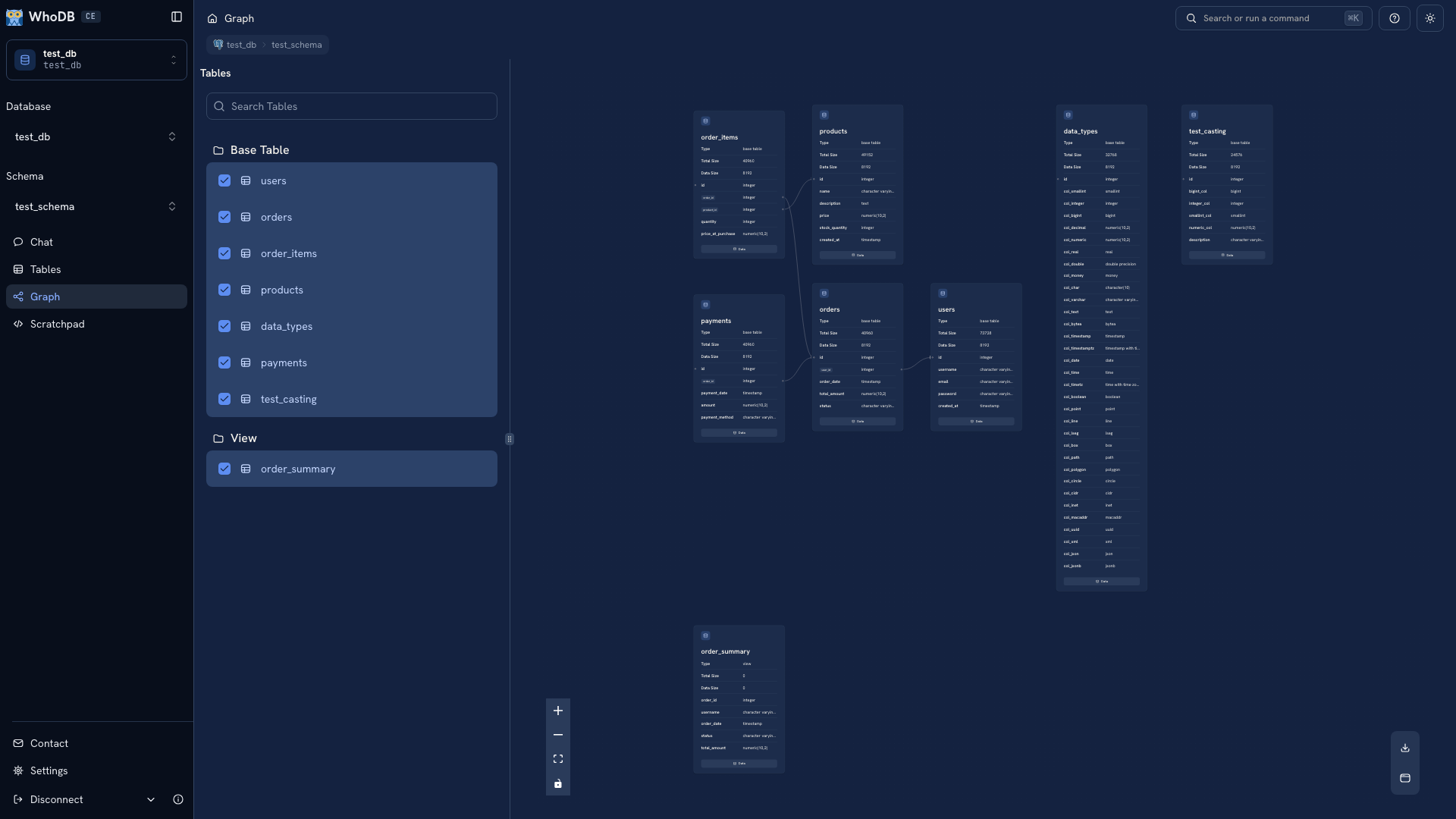 A database schema rendered as connected table nodes in Graph
Keep the steps of an investigation together#
A Scratchpad page holds several query cells. Keep a sample in one cell, a join in another, and the final aggregate beside them. Results appear below the query that produced them, and each cell has its own history.
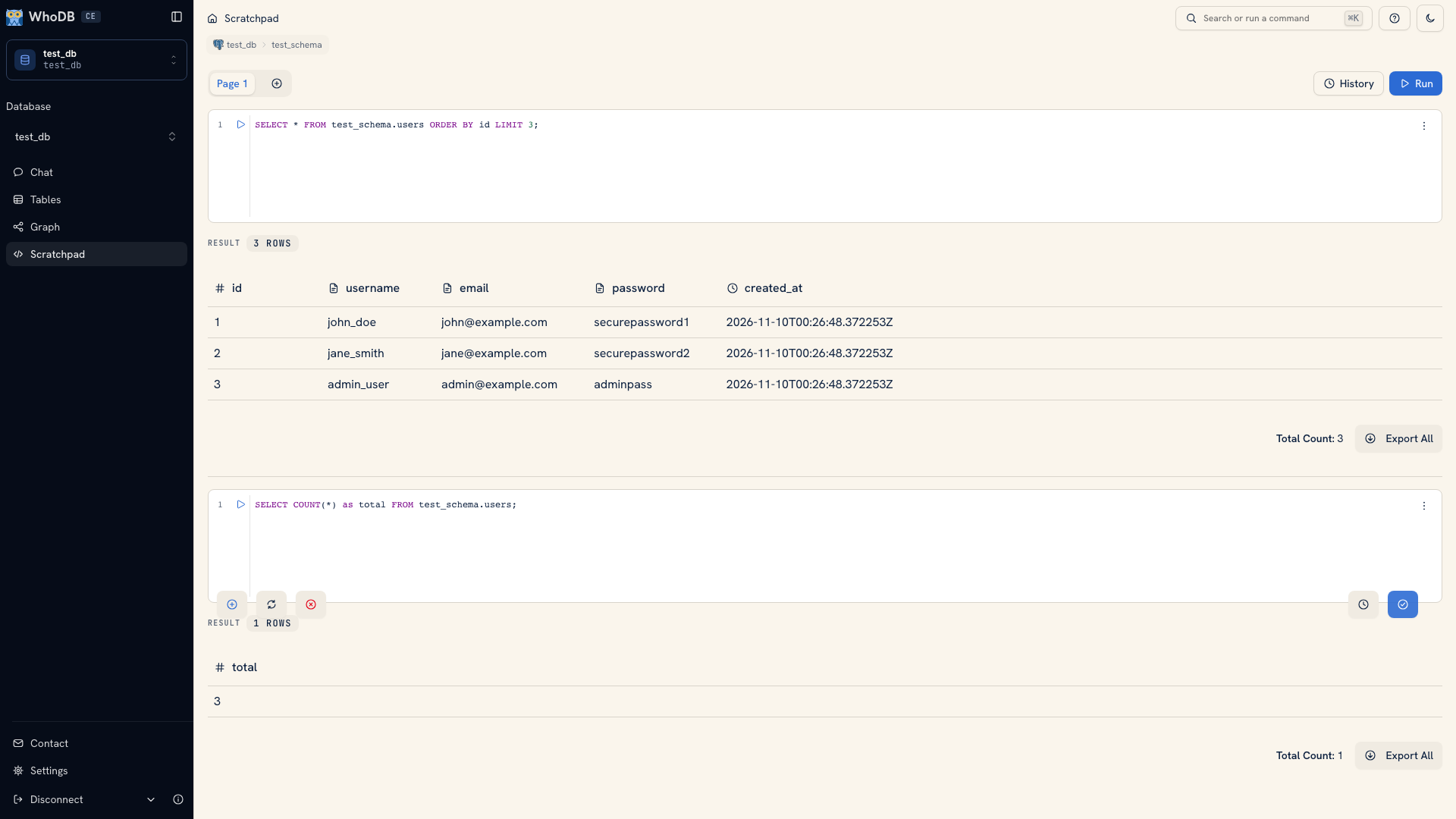 Scratchpad with two query cells and their results
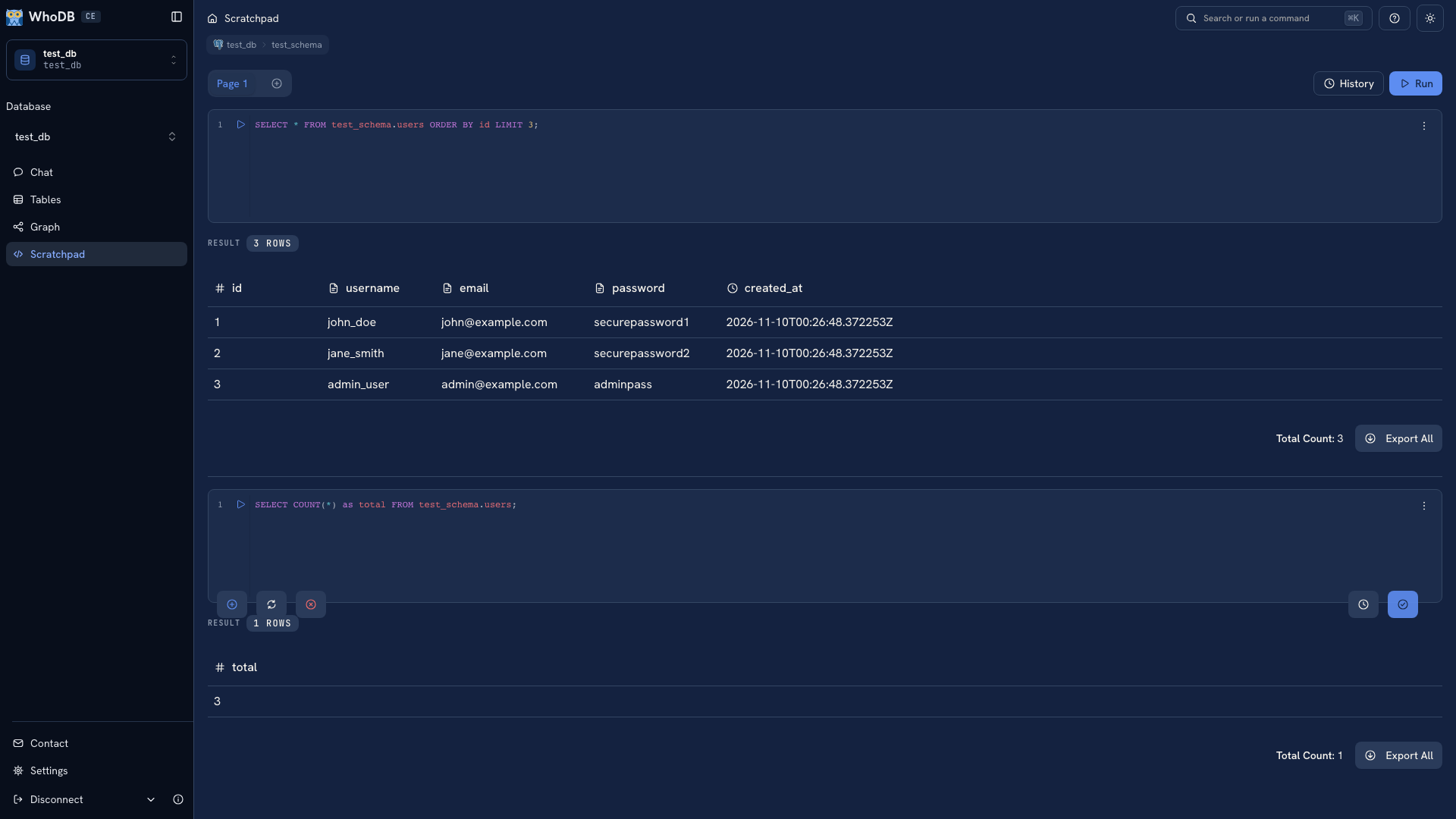 Scratchpad with two query cells and their results
Pages and history belong to your browser. Save important queries in files or version control when they need to be shared or retained.
Get help drafting a query#
Chat uses a configured model to help with questions about the connected source. Read the generated SQL, check the returned records, and move a useful query into Scratchpad when you want to edit it yourself.
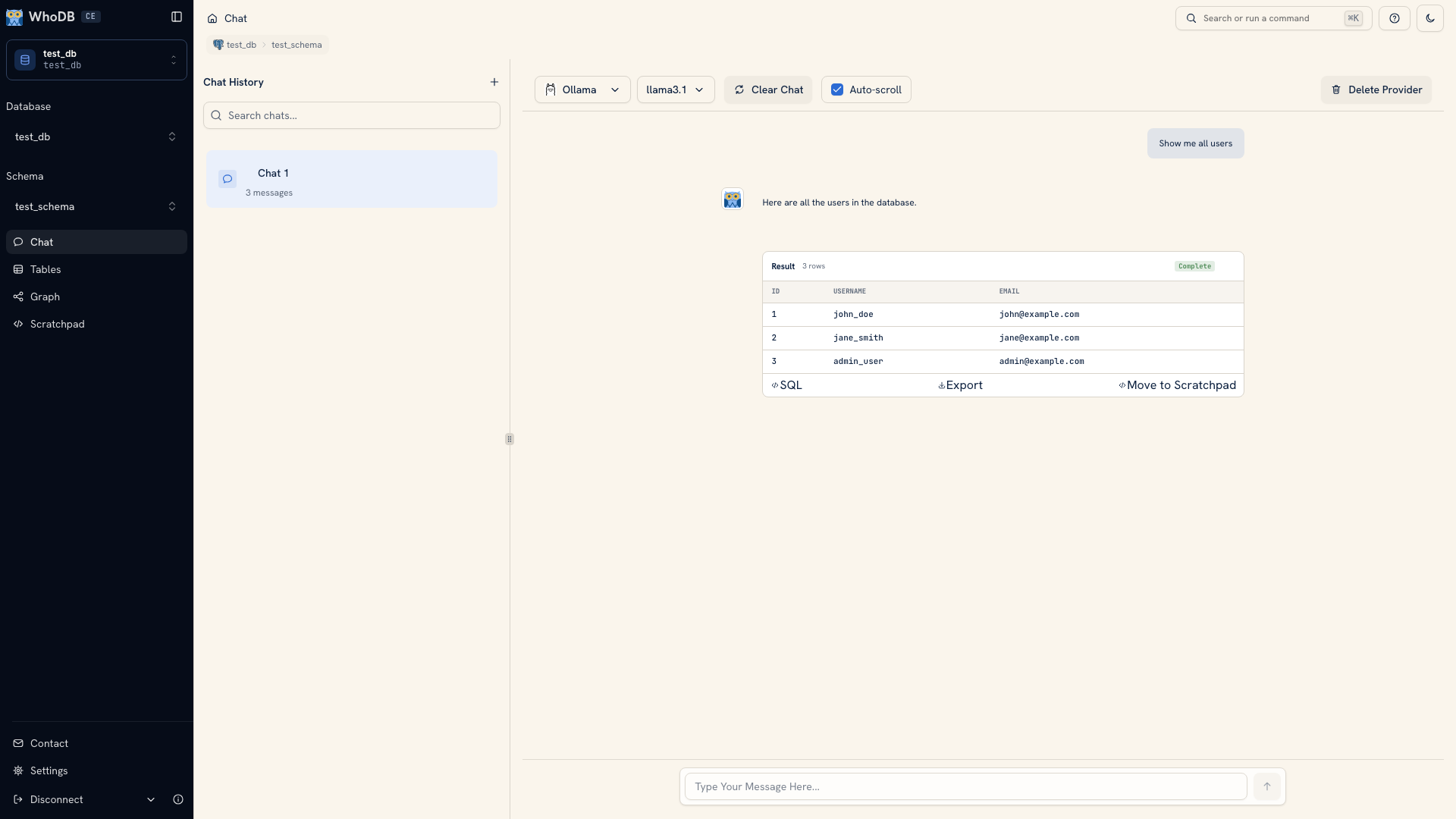 Chat showing a generated query and example results
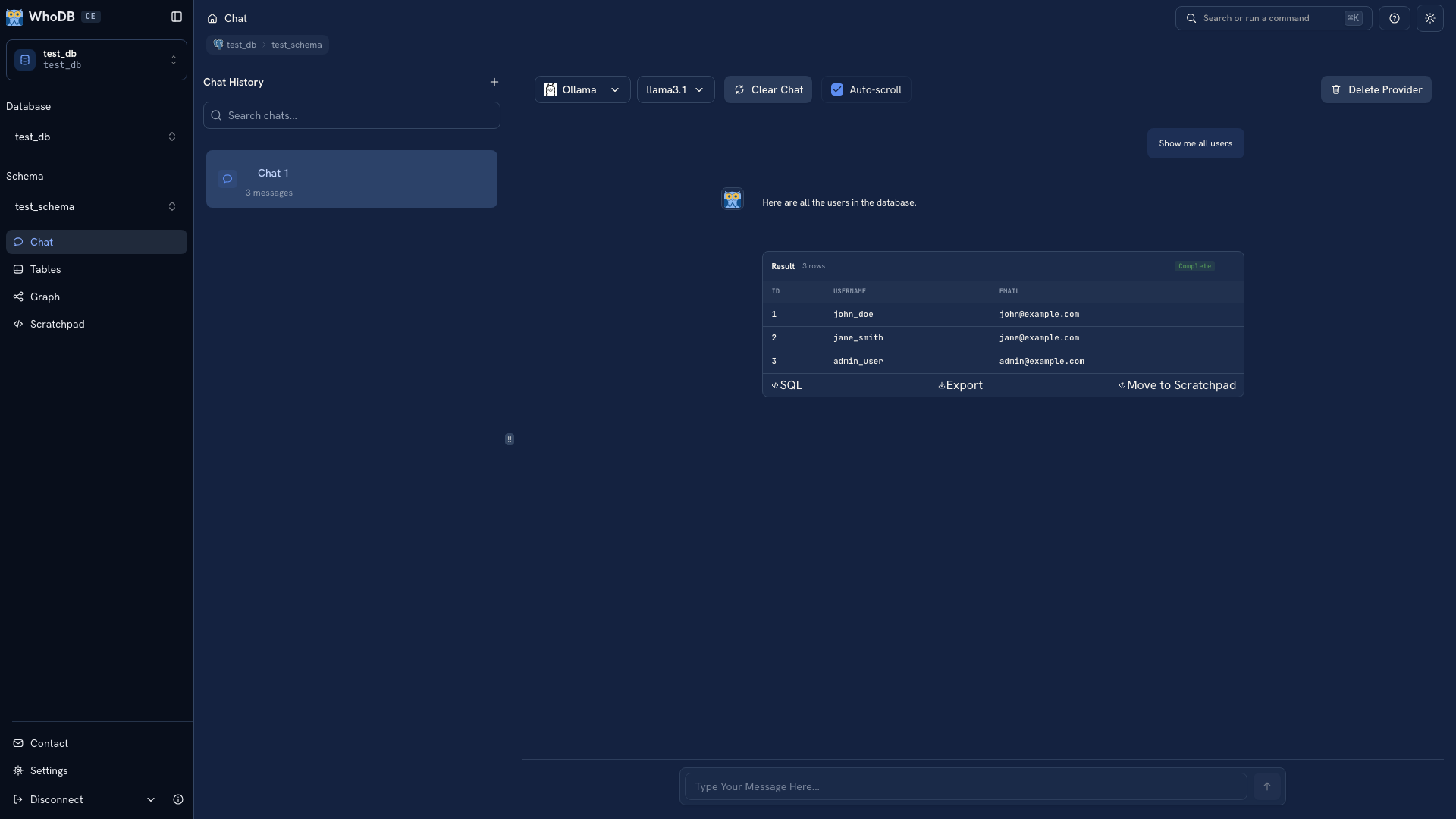 Chat showing a generated query and example results
Chat is optional. You can browse and query without a model. Its documentation screenshots use fixed demonstration responses; a live answer depends on your provider, model, and data.
Use the operations your source supports#
CE includes SQL databases, local database files, document stores, caches, and search sources. A PostgreSQL table and a Redis key have different operations, so the available actions change with the connection. See Supported databases for the CE catalog.
Continue when the work becomes recurring#
If an investigation becomes a repeated preparation task or team workflow, bring the connection to WhoDB Platform. Use Transforms for data pipelines, Apps for operational workflows, and Ontology for shared business models. Choose a next step based on the work you want to repeat.
WhoDB Community is Apache-2.0 licensed. Browse the source, report a problem, or join a discussion.
Was this page helpful?