
Edit a record
Use the data grid to correct a value in a specific record. You can edit individual cells and review them together before saving, or open the row editor when you need the record's fields in a form.
First find the row by its key and confirm the active connection. This page describes changes to an object's Data view. Scratchpad result grids are read-only.
Edit cells inline#
Double-click an editable cell, enter its new value, then press Enter or move focus to finish editing that cell. The value remains pending until you choose Save in the save bar.
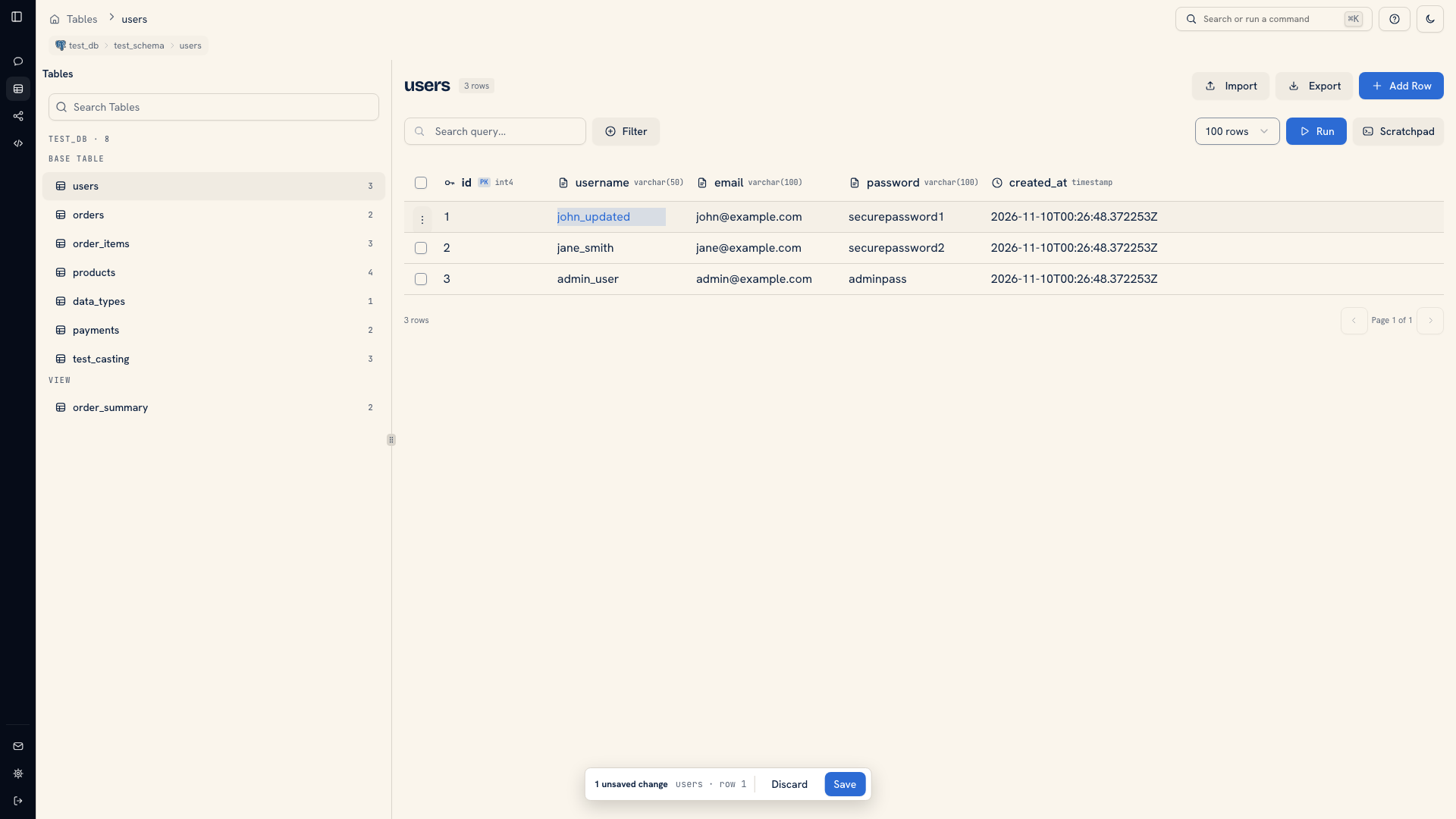 Inline editing with pending changes and the save bar
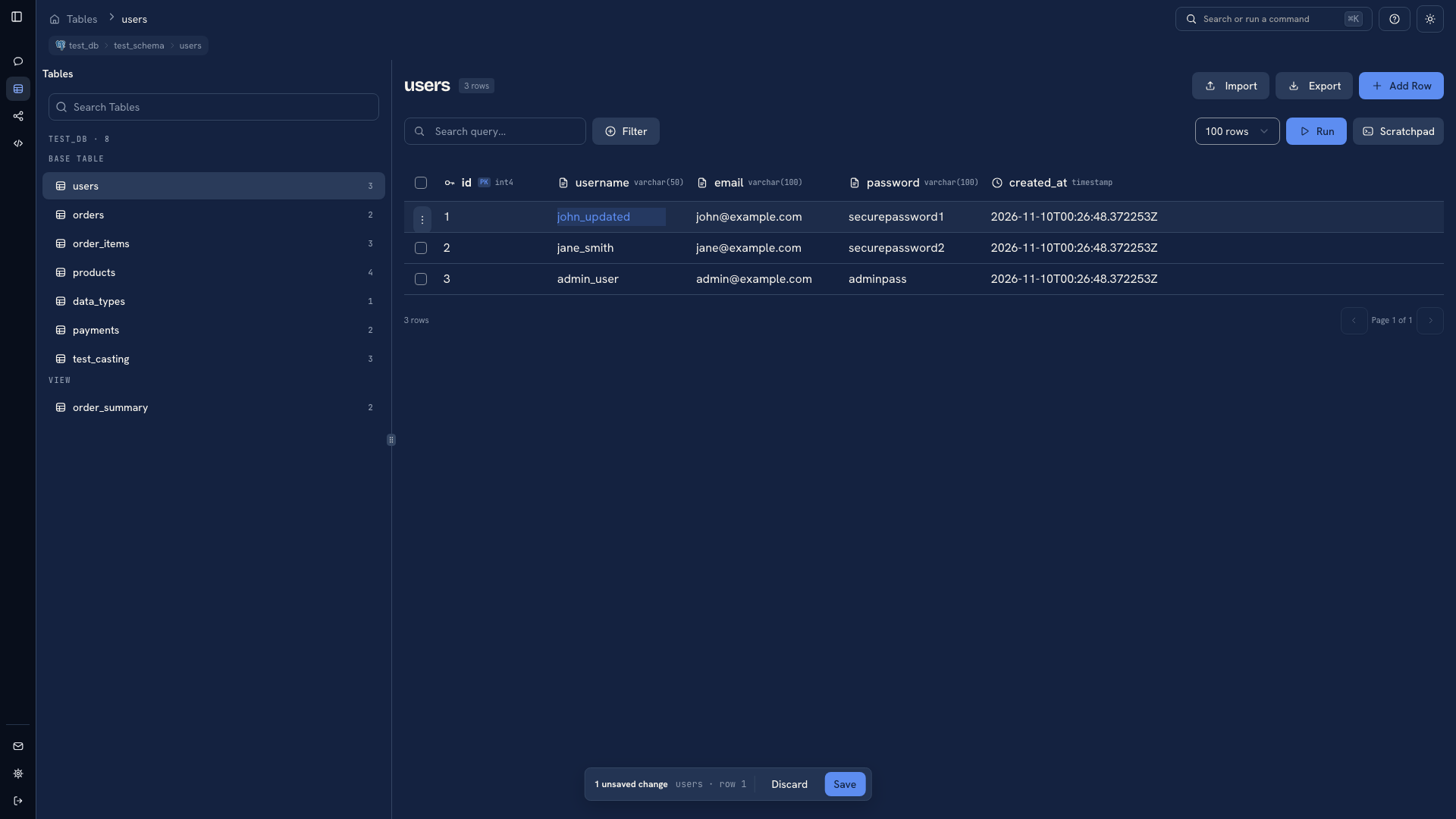 Inline editing with pending changes and the save bar
Use this flow when you want to correct a few values and review them before writing. Choose Discard to remove pending changes. While a cell's editor is open, Escape restores that cell's original value.
For example, find a test user by ID, change its email, and check the row again before saving. Review both the new value and the identifier: a correct email saved against the wrong user is still an incorrect change.
Edit a whole row#
Right-click a row and choose Edit Row, or focus it and press Enter or Mod + E. The sheet opens beside the grid when the source supports updates.
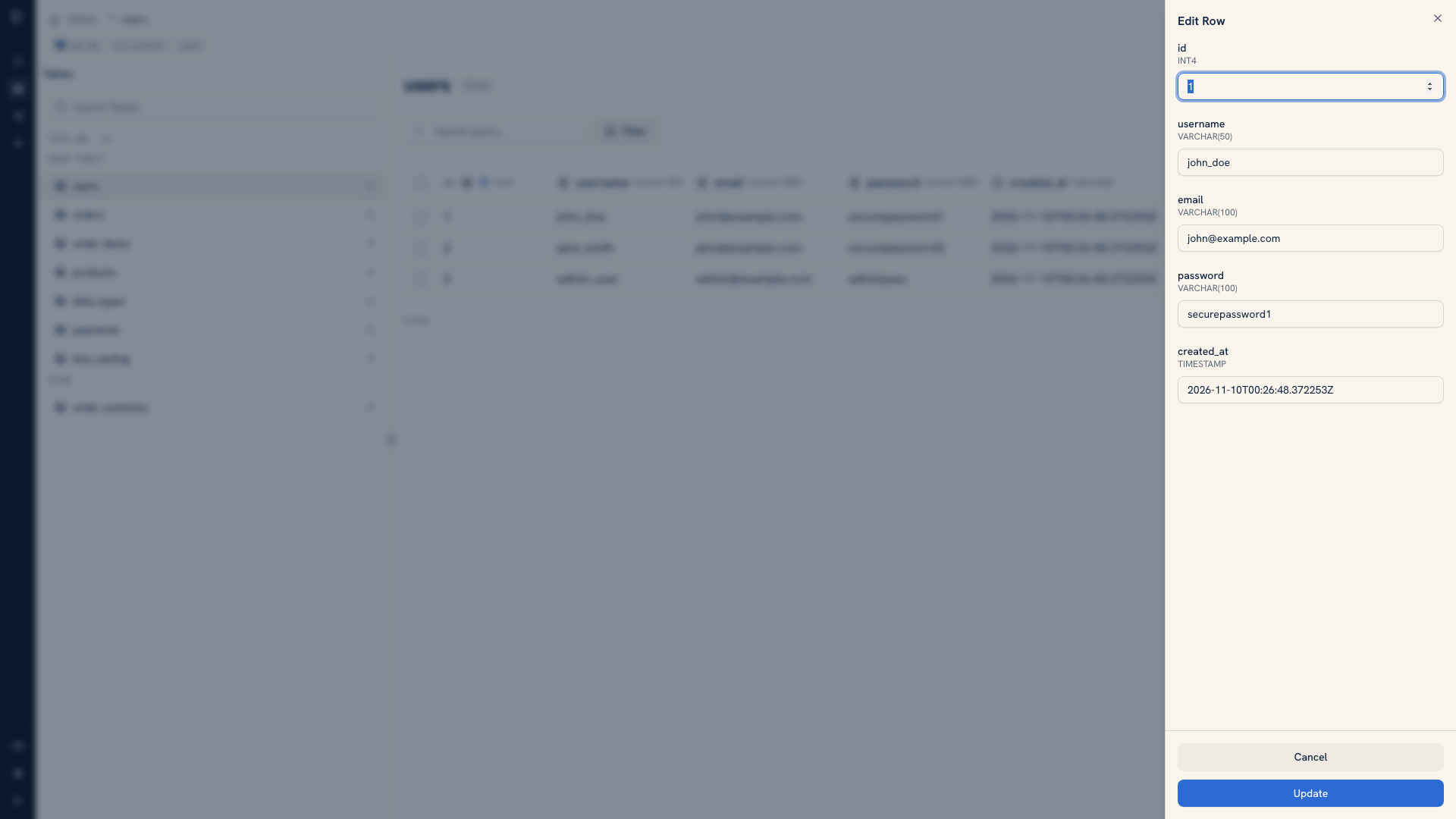 The Edit Row sheet
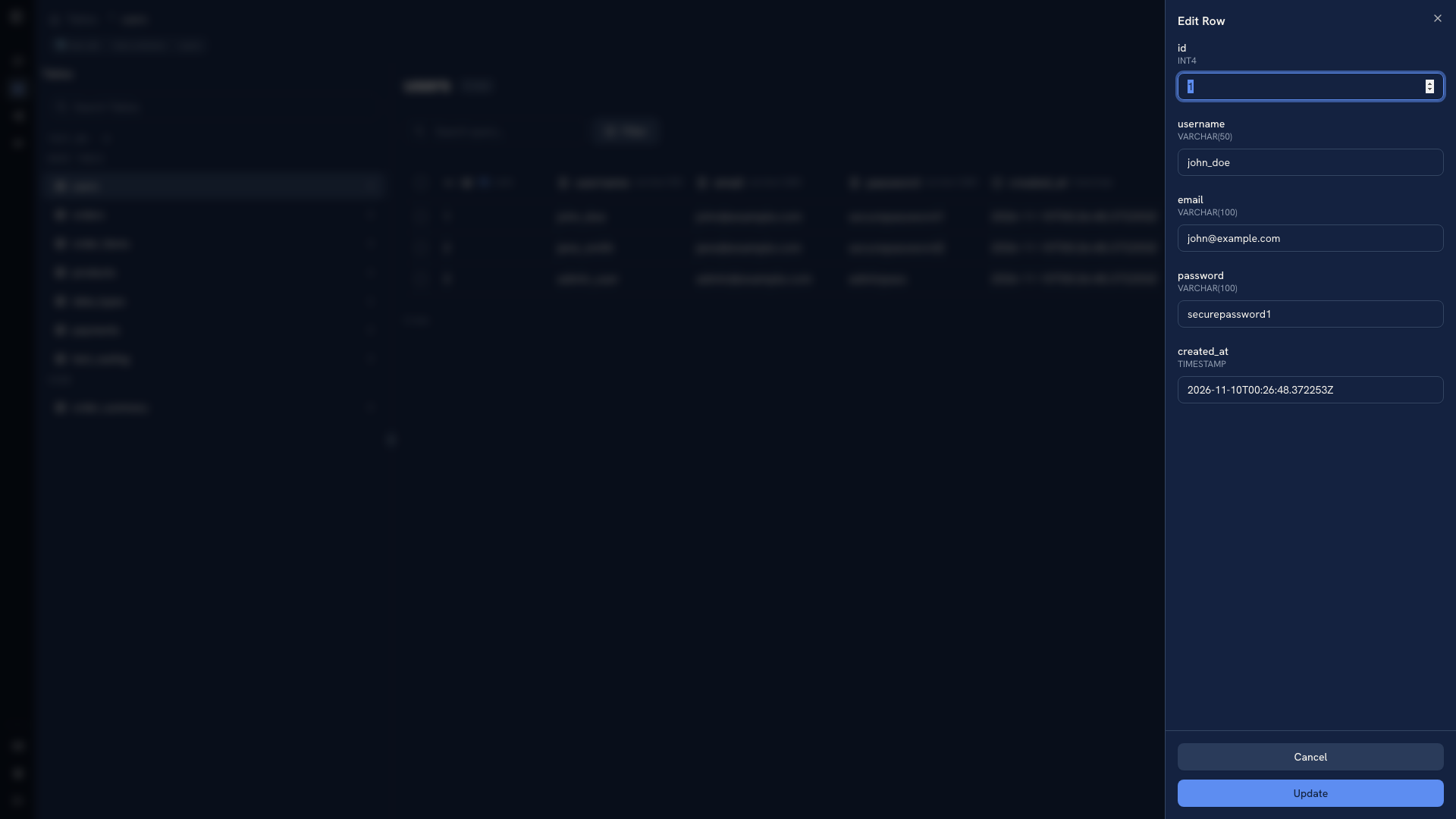 The Edit Row sheet
Read the current values before changing them. Check types, required fields, and keys in Info if you are unsure how a value should be represented. For a document source, use its document editing controls.
Make the change#
Submit the intended update and read any database error. Type checks, unique constraints, permissions, and other source rules still apply.
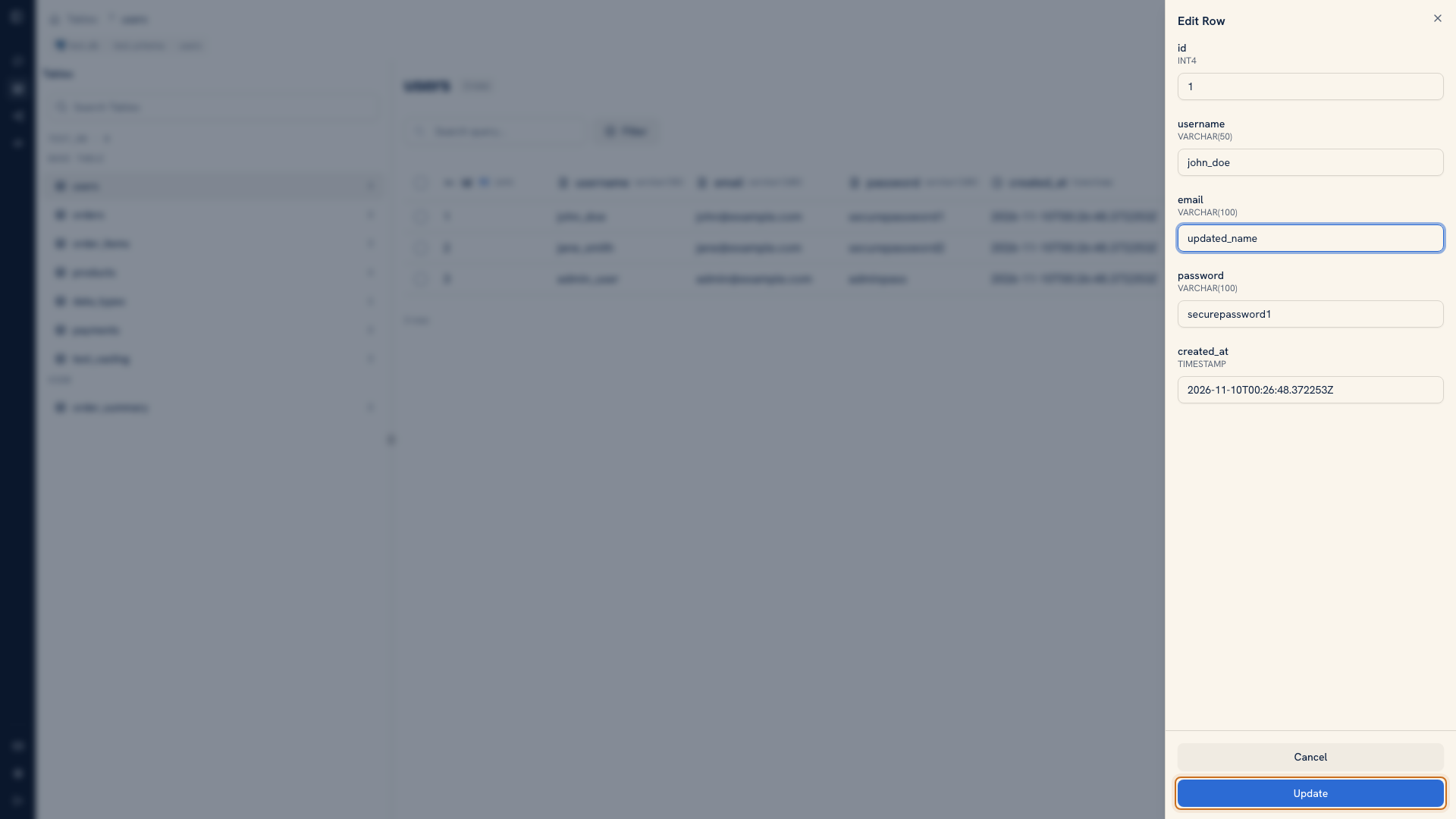 The update action in an edit sheet
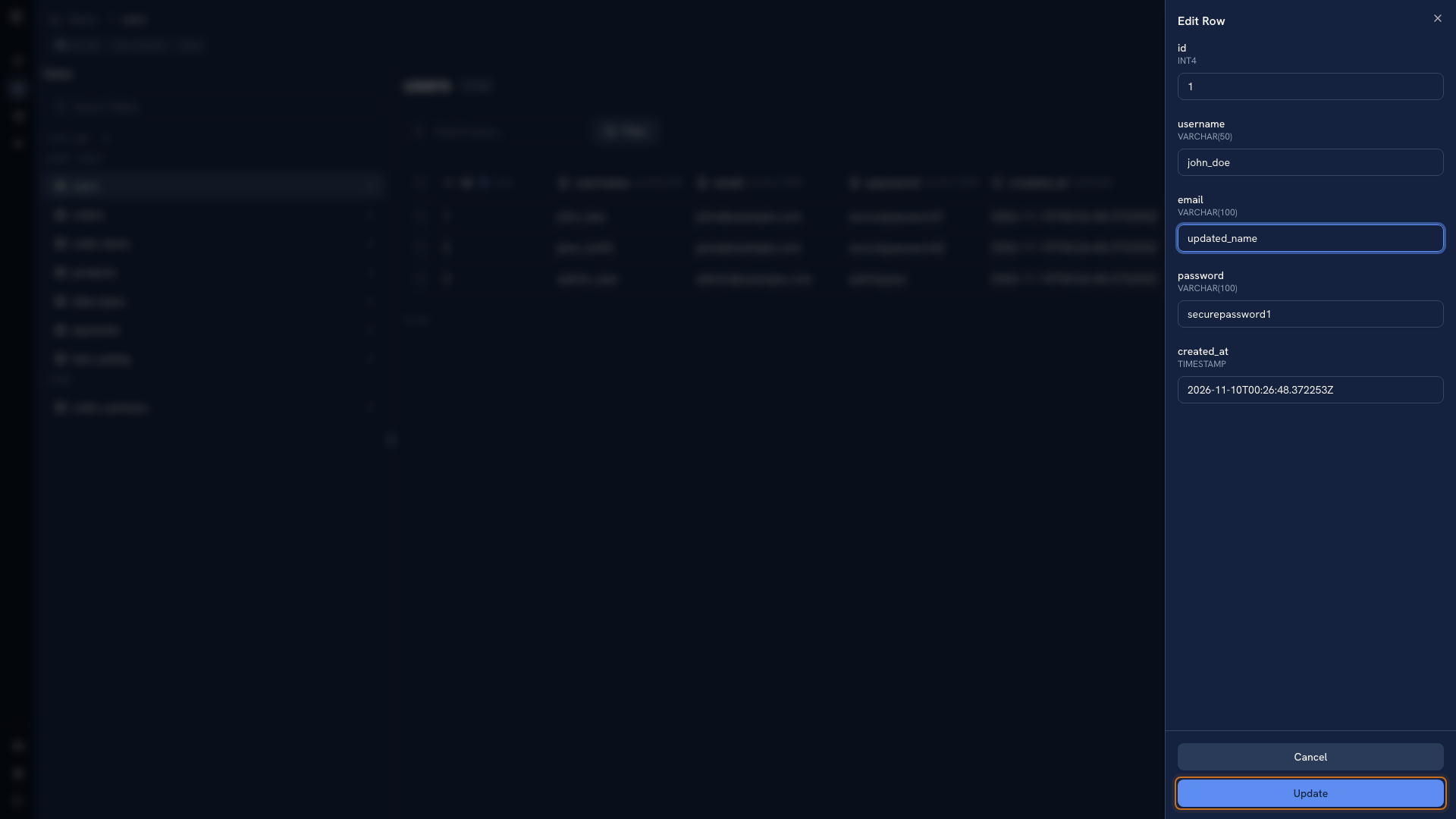 The update action in an edit sheet
After saving, refresh or query the record by its key. Confirm the stored value rather than relying only on the success message. The database can apply defaults or other behavior during a write.
Update several records#
For a change defined by a rule, such as changing a status across a group of orders, use an explicit query in Scratchpad. Read the target records with the same predicate first and compare the result to your intended scope.
Keep repeatable data repairs in a reviewed script. Browser-local changes and query history are useful while investigating, but they are not a durable record of a team change.
Tip
If your team repeats the same review and update task, build an App in WhoDB Platform for those records and actions. Turn manual work into an app.
Next: Delete a record · Import records
Was this page helpful?