
Make the workspace yours
Use Settings to make the workspace easier to read and to choose defaults that fit your usual database work. For example, you can prefer a compact object list, a smaller result page, or a larger condition editor.
Open Settings from the sidebar. Its tabs group Appearance, Behavior, Integrations, and Privacy.
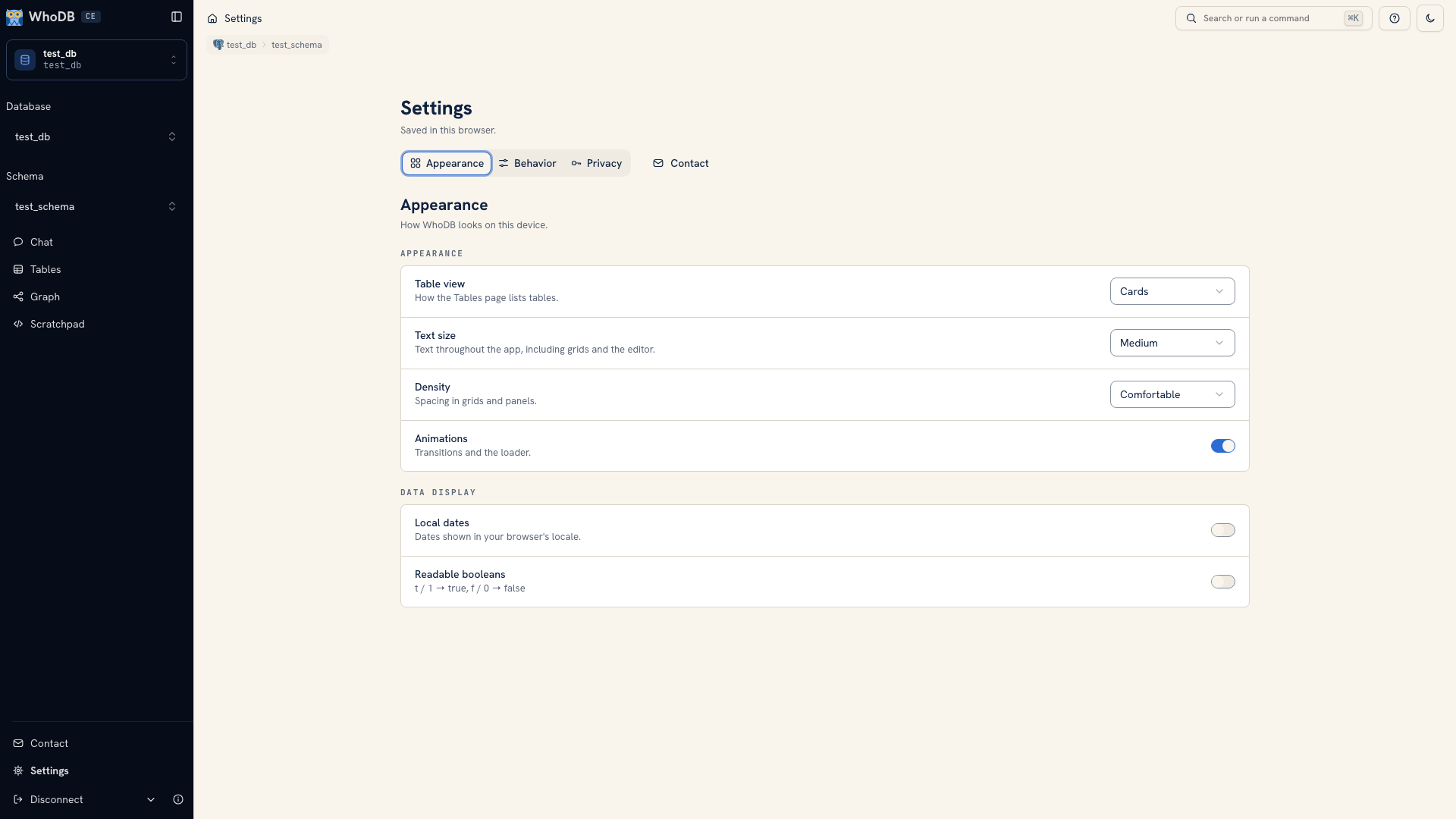 The appearance settings page
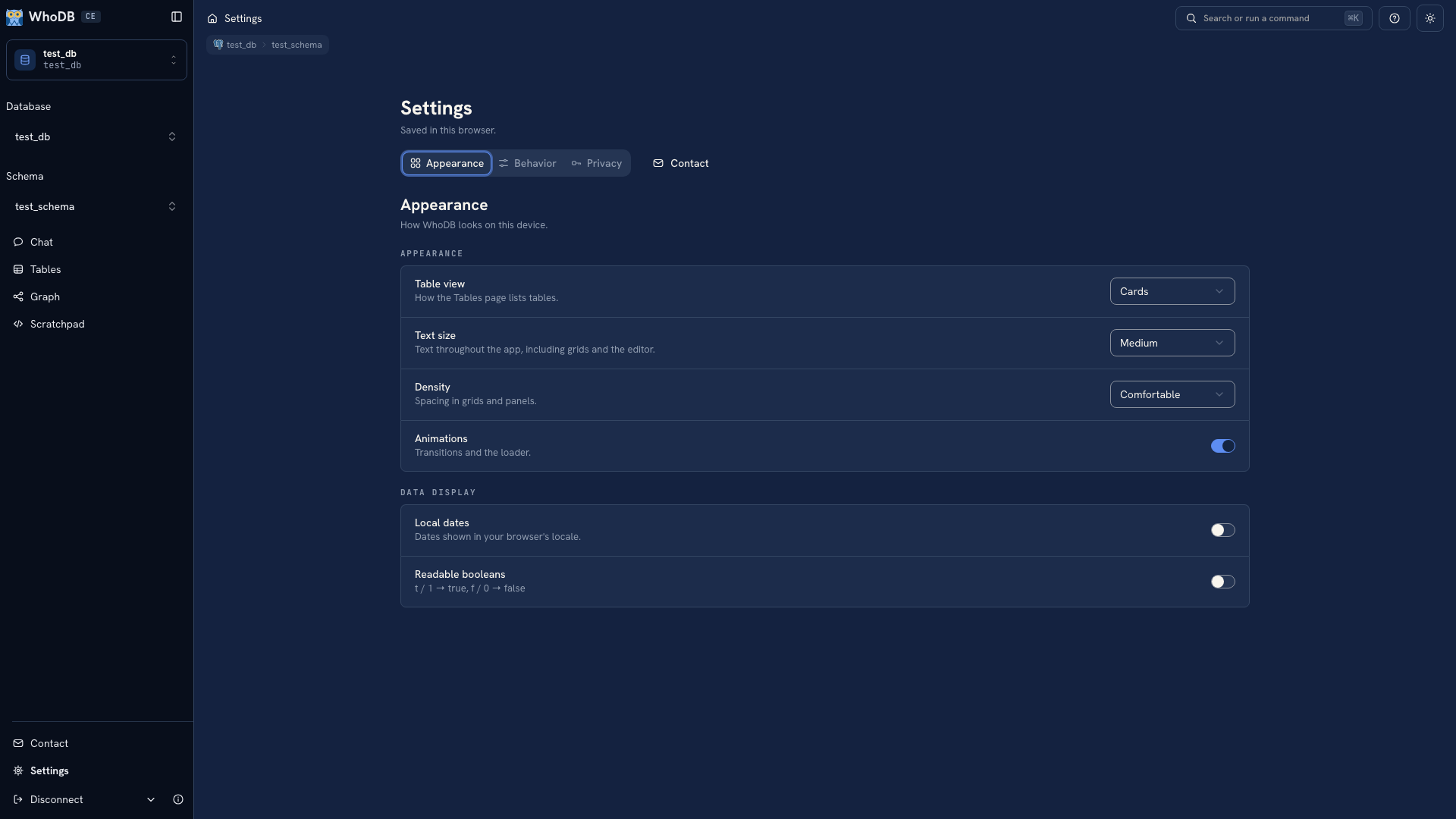 The appearance settings page
Appearance#
Choose a storage-unit list or card view, font size, border radius, and spacing. Use a density that leaves field names and values readable at your screen size. Turn animations off if you prefer less motion.
Data-display preferences include localized dates and readable boolean values. If you are comparing a displayed value with a query, export, or application log, check the display preference before treating a different presentation as a different stored value.
The view preference changes how objects are presented. It does not change the source's schema or the records in it.
Behavior#
Set a default page size for browsing. A smaller page is useful while learning an object or working with many columns. You can request a larger page when you need to compare more records at once.
The server's WHODB_MAX_PAGE_SIZE remains the upper limit. A browser preference cannot raise a limit enforced by the server.
Choose whether the condition builder opens in a popover or a larger sheet. Use the larger editor when a set of conditions is difficult to read in the compact view. The available controls also include database/schema terminology and language preferences.
Integrations and privacy#
Review the integration controls provided by your build. Under Privacy, use the telemetry control to choose the available reporting preference.
Browser settings are local preferences. They are not a shared team configuration or a way to change deployment policy. Server profiles, logs, session persistence, and request limits are configured by the person running WhoDB. See server configuration for those settings.
If a preference seems to have reset, check whether you changed browsers, browser profiles, or cleared local storage. Keep important query work outside browser-local state.
Next: Keyboard shortcuts · Sidebar navigation
Was this page helpful?