
Delete a record
Delete a record when you have identified the exact row that should no longer exist. Start with a lookup using its key or another precise identifier. A similar-looking name is a poor basis for deleting data.
Open the delete action#
- Open the object's Data view.
- Find the record and check its identifying fields.
- Right-click the row and choose Delete Row.
You can also focus a row and press Mod + Delete or Mod + Backspace.
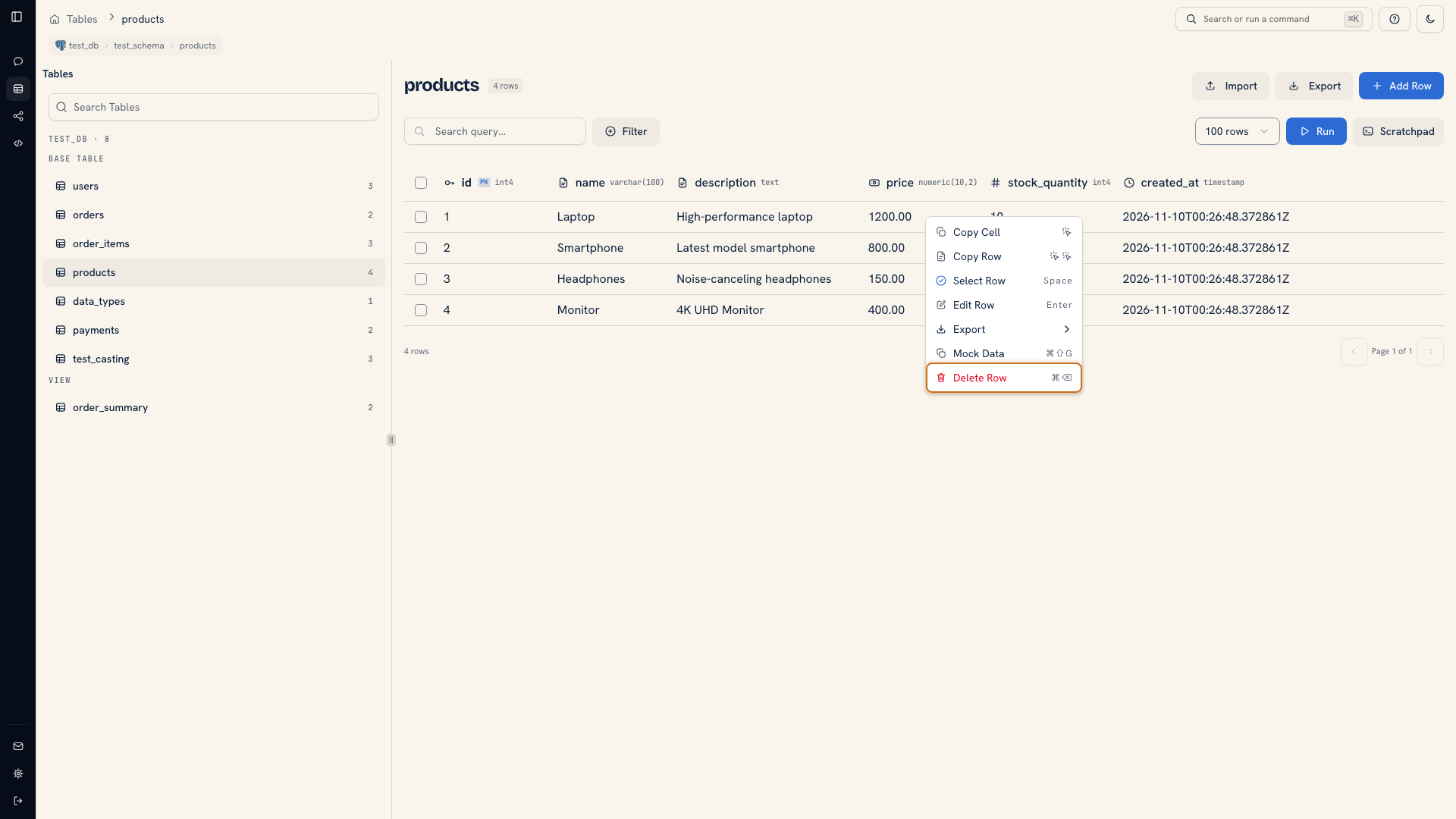 Delete Row in the row context menu
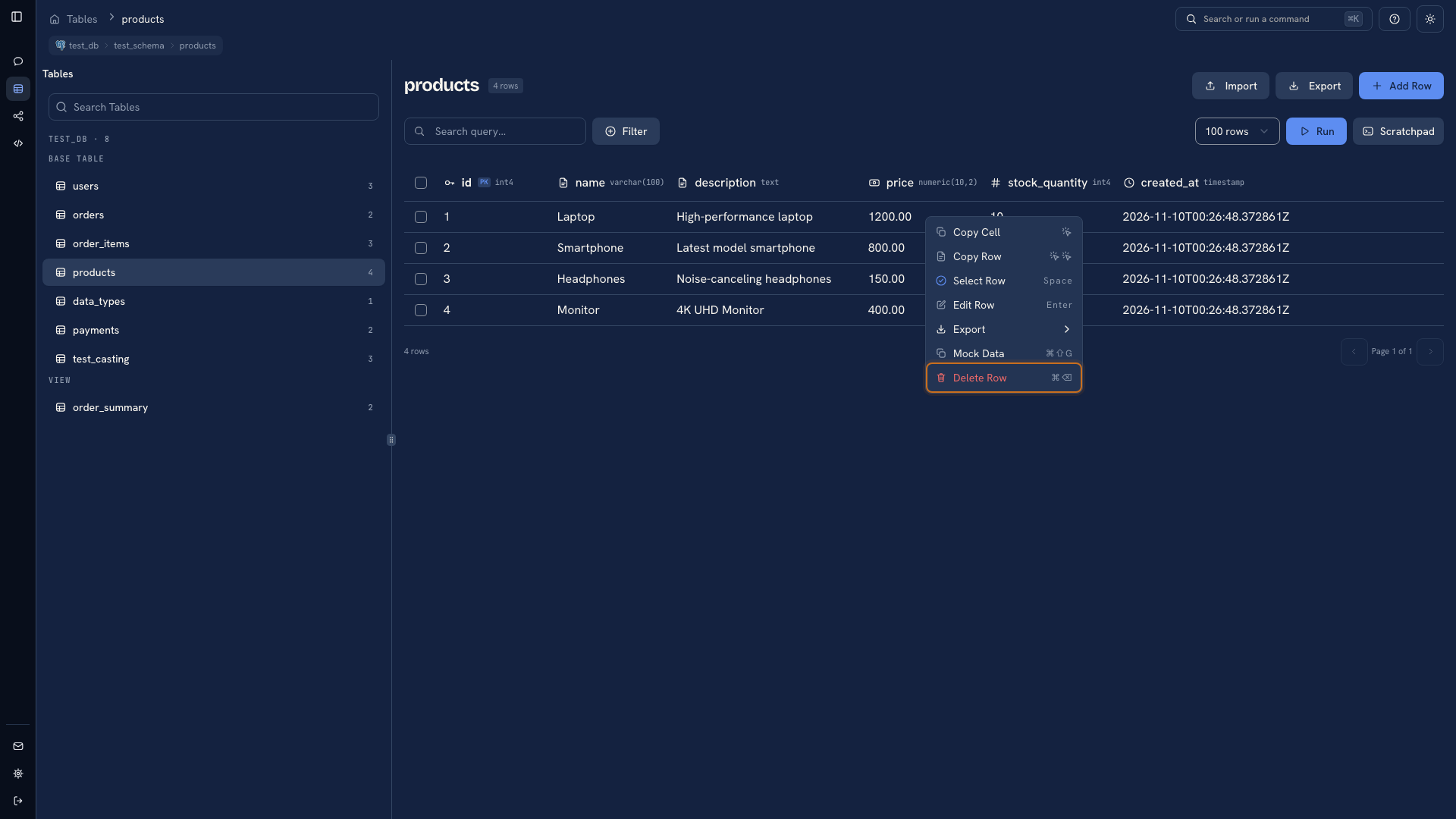 Delete Row in the row context menu
If rows are selected, the delete action can apply to that selection. Clear an old selection when your intention is to remove only the row you are inspecting.
Review the confirmation#
Check the connection, object, and record identifiers in the confirmation before accepting it. The database may reject deletion because another record references the row or because the connected account lacks permission. Read the error before trying a different action.
After deletion, repeat your lookup. Confirm the intended row is gone and inspect related data when the database applies additional behavior such as cascades.
Understand Undo#
After a successful grid deletion, sources that support inserting rows can show Undo in the success notification for seven seconds. Undo attempts to reinsert the captured records. It can fail if constraints or other database changes prevent restoration.
Warning
Undo is not a database rollback. Do not rely on it to restore related rows, trigger effects, or changes made through Scratchpad. Use a recoverable backup and your database's recovery tools for important data.
Delete a set defined by a rule#
For a small loaded selection, see Select rows and apply actions. For a set defined by a condition, use Scratchpad.
First run a read query with the same condition and inspect its records. Then review the deletion statement, including its table and predicate, before execution. Keep the selection query with the change record so another person can understand what was removed and why.
Was this page helpful?