
Navigate the workspace
Use the sidebar to keep track of the connection you are working on and move between its data tools. Before running a query or changing a record, check that the database and schema are the ones you intended.
Collapse or expand the primary sidebar with Mod + B when you need more room for a grid or query result.
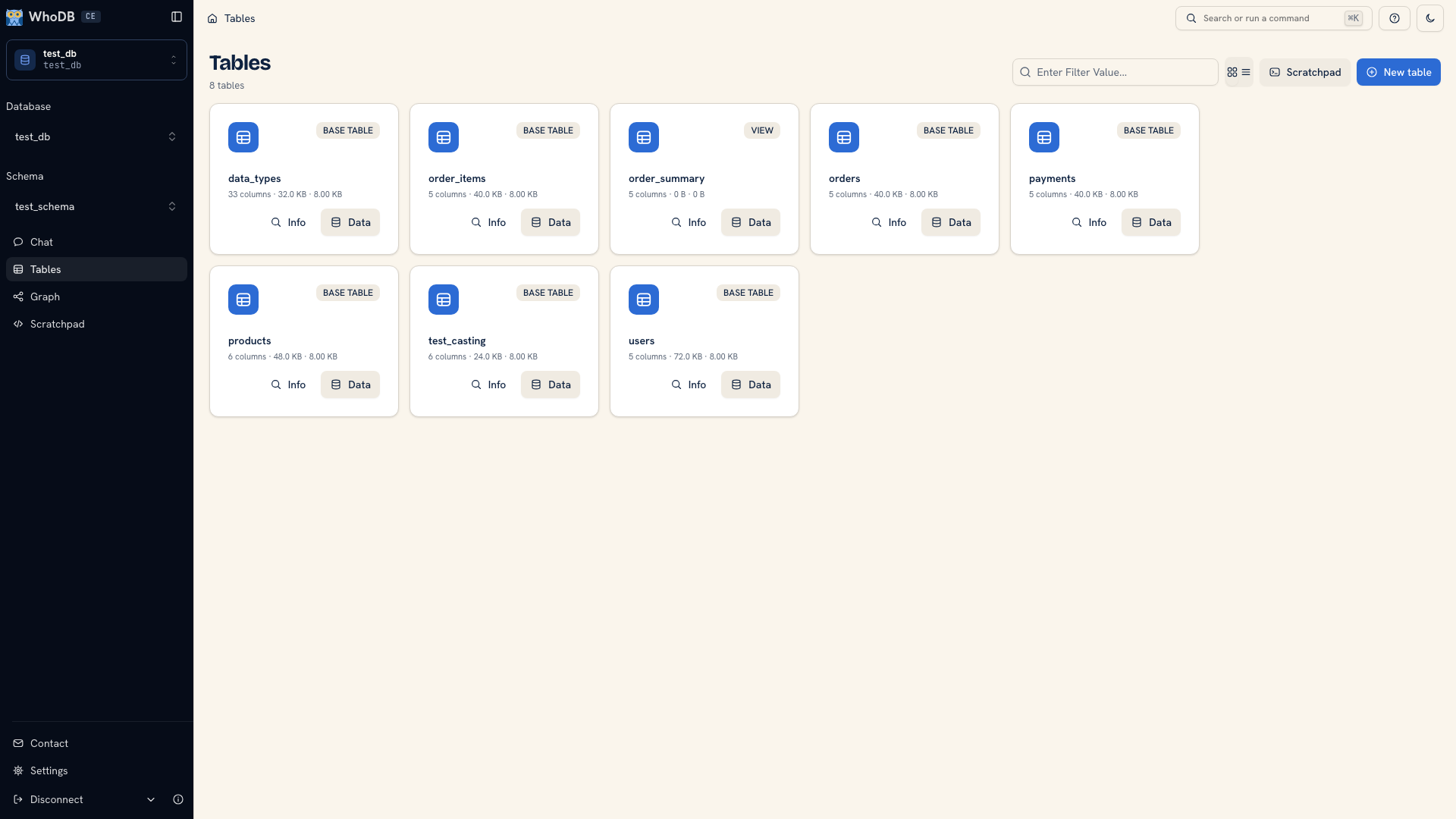 Sidebar navigation and the selected schema
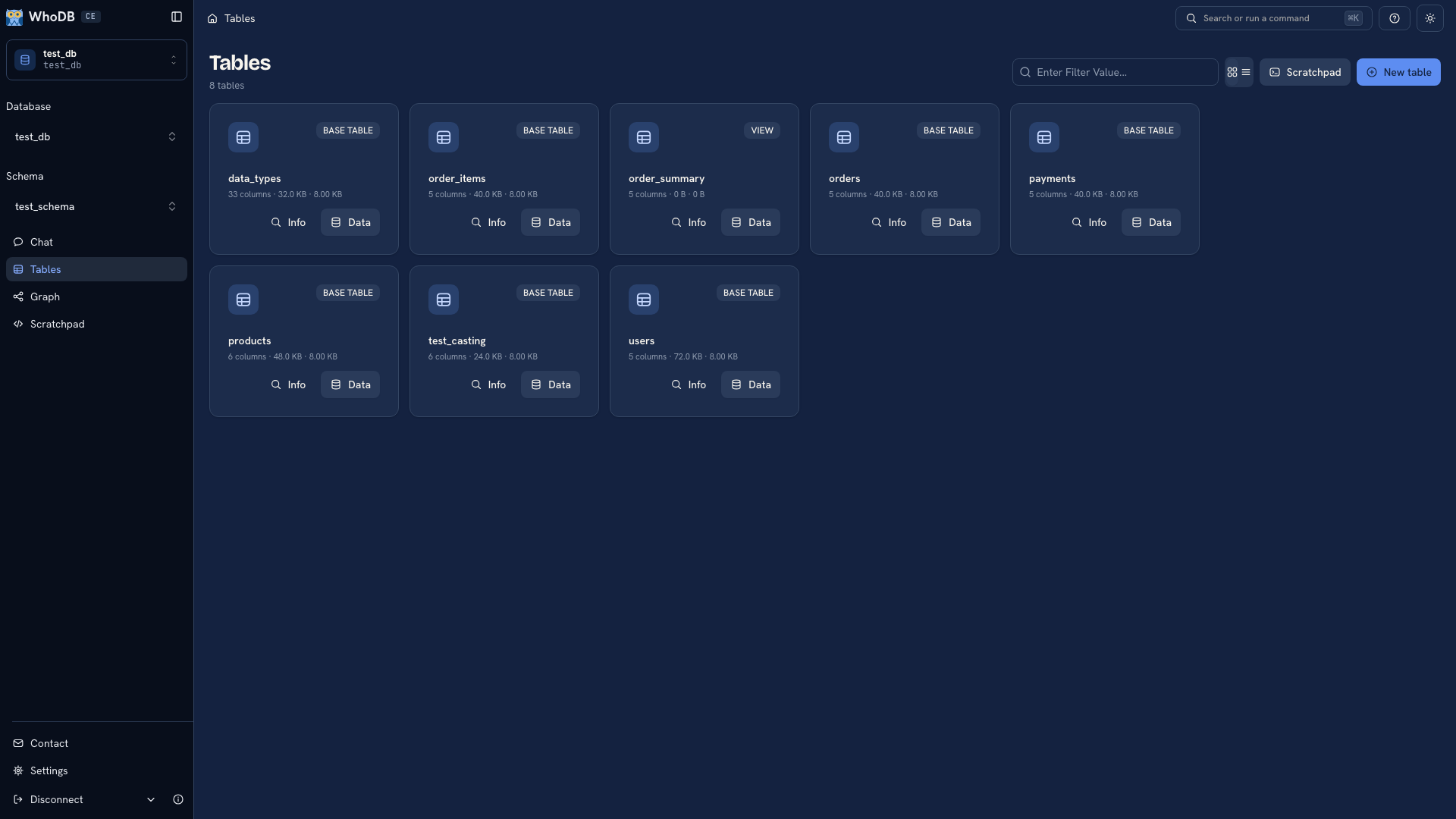 Sidebar navigation and the selected schema
Select the working context#
Use the profile, database, and schema selectors offered by the source. A database account can have access to several databases or schemas, and matching table names can appear in more than one of them.
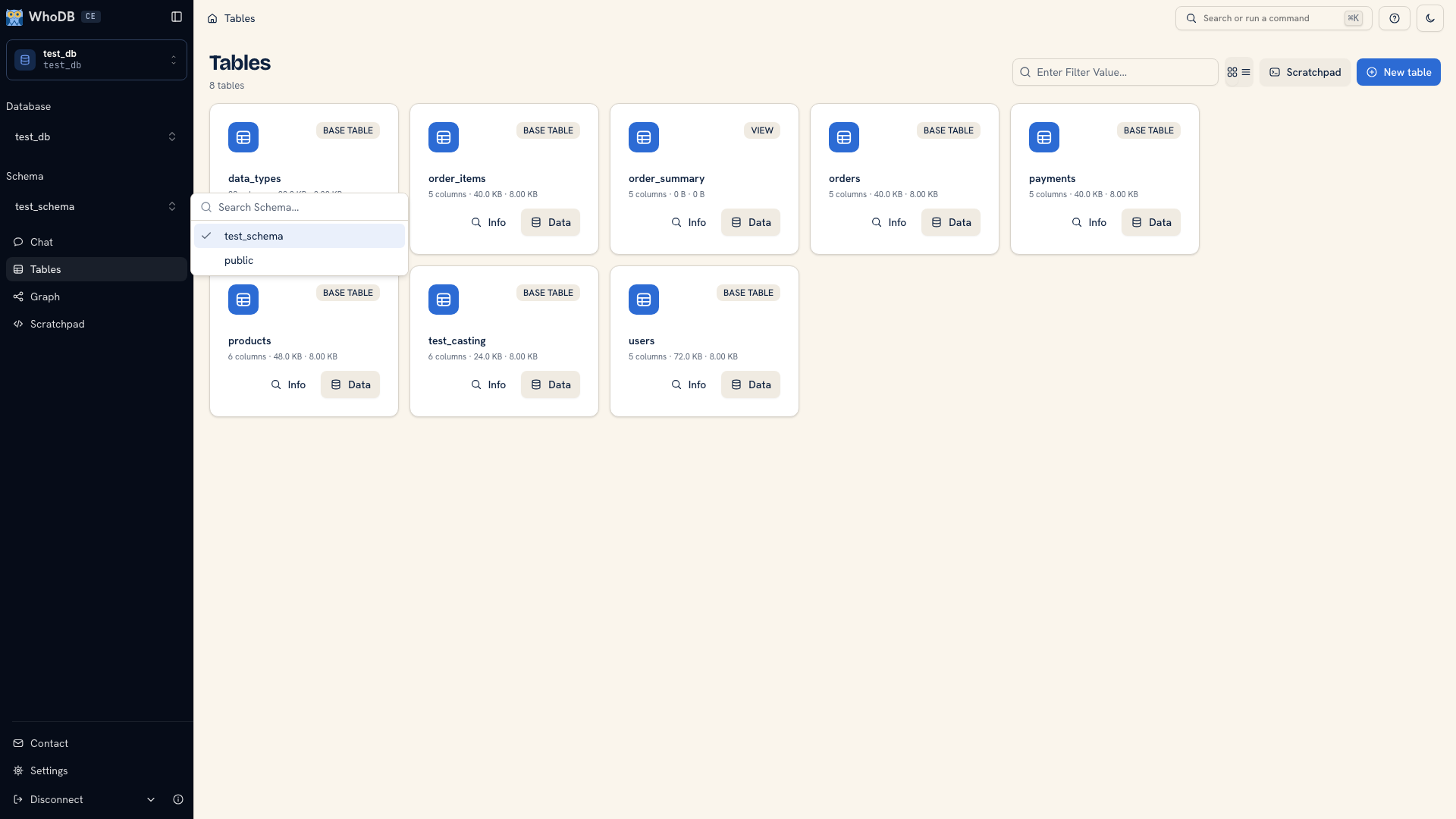 Schema selector in the sidebar
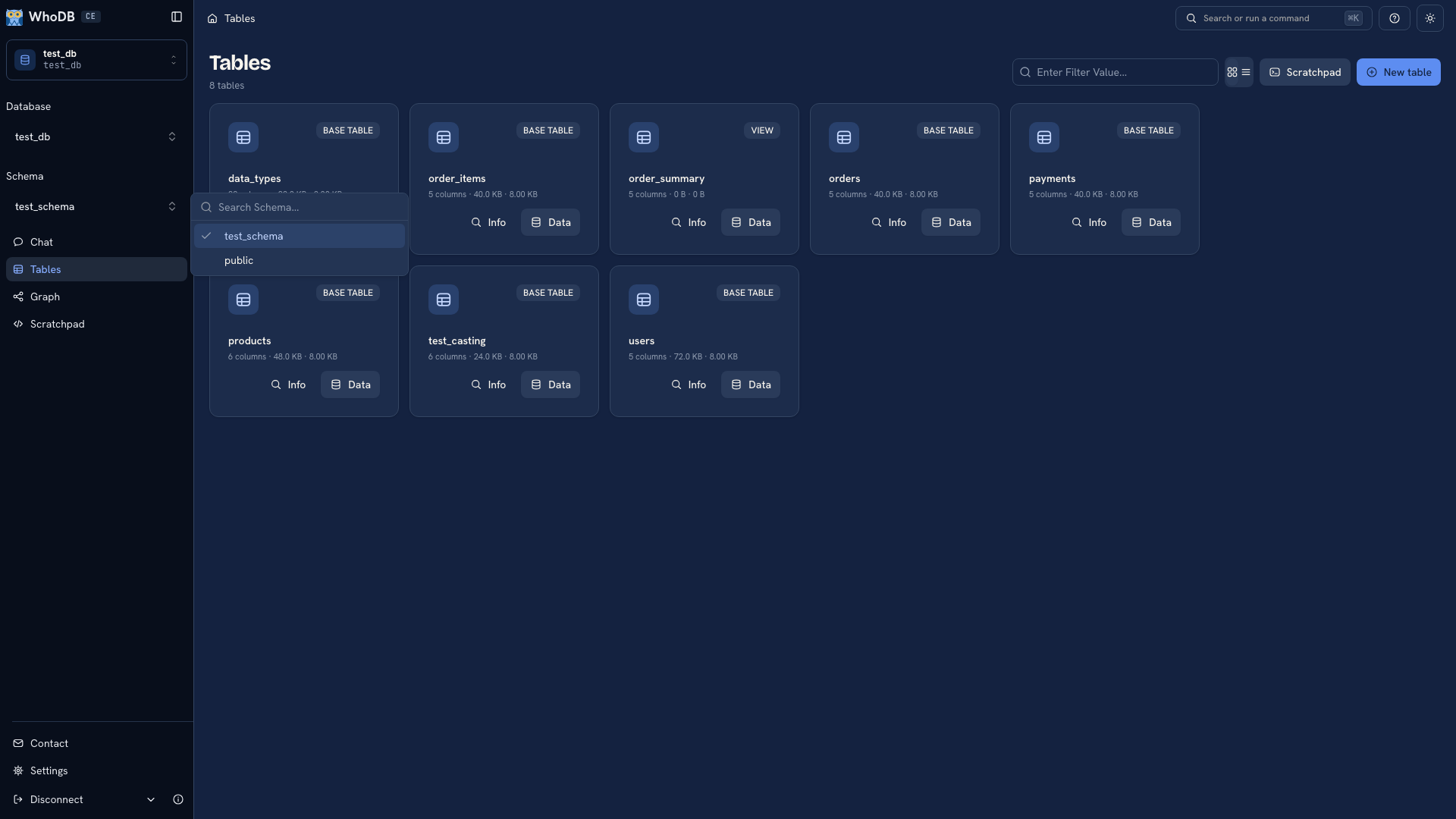 Schema selector in the sidebar
Treat the context as part of the task. For example, when checking a test fixture, confirm the development connection before opening the table. A familiar object name does not identify the environment by itself.
Open a view#
| View | Use it to |
|---|---|
| Chat | Ask a question using a configured AI provider |
| Tables / source object list | Find objects, inspect metadata, and open records |
| Graph | Follow relationships exposed by the source |
| Scratchpad | Run custom queries in pages and cells |
| Settings | Adjust your workspace preferences |
Views depend on the source's capabilities. Numbered navigation shortcuts follow the views available in the current workspace. Press ? to check the shortcuts rather than assuming a particular number always opens the same view.
Browse beside your work#
Chat, object data views, and Graph use a secondary list beside the main content. Search that list to find a conversation or object. Drag the divider when you need more room for long names or for the content you are inspecting.
On a small screen, choose Browse items to open the list. Selecting a chat or object returns to its content. In Graph, change the object selection and choose View content to return to the canvas.
The secondary panel follows the selected light or dark theme. The dark primary sidebar keeps the main navigation visually separate from the work area.
Jump to an action#
Open the command palette with Mod + K when you know the action you want but do not want to find it in the navigation. Search the available commands and choose the matching action.
Continue with Browse objects, or use Keyboard shortcuts for the full key reference.
Was this page helpful?