
Browse and inspect rows
Open an object's data when you need to inspect actual values, find a record, or make a small correction. From Tables, choose Data on the object. WhoDB shows the rows together with the filtering, sorting, and write actions supported by the source.
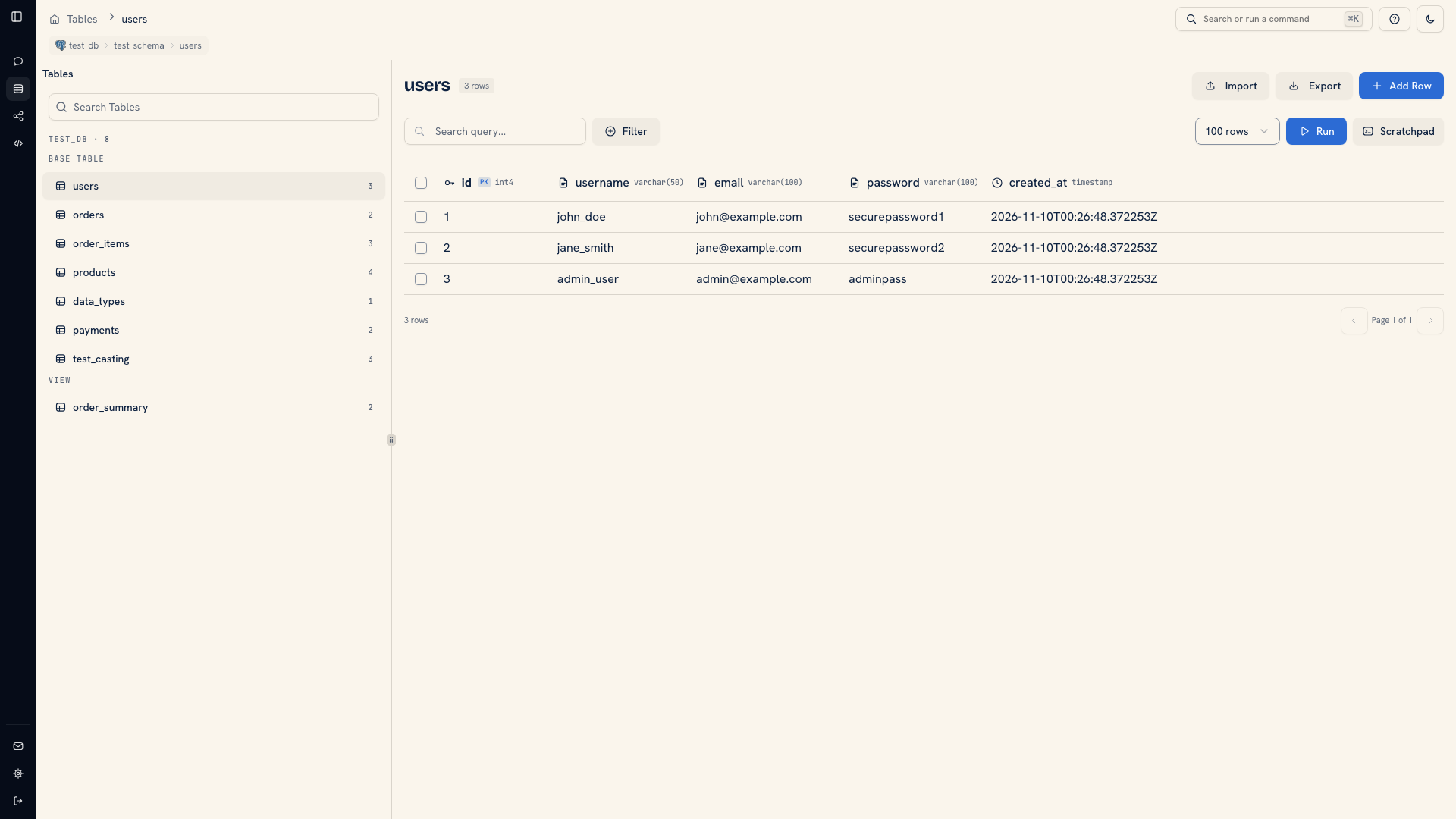 Rows in the data grid
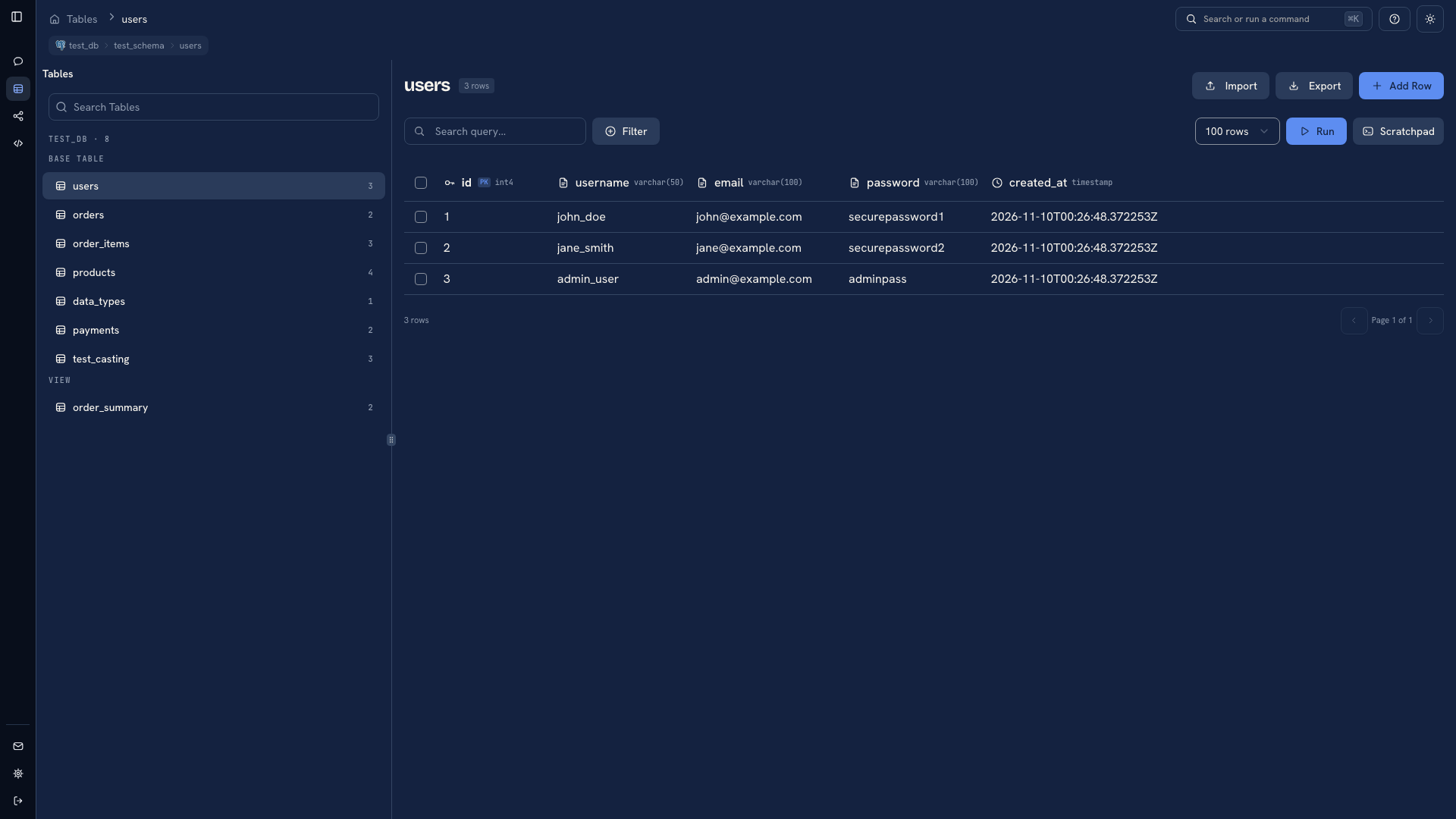 Rows in the data grid
Read the grid#
Check the object name and connection context before interpreting the data. Use the column headers to identify fields and the row count and pagination controls to understand the current result.
The loaded page is a sample of what the source returned for the current request. If you need one specific record, use Filter and Run rather than paging until it happens to appear. Search highlights text only in the records already loaded.
A sortable column header changes the requested ordering. Use a small page size while exploring, then increase it when more records help you compare values.
Copy and inspect values#
Click a cell to copy its value. In an editable object grid, double-click a cell to change it inline. The save bar distinguishes pending changes from values already written to the source.
Right-click a row to open the actions available for that record. Selection, editing, deletion, export, and other actions depend on the source and the connected account's permissions.
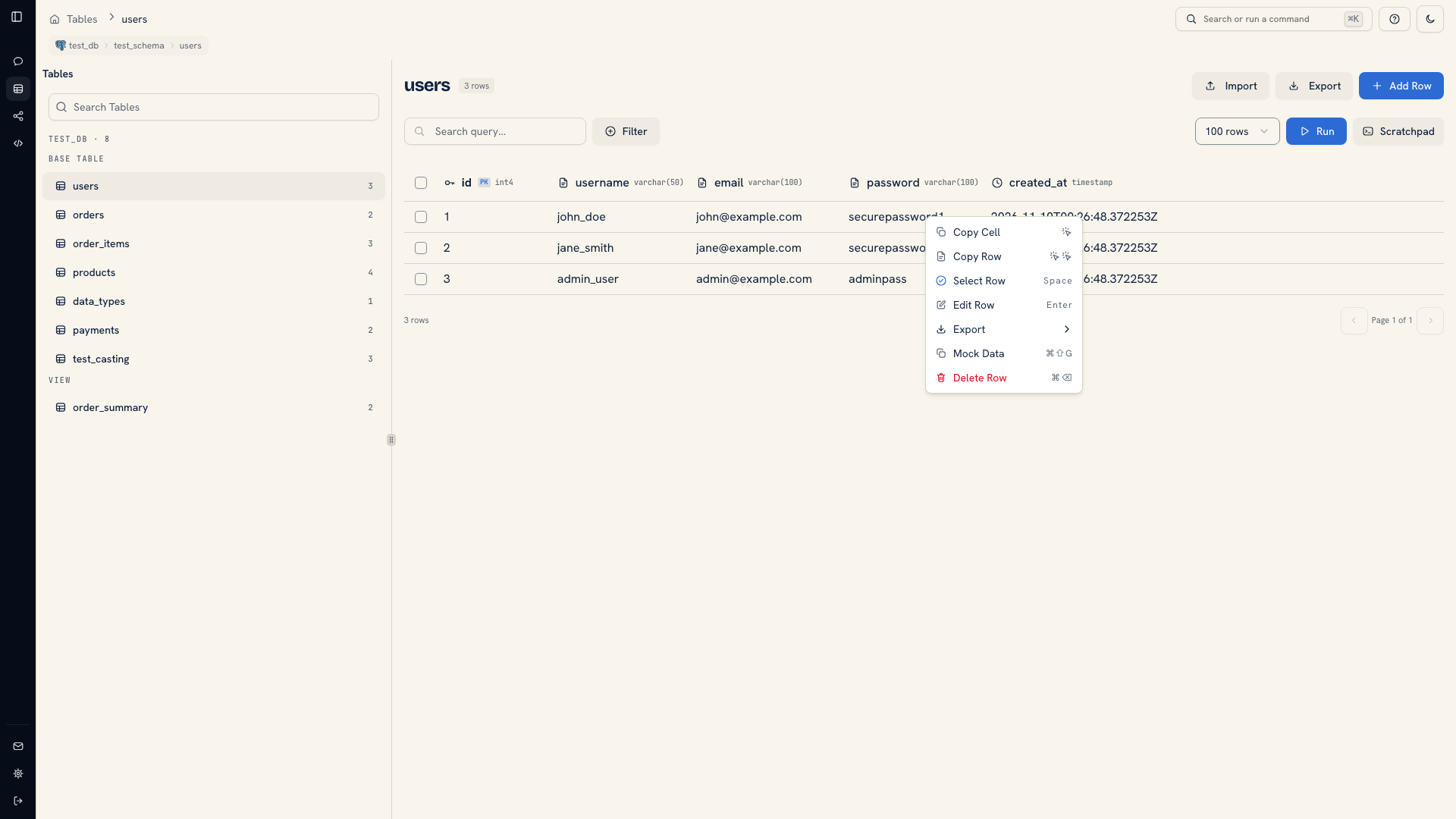 A row context menu
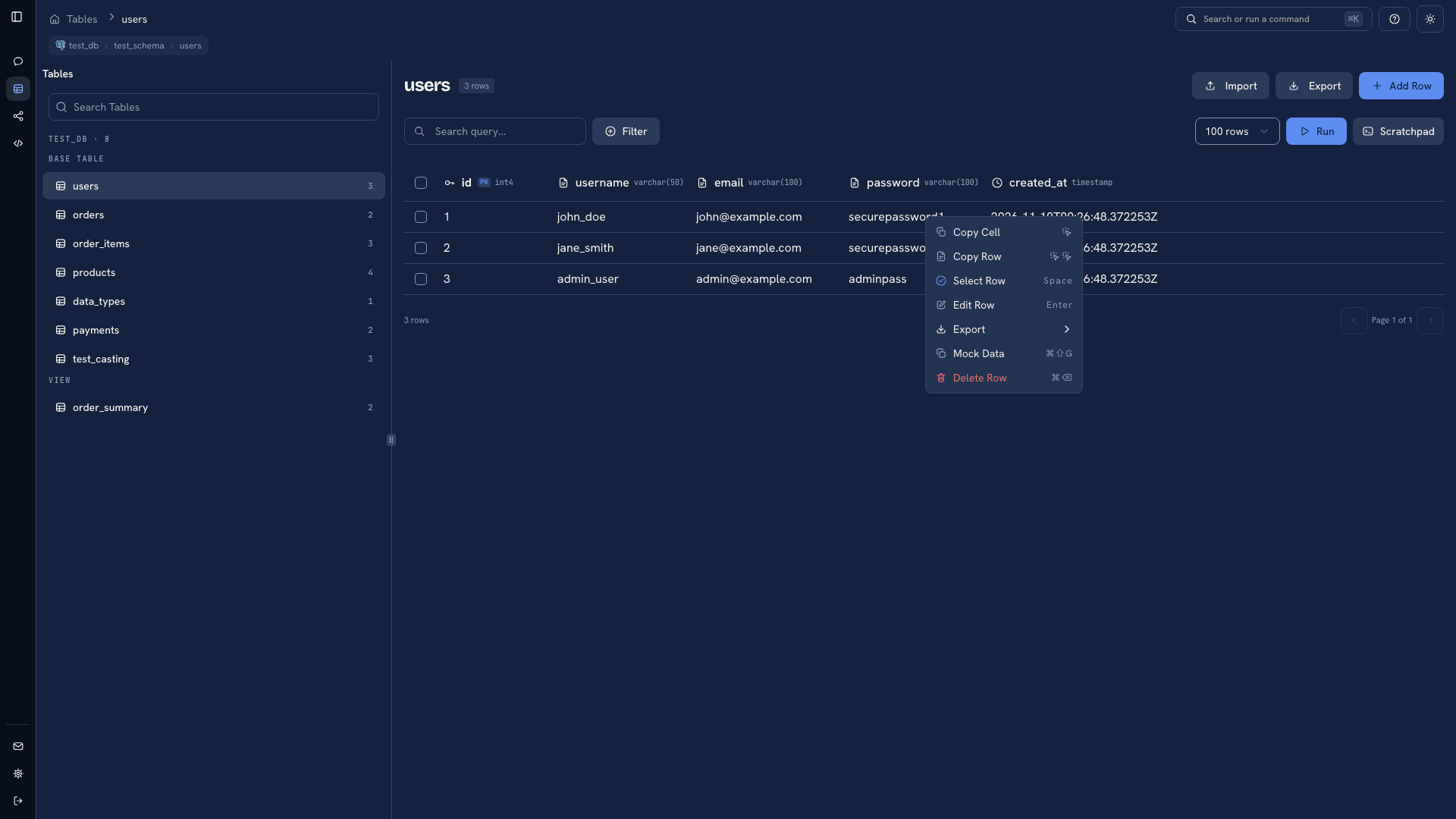 A row context menu
Query result grids in Scratchpad are read-only and keep their row-copy behavior on double-click. Return to the object's Data view when you need to edit a stored record.
Go further without losing the table#
Use the embedded Scratchpad action to open an editor beside the data view. This is useful for checking a count or a related record while the object remains in view.
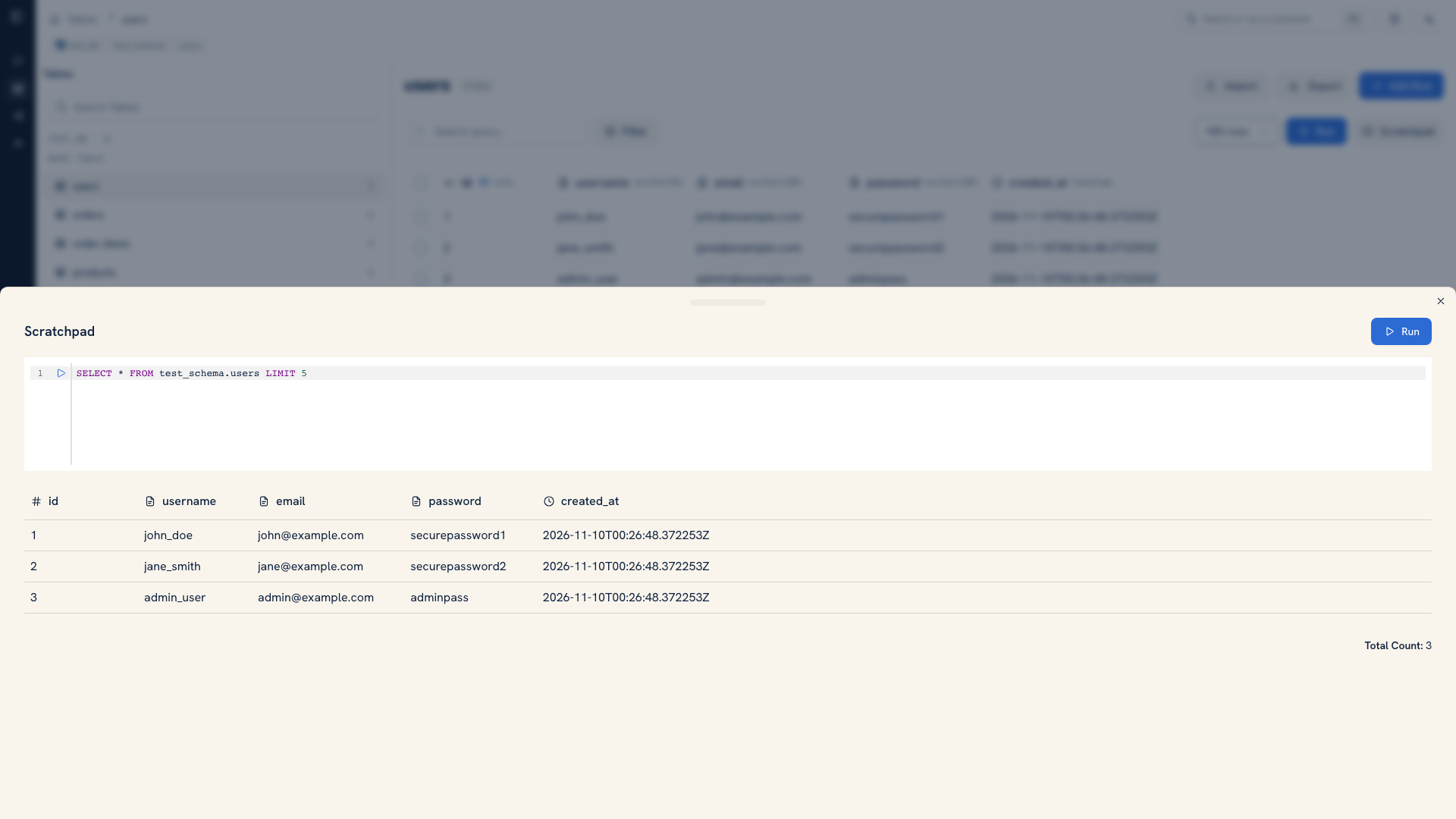 The embedded Scratchpad beside a data view
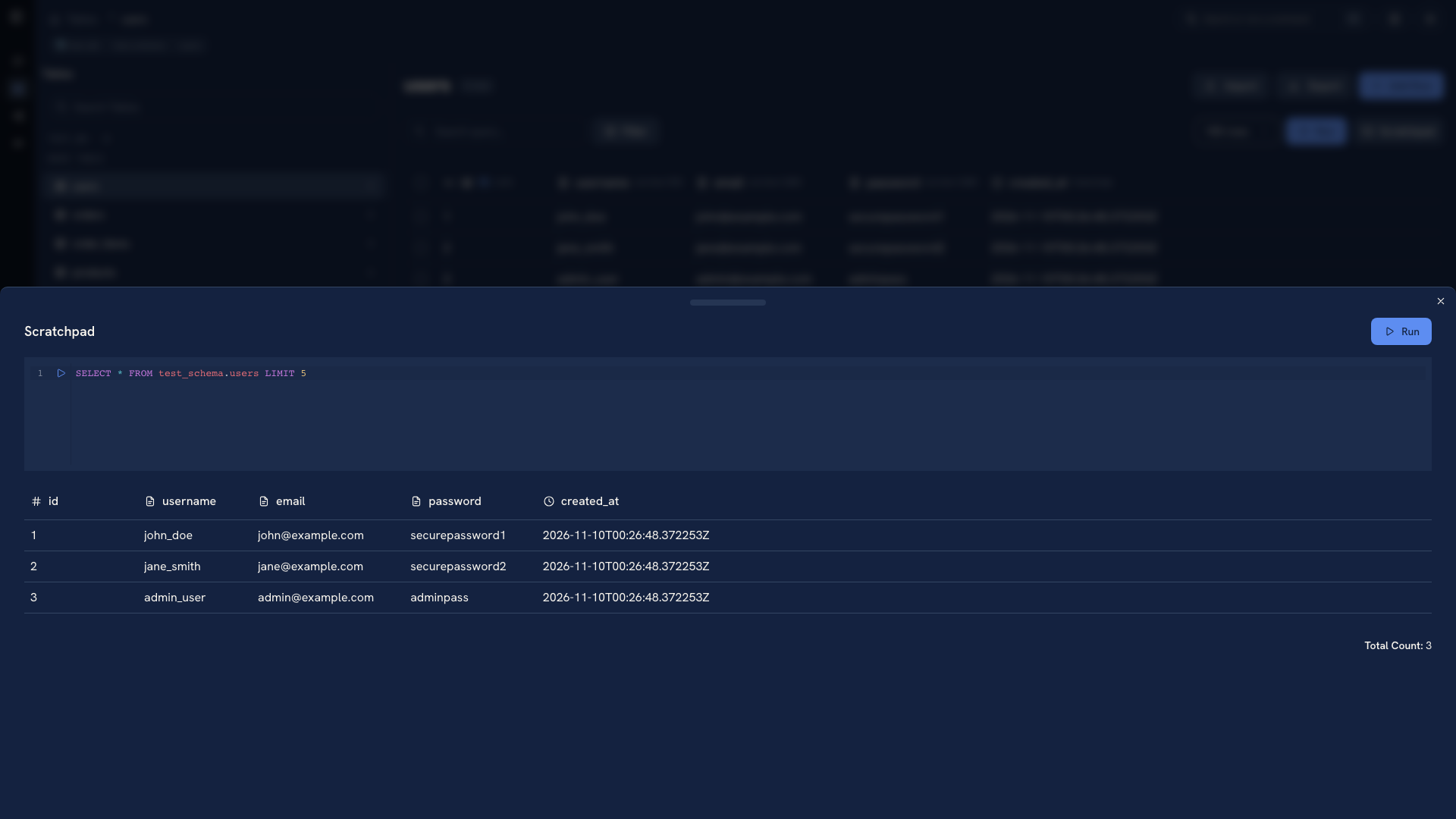 The embedded Scratchpad beside a data view
For an investigation with several queries, use the full Scratchpad. Put each question in its own cell so you can compare the query with its result.
Understand an empty result#
An empty grid can mean the object contains no records, the current filter matches nothing, or you opened a different database or schema than intended. Clear the filters, run the request again, and check the connection context before treating the result as evidence of missing data.
If you can see the object but a write action is absent, inspect its metadata and account permissions. A view, a source without that write capability, and a read-only account can require different next steps.
Next: Filter rows · Edit a row · Export data
Was this page helpful?