
Browse tables and source objects
Start in the object browser when you need to find where data lives. For SQL sources it is labeled Tables. Other sources use their own terms for objects such as collections or keys.
An object can be a table, a view, a collection, or another unit exposed by the source. Its available actions depend on what the source supports.
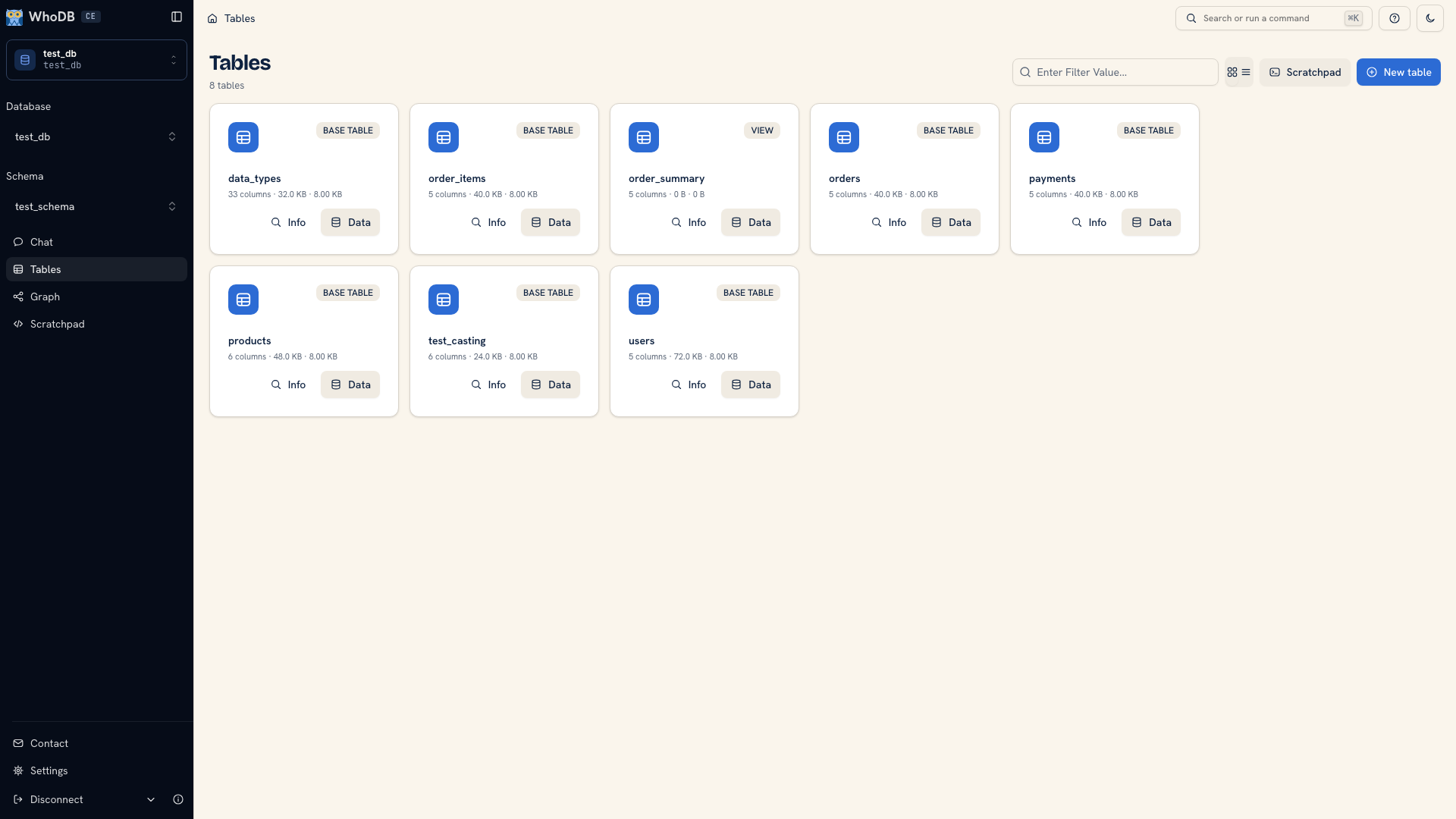 Storage Units and the application sidebar
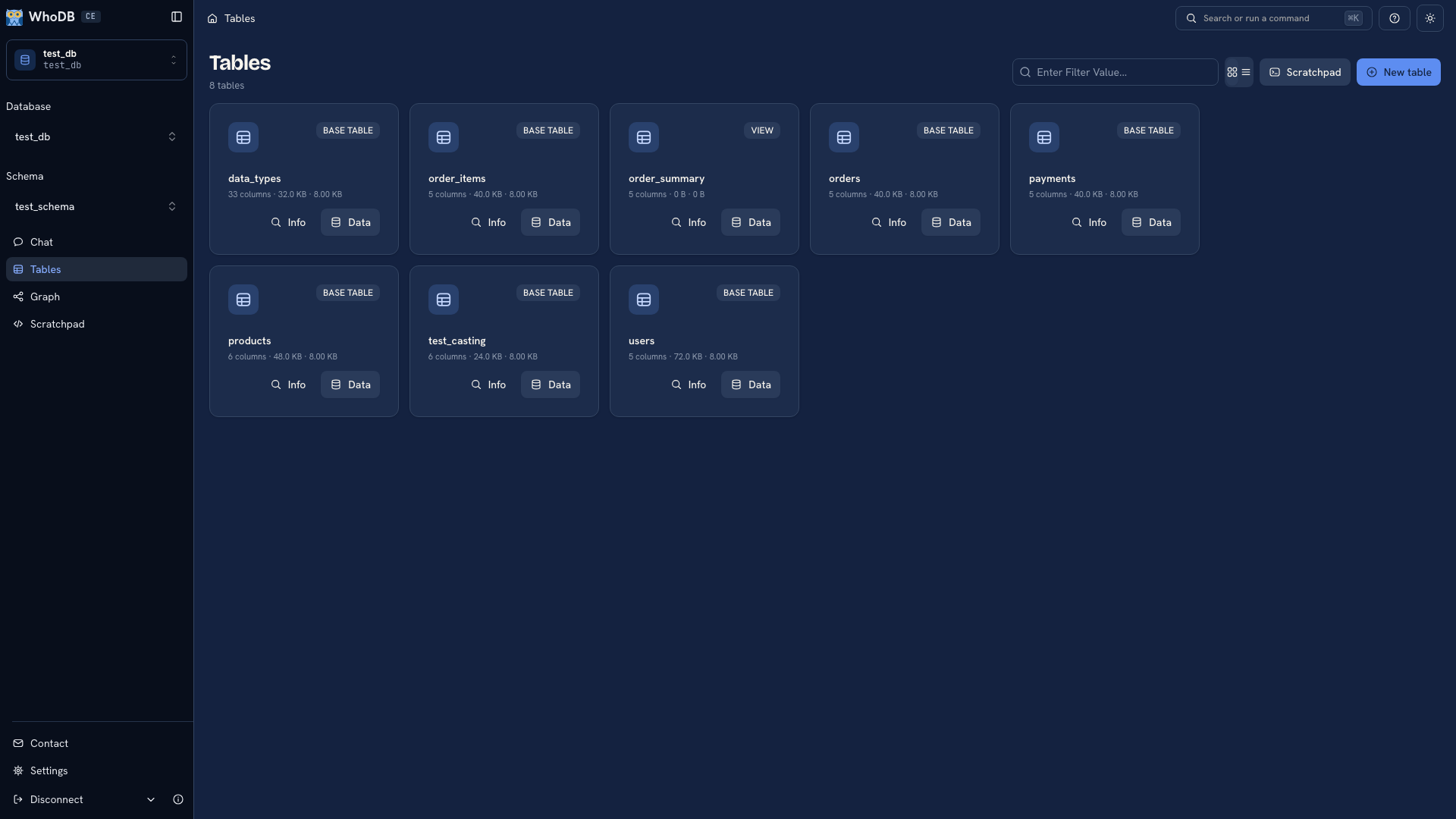 Storage Units and the application sidebar
Find an object#
Choose the database and schema in the sidebar where those selectors are available. Search by the object's name. This search narrows the object list; it does not search the values inside records.
If an expected object is missing, check the connection context and the database account's access before assuming it was deleted. An object in a different schema will not appear just because its name matches your search.
Switch between card and list views to suit the number of objects. Card view gives you room to inspect metadata. List view is useful for scanning names in a larger catalog.
Inspect structure or open records#
In card view, Info expands an object's metadata and fields. Use it to check names, types, and key information before writing a query. Data opens the object's records. In list view, hover over the row to reveal its data action.
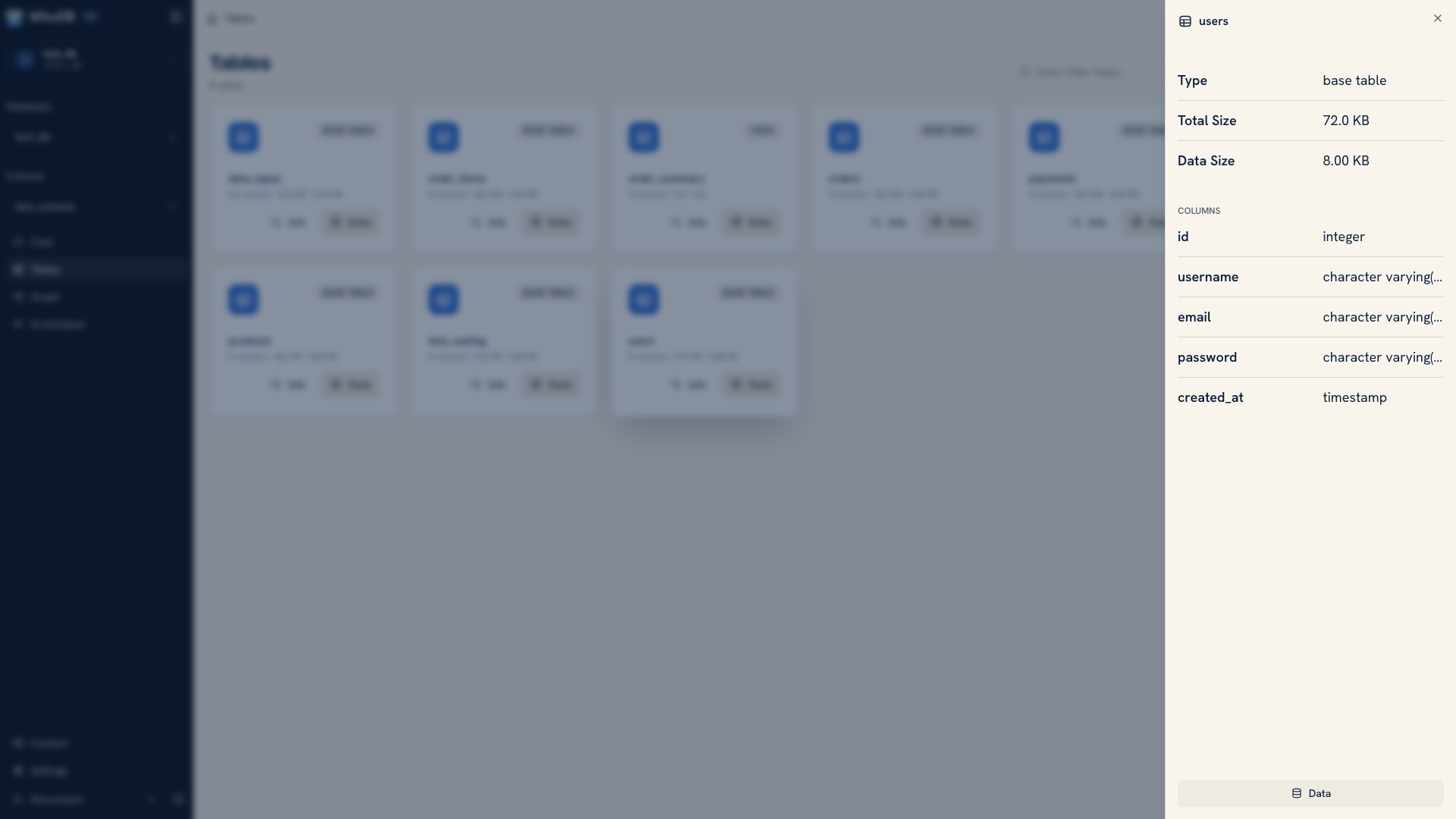 An expanded table card showing metadata and columns
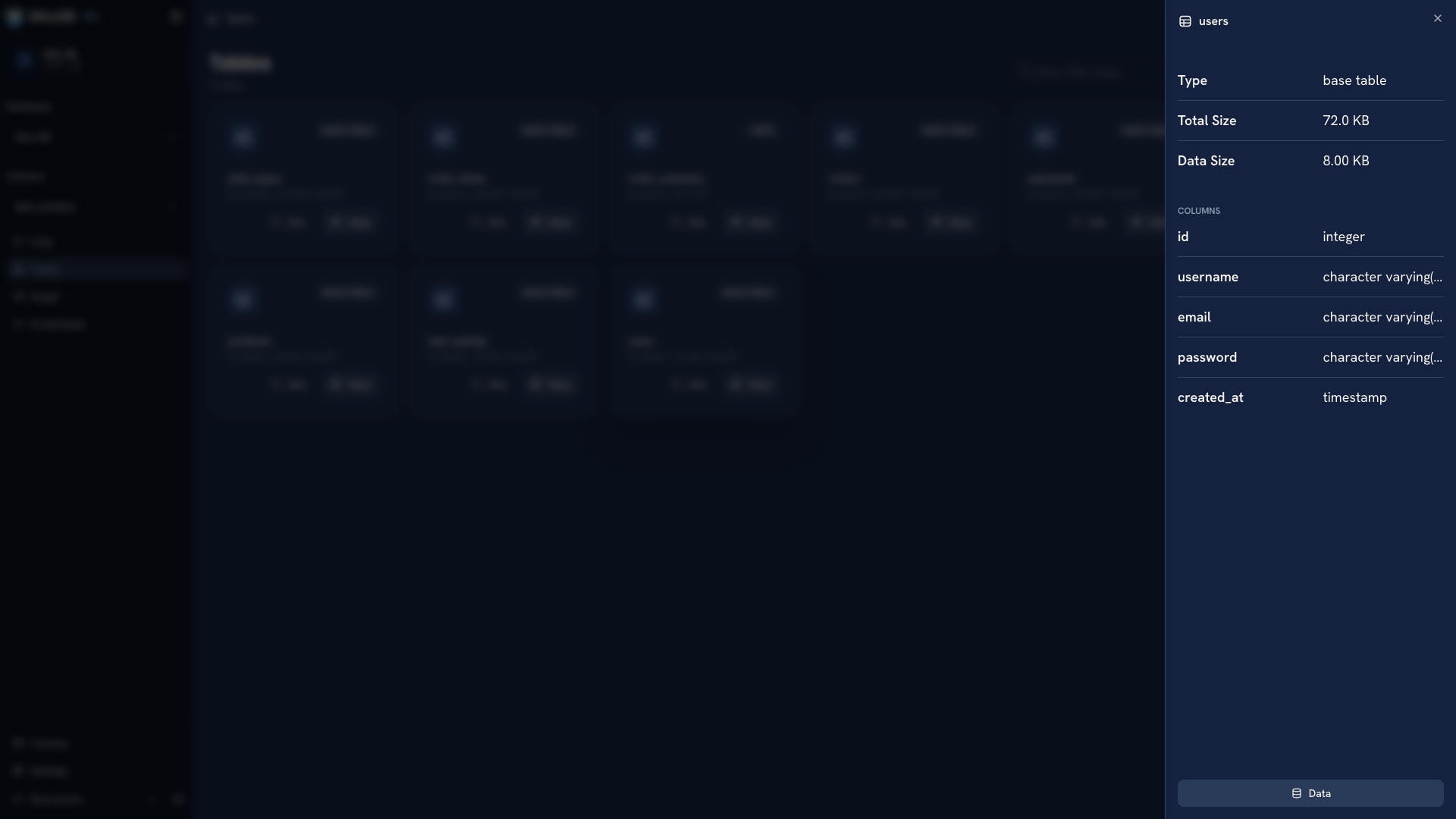 An expanded table card showing metadata and columns
Use the secondary object list beside a data view when you need to move between related objects. Search that list by name and select the next object. The main page header keeps the active context visible while you work.
Choose the tool for the question#
| You need to | Open |
|---|---|
| Check fields, types, and metadata | Info |
| Find, filter, or edit actual records | Data |
| Understand how objects relate | Graph |
| Join, aggregate, or run a custom statement | Scratchpad |
For example, inspect an order table's fields in Info, read one order in Data, then use Graph to find its relationship to users. You do not need to start with a custom query for every task.
Create an object#
For sources that support creation, use the create action on the Tables page. Define its name and fields using the options from the connected source. Creating an object changes the database; see Create tables and fields before submitting a definition.
If you are looking for records rather than object names, continue with Filter and Search.
Was this page helpful?