
Start with your first database
WhoDB is a client for a database you already have. It gives you a way to inspect that database's structure and records before you need to write a query.
Understand the connection#
A network database runs on a server and accepts connections at a hostname and port. Your database account determines which data you can read or change. Ask the person who manages the database for its type, host, port, database name, username, password, and TLS settings.
For SQLite or DuckDB, you may have a database file instead. That file must be accessible to the machine running WhoDB. Opening WhoDB in your browser does not give a remote server access to files on your laptop.
Install WhoDB with Installation, then follow First connection. Use a development database or an account limited to reading while learning.
Read your first table#
After connecting, open Tables and choose an object you recognize. For a SQL database, a table holds records in rows and named fields in columns. For example, a users table might have one row per user and columns for ID, username, and email.
Expand Info to see the field definitions, then choose Data to inspect records.
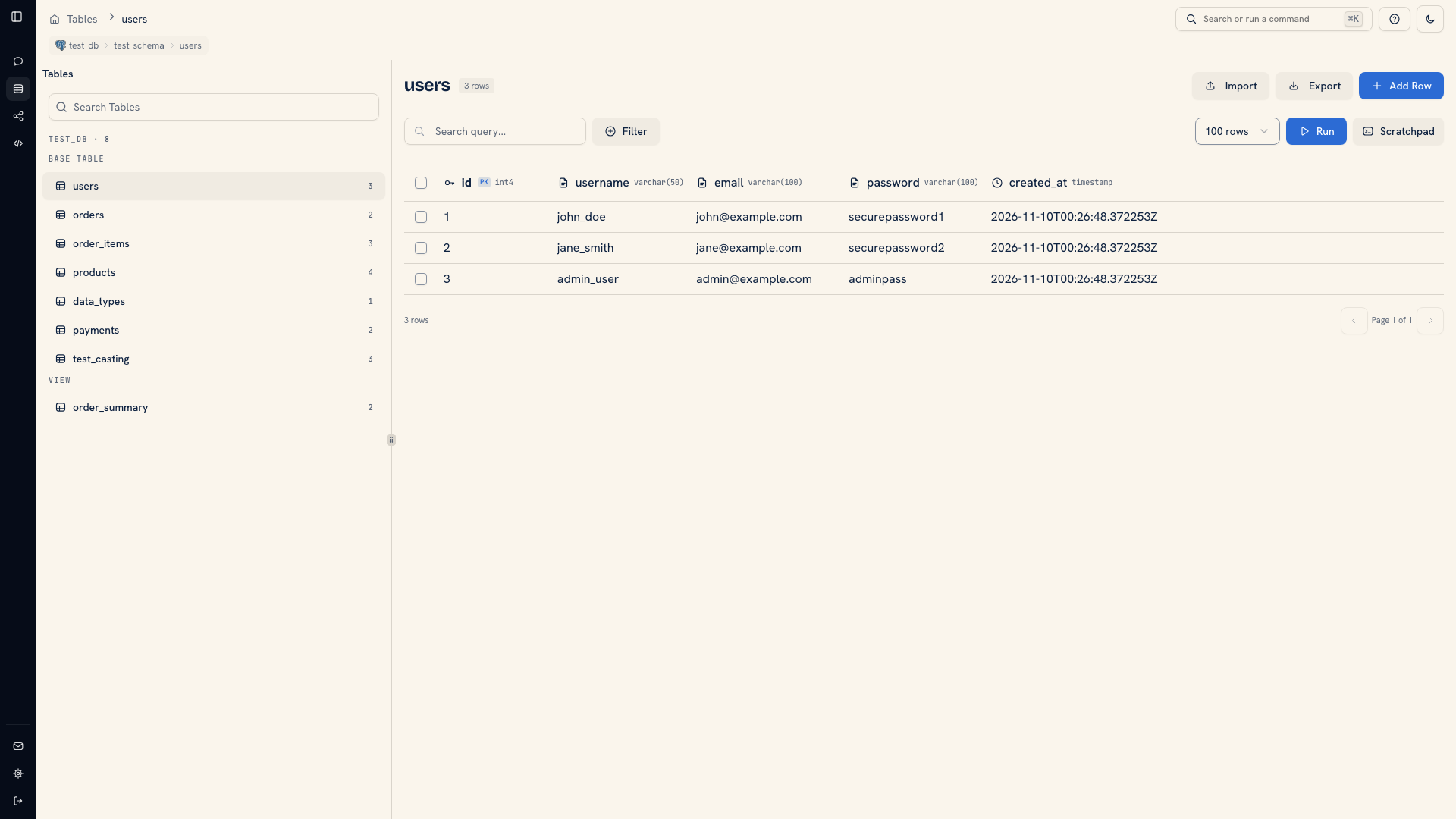 A table opened in the grid
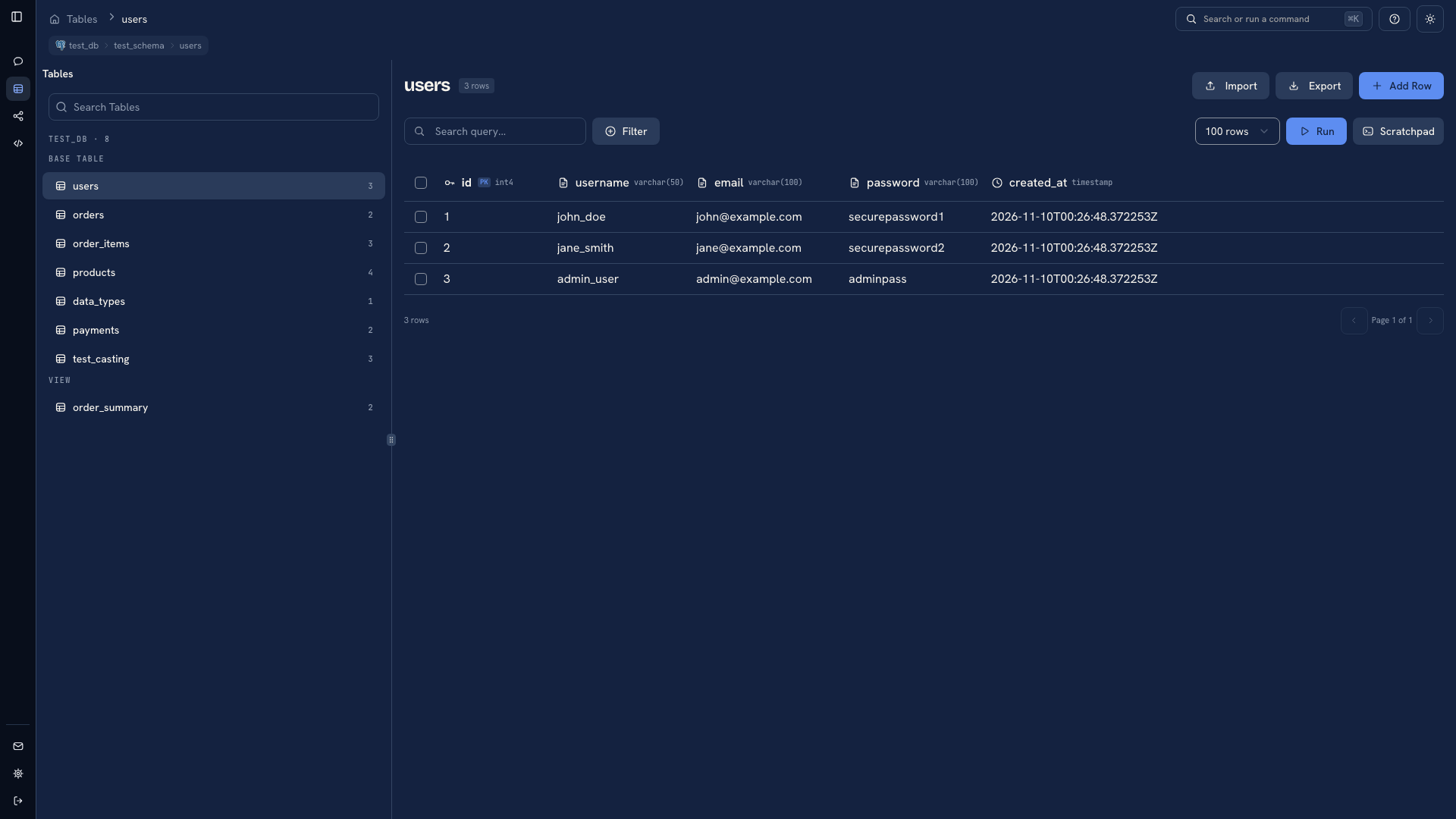 A table opened in the grid
A page only shows part of a large table. Use pagination to move through it. To find a particular record, open Filter, choose a field such as ID, enter a value, and click Run. Text Search only looks through the rows already loaded.
Try a small query#
Open Scratchpad on a SQL source and run:
SQL
SELECT 1;
This checks query execution without depending on a table. Continue with Writing queries to select records from your own schema. The result appears directly below the editor.
You can browse and query without AI. If you want help drafting SQL in plain language, configure a Chat provider after you are comfortable identifying the right tables and fields.
Was this page helpful?