
Find the right rows
Use Filter to ask the database for matching records. Use Search to find a value in the page you already loaded. Choosing the right one prevents a common mistake: assuming that a record does not exist because Search cannot find it on the current page.
Filter at the database#
- Open the object's Data view.
- Click Filter.
- Choose a field, an operator, and a value.
- Add other conditions if needed.
- Click Run to load matching rows.
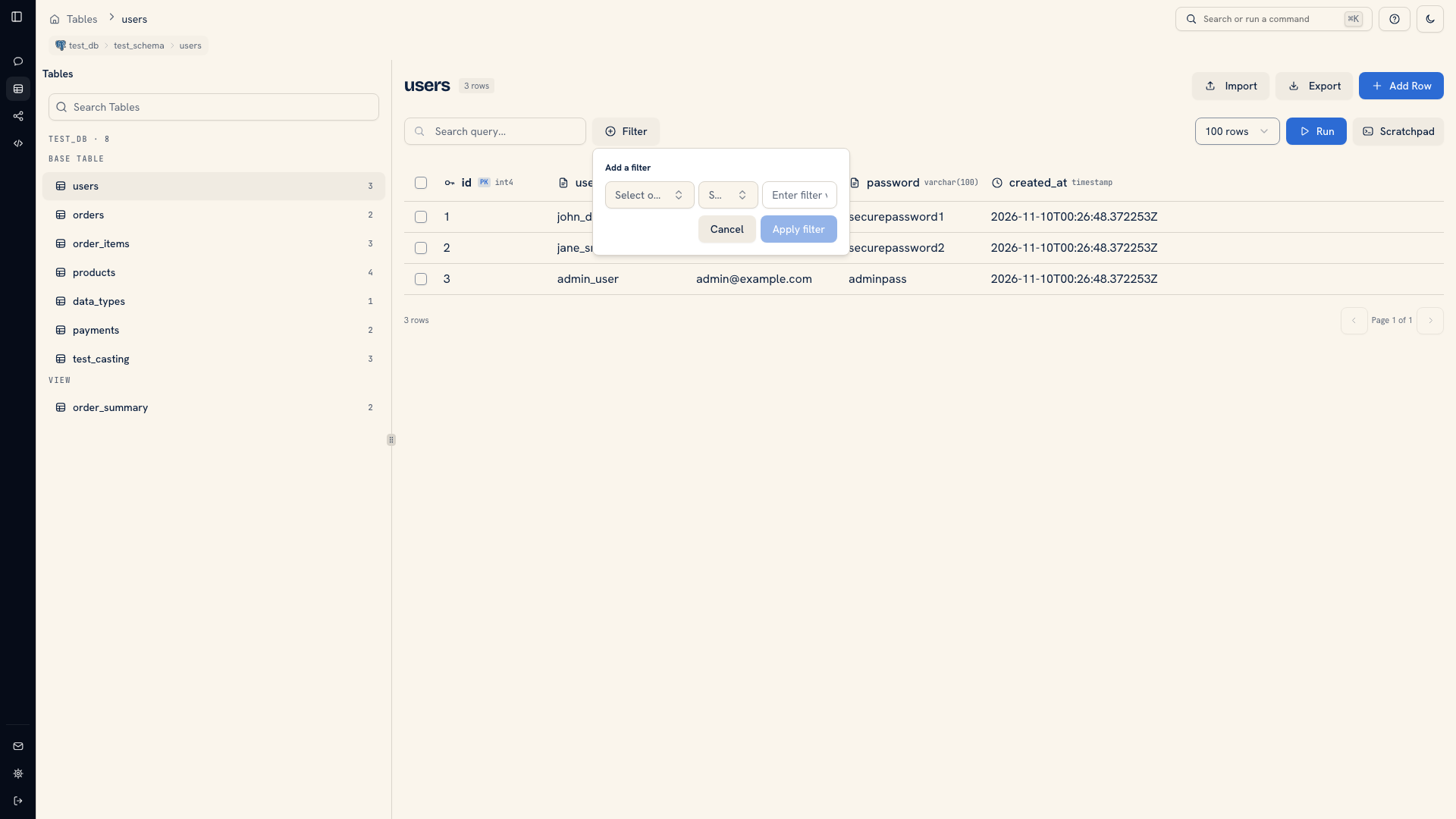 The WHERE condition builder
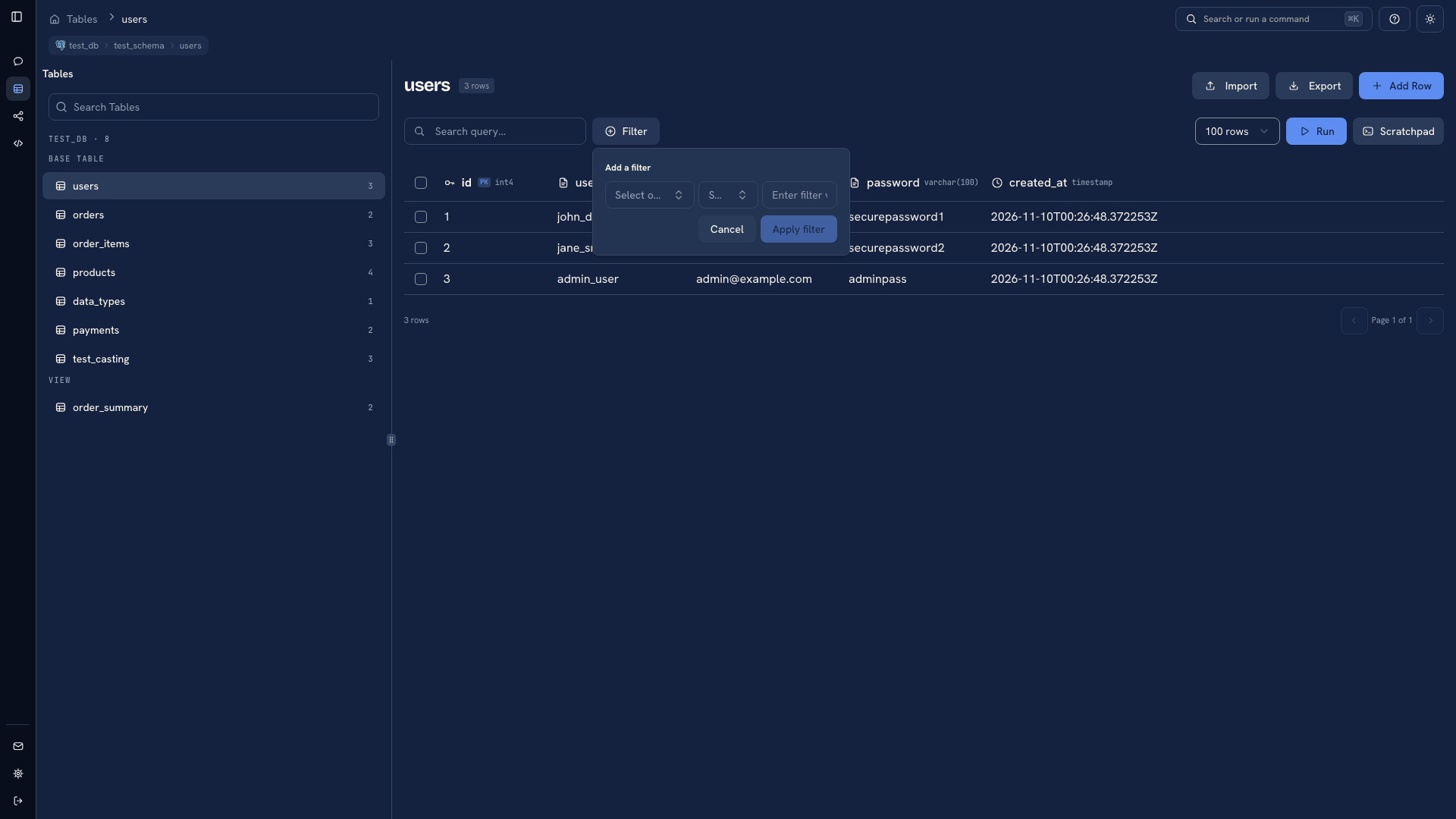 The WHERE condition builder
For example, to investigate orders belonging to a particular user, add a condition on the user identifier. This asks the source for the relevant records instead of loading arbitrary pages and looking through them manually.
Operators depend on the source and field type. Choose an operator from the builder and enter a comparison value, not a SQL expression. Review whether a boundary includes or excludes the value itself.
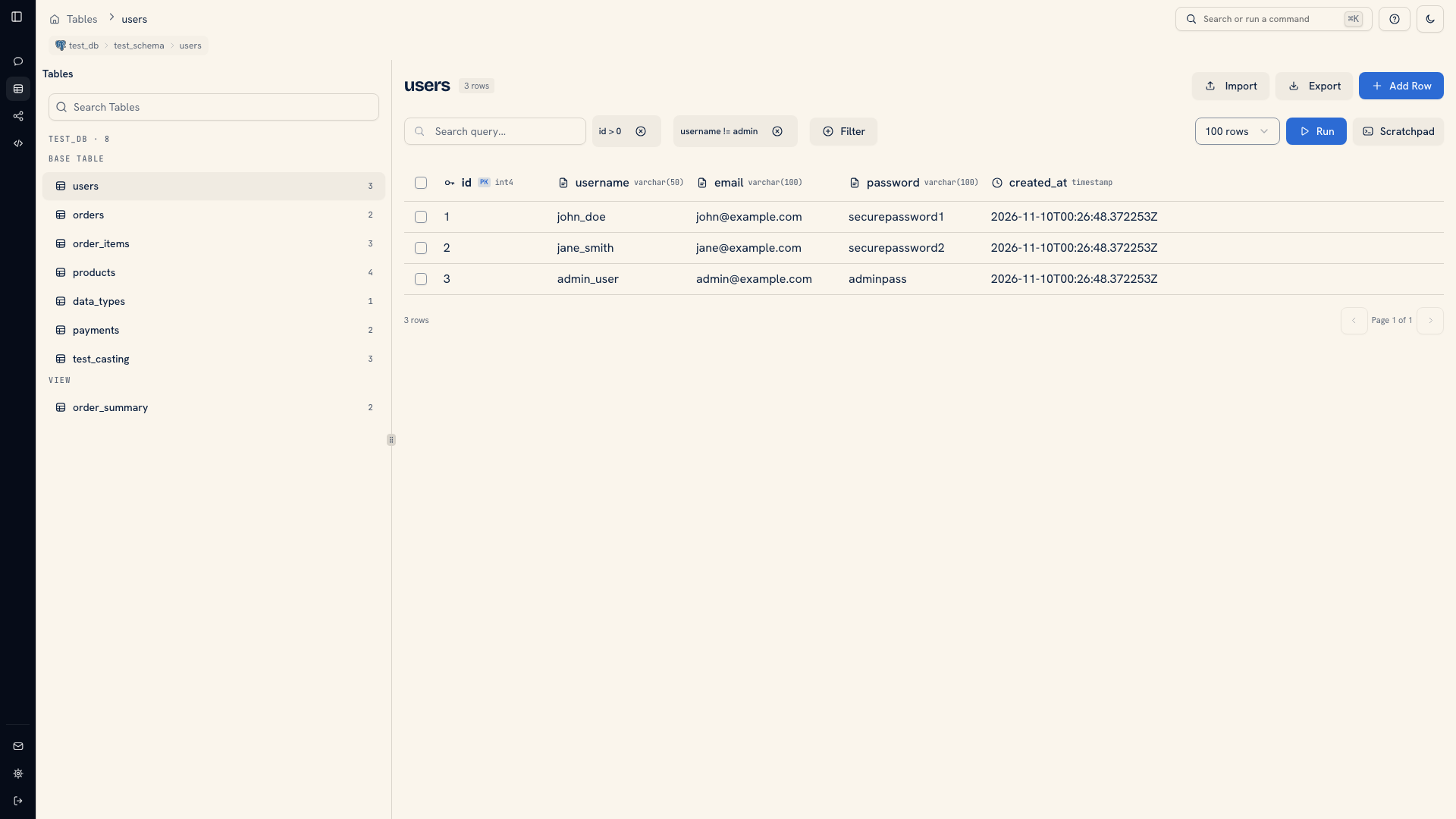 Multiple conditions in the data view
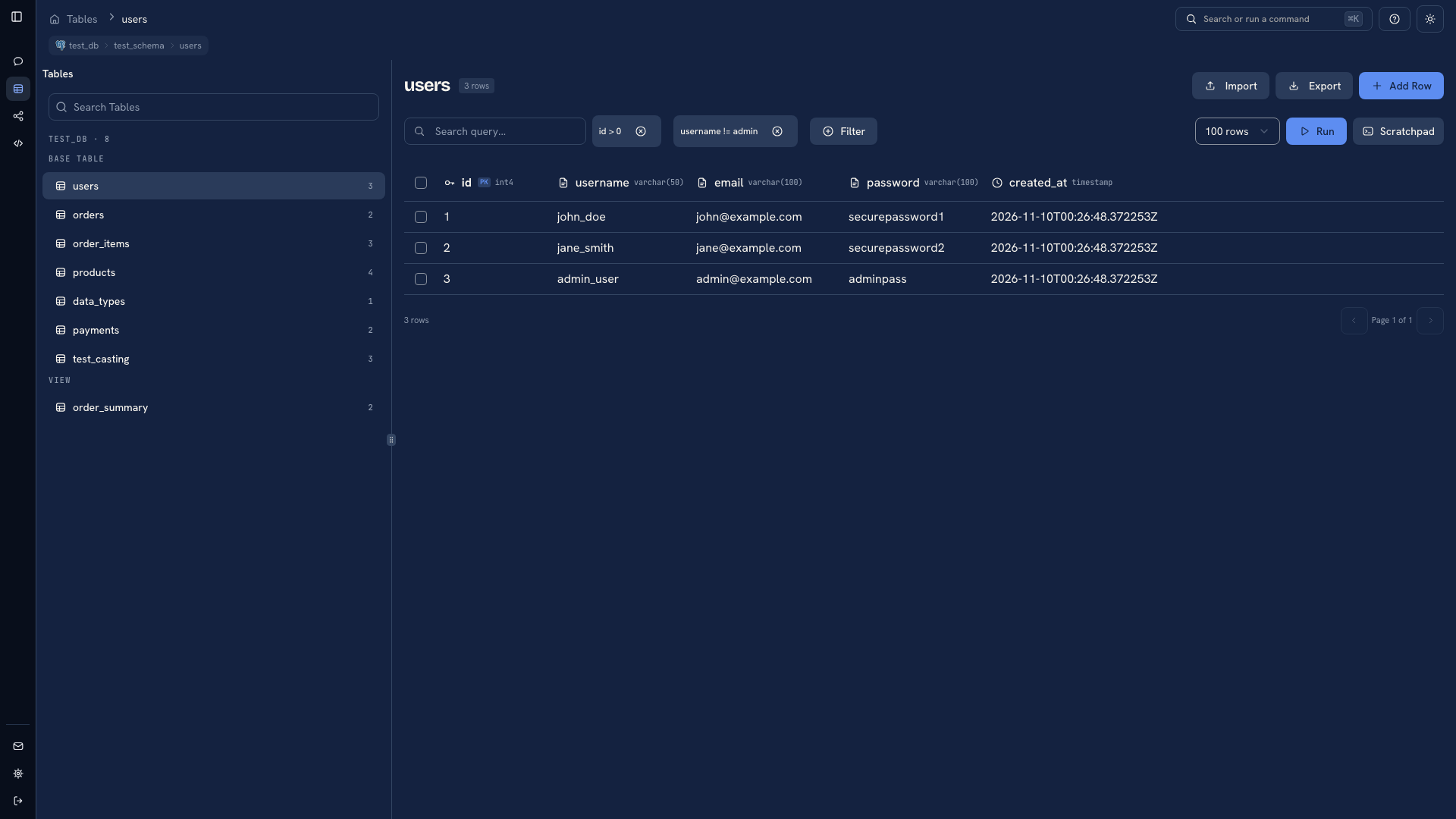 Multiple conditions in the data view
The condition badge shows that filters are configured. If you change a condition, click Run again to apply it. Compare the returned records to a known example before relying on the result.
Search the loaded page#
Enter text in Search to highlight matches and move between matching values. Search does not request unloaded records or change the database result count.
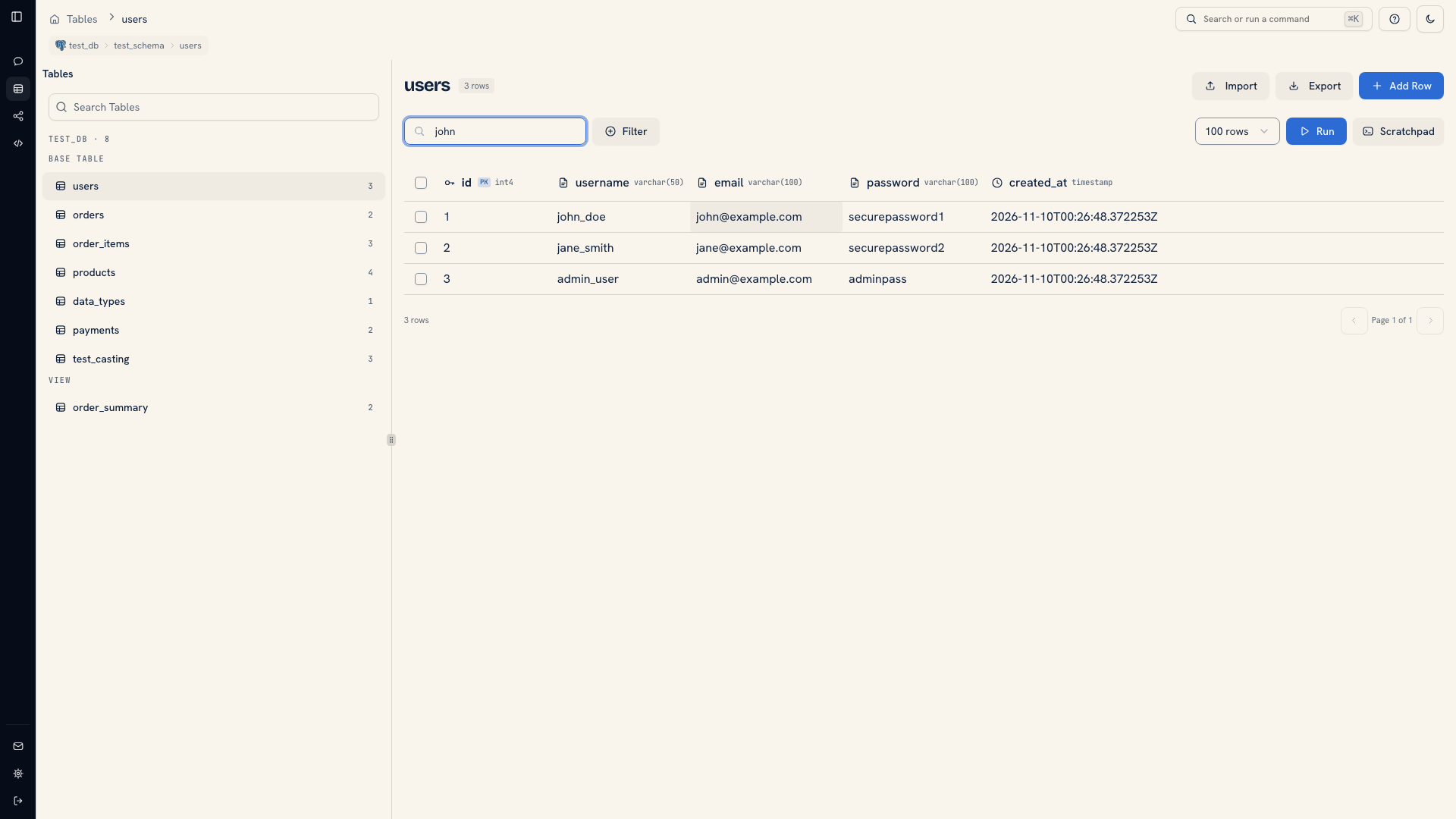 Search highlighting a value in loaded rows
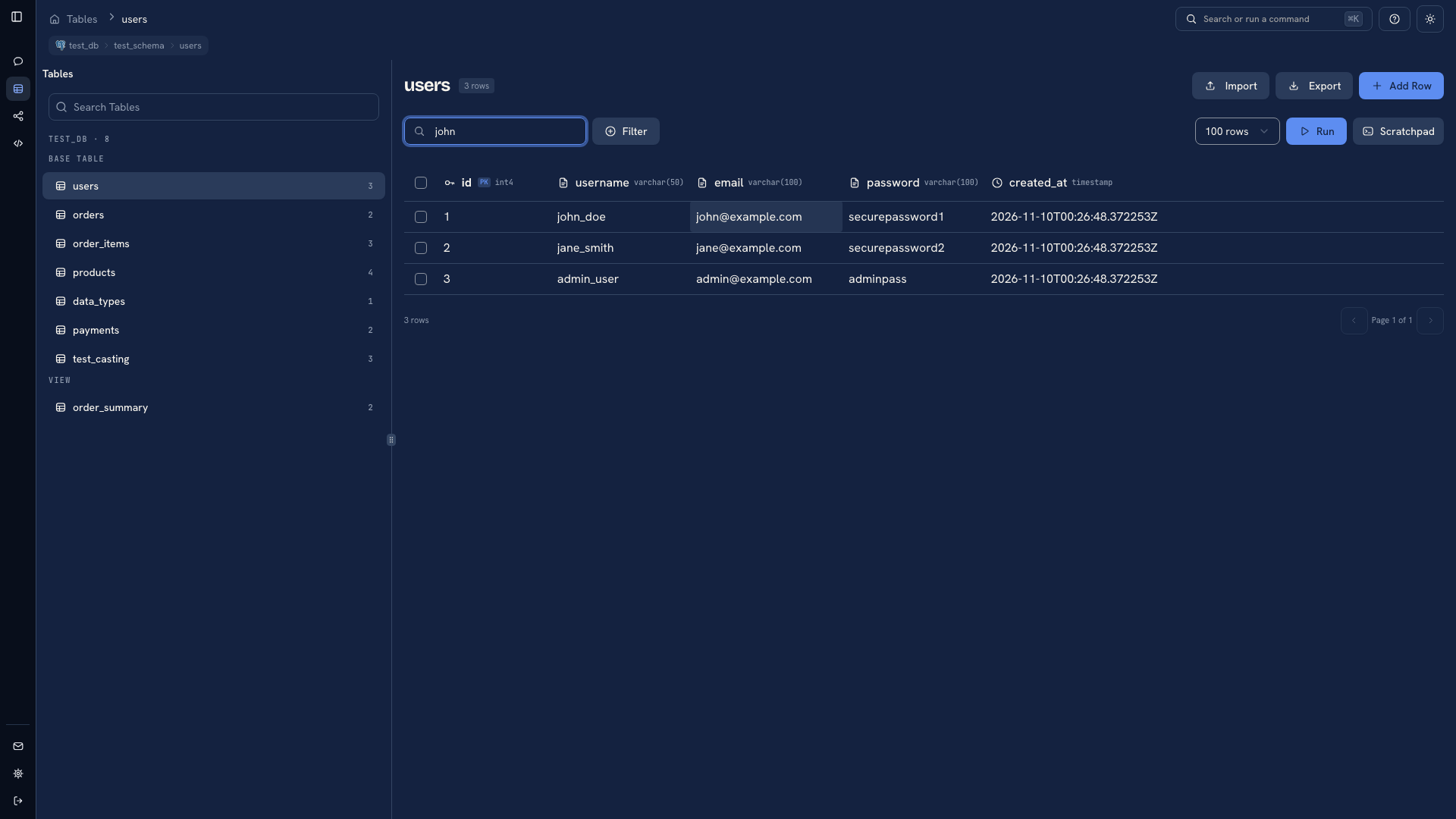 Search highlighting a value in loaded rows
If you know a record's key but cannot find it with Search, add a database filter for that key. If you are checking a value you can already see in the grid, Search is the quicker tool.
Clear or extend the query#
Remove conditions and click Run to return to the unfiltered result. If a filter returns no records, check one condition at a time and confirm the active database and schema.
Use Scratchpad for joins, calculated fields, or a more complex predicate. If you need an exported file containing only the matching set, export that query's result. A whole-object export, including Export with no rows selected, exports the object's contents rather than carrying the grid filter into the file.
The condition builder can open as a popover or a larger sheet. Choose that preference in Settings, or read WHERE condition details.
Was this page helpful?